Computer Wires Types You Should Know
Published: 10 Jul 2026
Have you ever looked behind your computer and felt confused by all the tangled wires? You are not alone. Many people see different cables and do not know what each one does. Some wires carry power. Some send data. Some connect screens, keyboards, and the internet. But everything looks the same at first glance. This confusion often creates real problems.
A wrong cable can slow your system, break your connection, or stop your device from working properly. Many beginners also waste time trying to figure out which wire goes where. It can feel frustrating and messy. That is where understanding the types of computer wires becomes very helpful. Once you know the basics, everything starts to make sense. You can easily identify cables like USB, HDMI, Ethernet, and power cords.
You also learn where each one is used in real life, like connecting a monitor, charging a laptop, or running fast internet. In this guide, you will easily understand the main types of computer wires in a simple and clear way. Each cable will be explained with easy examples. By the end, you will feel more confident handling your computer setup without confusion or stress.
What are Computer Wires?
Computer wires are simple cables that help your computer work with other devices. They carry power, data, and signals between parts of a system. Without these wires, your computer cannot run properly or connect with screens, printers, or the internet. For example, a power cable gives electricity to your PC. A USB cable moves files from your phone to your computer. An HDMI cable connects your computer to a monitor or TV for display. These computer cables make daily tasks easy, like printing documents, watching videos, and browsing the internet.
What are the Different Types of Computer Wires?
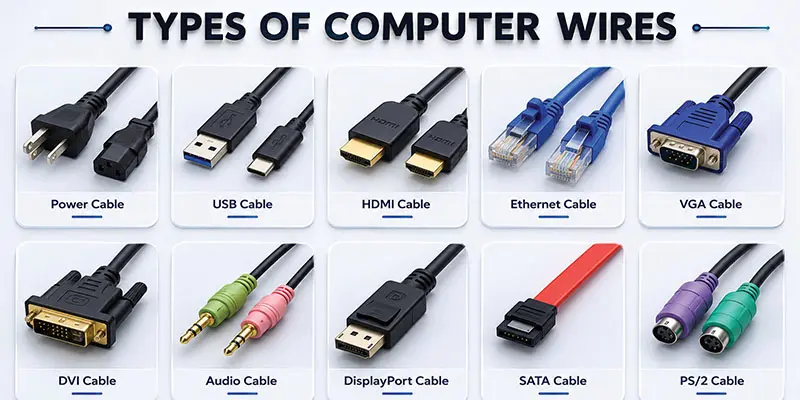
Computer wires are essential parts that connect devices and help in transferring power, data, and signals in a computer system. Here are the types of computer wires:
- Power Cable
- USB Cable
- HDMI Cable
- Ethernet Cable
- VGA Cable
- DVI Cable
- Audio Cable
- DisplayPort Cable
- SATA Cable
- PS/2 Cable
Power Cable
A power cable gives electricity to your computer so it can turn on and work properly. It connects the computer to a power socket in your home or office. Without it, your PC or monitor cannot start. It is usually thick and strong for safety. For example, a desktop computer uses a power cable to run every day. It helps keep your device powered and stable during use.
USB Cable
A USB cable helps connect devices so they can share data or get power. It helps you move files between a computer and phone or other gadgets. It can also charge devices like mobile phones and tablets. For example, you can connect your phone to a laptop using a USB cable to copy photos or videos easily. It is one of the most common computer wires used every day.
HDMI Cable
An HDMI cable connects your computer to a monitor, TV, or projector. It sends both video and sound in high quality through one wire. This helps you watch movies or play games on a bigger screen. For instance, you can link a laptop with a TV using an HDMI cable to watch videos in high quality and smooth playback.
Ethernet Cable
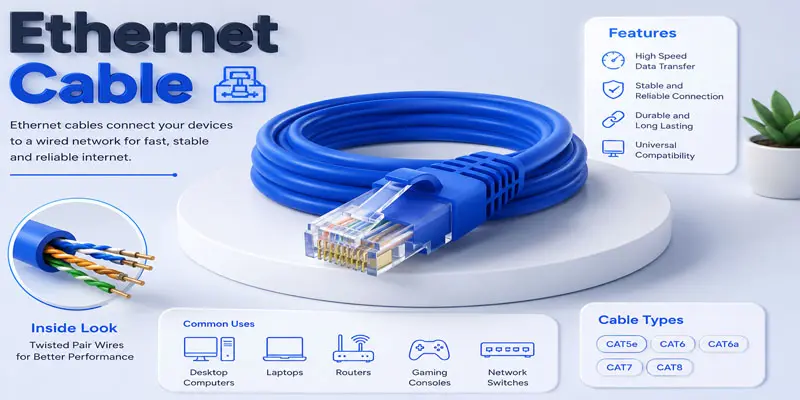
An Ethernet cable is used to provide a wired connection that links your computer directly to the internet. It gives a fast and stable internet speed compared to Wi-Fi. It is commonly used in offices, schools, and homes. For example, you can plug an Ethernet cable into your laptop and router to enjoy smooth internet without interruption.
VGA Cable
A VGA cable connects a computer with a monitor or projector to display visual output. It sends video signals so you can see images on the screen. It is mostly used in older computers and displays. For example, you can use a VGA cable to connect a desktop PC to an old monitor for showing presentations or work.
DVI Cable
A DVI cable connects a computer to a monitor to show clear video. It gives better picture quality than VGA in many cases. It is often used in desktop computers and older display systems. For example, you can use a DVI cable to connect your PC to a monitor for sharp and stable visuals.
Audio Cable
An audio cable is used to send sound from one device to another. It connects speakers, headphones, or computers to play audio clearly. It helps you enjoy music, videos, and calls with good sound quality. For example, you can connect your computer to external speakers using an audio cable to get louder and better sound.
DisplayPort Cable
A DisplayPort cable connects a computer to a monitor to show video and sound in high quality. It is often used for gaming and professional work because it supports clear and fast display. For example, you can use a DisplayPort cable to connect a PC to a high-resolution monitor for smooth graphics and better performance.
SATA Cable
A SATA cable connects storage devices like hard drives and SSDs to the computer. It helps transfer data quickly between the storage and the motherboard. It is commonly used inside desktop computers. For example, a SATA cable connects your hard drive to the PC so you can save and access files easily.
PS/2 Cable
A PS/2 cable is used to connect a keyboard or mouse to a computer. It is an older type of connection and is mostly found in old desktop systems. It helps send input signals to the computer. For example, you can plug a PS/2 keyboard into a desktop PC to type and give commands.
How can you identify different computer wires?
Learning how to identify different computer wires helps you easily understand which cable is used for power, data, and device connections.
- You can identify computer wires by looking at their shape and connector type. Each cable has a different plug. For example, a USB cable has a small flat connector, while an HDMI cable has a wider and flat end.
- Check the color and size of the wire. Power cables are usually thick and strong. USB cables are small and light. Ethernet cables are slightly thick with a clear plastic clip at the end.
- Look at the device connection point. A monitor uses HDMI, VGA, or DisplayPort cables. A keyboard or mouse often uses USB or PS/2 cables. This helps you match the wire with the device easily.
- Read the labels printed on the cable. Many wires have names like “HDMI,” “USB,” or “LAN” written on them. This makes identification simple for beginners.
- Use the port shape on your device as a guide. For example, a rectangular port usually fits a USB cable. A narrow port with a clip fits an Ethernet cable.
- Follow a real-life example: If you want to connect the internet using a wire, look for the Ethernet cable. It has a clip and connects from router to computer.
- Another example: If you want to watch movies on a big screen, choose an HDMI cable. It connects your laptop to a TV or monitor easily.
- You can also take a quick reference photo of cables and compare them online when you are confused.
- Always handle wires carefully and check both ends before plugging them in. This helps avoid damage and keeps your devices safe.
What is the importance of computer wires?
Computer wires are very important because they help your devices work together in a simple and stable way. They carry power, data, and signals between different parts of a computer system. Without these cables, a computer cannot run or connect with other devices. For example, a power cable gives electricity to your desktop. A USB cable helps you transfer files from a phone to a computer.
An HDMI cable lets you link a laptop to a TV so you can enjoy videos on a larger display. These cables help improve work speed and make connections more dependable. An Ethernet cable also provides a steady internet connection without interruptions. Audio cables help you connect speakers for clear sound during music or calls. In real life, schools use computer wires in labs to connect systems. Offices use them for printers, monitors, and networks. Even home setups depend on these cables for smooth daily use. Overall, computer wires keep everything connected, powered, and working properly.
What are the common problems with computer wires?
Computer wires often face different common problems that can affect performance, connection, and daily use of your devices.
- Computer wires can get damaged or broken over time. This happens when they are bent too much or pulled hard. For example, a laptop charger cable may stop working after rough use.
- Many users face loose connections. When a cable is not plugged in properly, the device may not work. For example, an HDMI cable can cause a blank screen if it is not fixed tightly.
- Slow performance or weak signals can also happen. A bad Ethernet cable may slow down your internet speed during work or online classes.
- Some wires face wear and tear near the ends. This makes charging or data transfer unstable. USB cables often show this problem after long use.
- Cable confusion and mixing are another issue. People sometimes use the wrong wire for the wrong device, which can cause errors or no connection.
- In real life, students in computer labs often face display issues because VGA or HDMI cables are not connected properly.
- Dust and dirt can also affect computer wires and reduce performance over time.
How can you take care of computer wires?
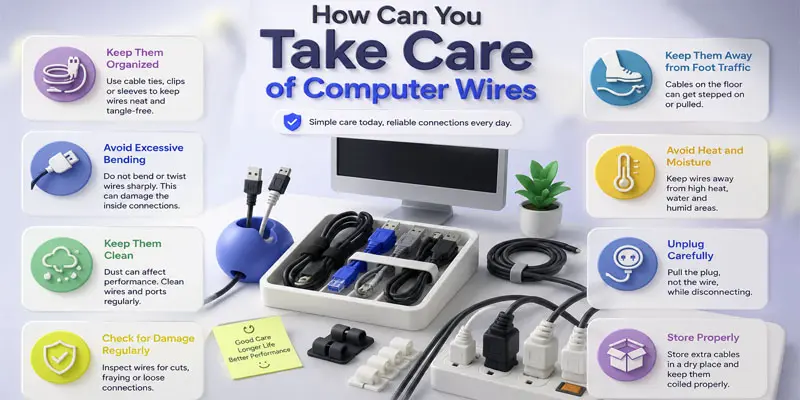
Taking care of computer wires is important to keep your devices safe, improve performance, and avoid common connection problems.
- Keep computer wires neat and organized. Use cable ties or clips to avoid tangling. For example, arrange your desktop cables behind the table to keep your space clean.
- Do not bend or twist wires too much. Sharp bends can damage the inside wire. For example, laptop charger cables often break near the ends due to rough handling.
- Keep wires away from heat and water. Heat can melt insulation, and water can cause short circuits. For example, never place cables near heaters or wet areas.
- Always plug and unplug carefully. Pulling cables forcefully can damage ports and wires. Hold the connector instead of the wire.
- Clean dust from cables regularly. Dust buildup can affect performance and connection quality, especially for HDMI and USB cables.
- Avoid overloading power cables. Too many devices on one socket can cause overheating and damage.
- Check wires often for cuts or wear. Replace damaged cables quickly to avoid device problems.
- In real life, a well-managed cable setup helps your computer work smoothly and lasts longer without issues.
Final Thoughts
Understanding the types of computer wires makes your daily tech life much easier. You now know how power cables, USB, HDMI, Ethernet, and audio wires all play different roles. Each one helps your computer run smoothly and connect with other devices. When you choose the right cable, your system works better and faster. You also avoid common problems like loose connections or slow performance. Keep learning and stay curious about your devices. Explore your setup today and identify each cable with confidence.
FAQs
Cat5e is faster than Cat5 because it supports higher speeds up to 1 Gbps with less signal interference. It gives better internet stability, smoother browsing, and improved performance for modern networking needs at home and office.
Ethernet is not called RJ45, but it uses an RJ45 connector to plug into devices. RJ45 is the physical plug, while Ethernet is the network technology used for wired internet connections in computers, routers, and switches.
Cat5 and Cat6 are network Ethernet cables used for internet connections. Cat6 is newer and faster, supporting higher speeds and better performance, while Cat5 is older and slower but still works for basic home networking.
The four main network cables are coaxial cable, twisted pair cable, fiber optic cable, and Ethernet cable. Each type supports different speeds and uses, from home internet setups to high-speed business networking systems.
A LAN port is not the same as Ethernet, but it is the socket used for Ethernet cables. It allows devices to connect to a wired network, giving stable and fast internet for computers and routers.




- Be Respectful
- Stay Relevant
- Stay Positive
- True Feedback
- Encourage Discussion
- Avoid Spamming
- No Fake News
- Don't Copy-Paste
- No Personal Attacks
- Be Respectful
- Stay Relevant
- Stay Positive
- True Feedback
- Encourage Discussion
- Avoid Spamming
- No Fake News
- Don't Copy-Paste
- No Personal Attacks
