How to Print from My iPhone | Easy Step-by-Step Guide
Published: 12 Aug 2026
Have you ever needed to print a photo, PDF, email, or document from your iPhone but had no idea where to start? You do not need to move the file to a computer first. With the right printer and a Wi-Fi connection, you can print directly from your iPhone in just a few simple steps.
AirPrint makes the process even easier because it lets your iPhone connect to a compatible printer without extra drivers. In this guide, you will learn how to print from iPhone using AirPrint and other simple methods. We will cover how to print photos, PDFs, documents, emails, and webpages.
You will also learn what to do if your printer does not appear on your iPhone. Whether you use an HP, Canon, Epson, Brother, or another wireless printer, this guide will help you get started. Ready to print without using a computer? Let’s walk through the process step by step.
What Do You Need to Print from iPhone?
Before you start printing, make sure you have a few basic things ready. The setup is simple, even if you are new to wireless printing.
- An iPhone: Keep your iPhone updated to the latest available iOS version for a smoother printing experience.
- A wireless printer: Your printer should support AirPrint or offer a compatible mobile printing app. Many HP, Canon, Epson, and Brother printers support wireless printing.
- A Wi-Fi connection: Connect both your iPhone and printer to the same Wi-Fi network. This helps your iPhone find the printer.
- Paper and ink or toner: Check the printer before sending a print job. Make sure it has enough paper and ink or toner.
- A printable file: You can print photos, PDFs, emails, documents, notes, and webpages from supported apps.
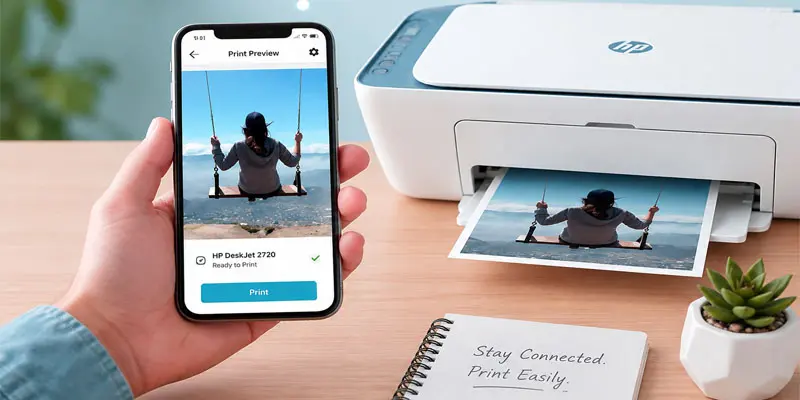
How Can You Print from Your iPhone with AirPrint?
Using AirPrint, you can quickly print photos, documents, PDFs, and other files from your iPhone without needing a computer.
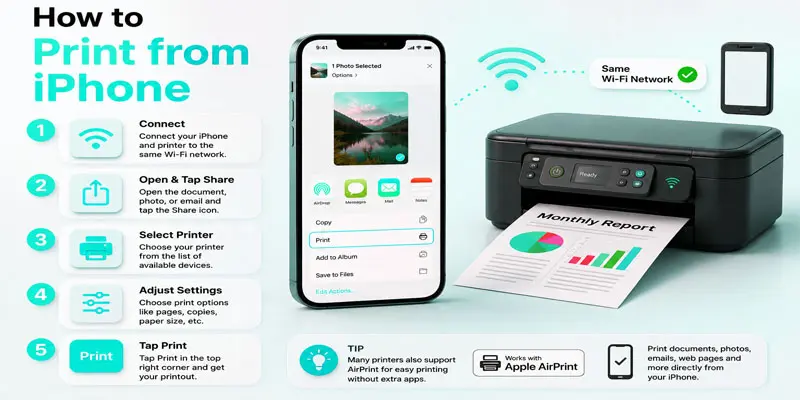
- Connect Your iPhone and Printer to Wi-Fi
- Open the File or Photo You Want to Print
- Tap the Share Button
- Select the Print Option
- Choose Your Printer
- Select Your Print Settings
- Tap Print
Connect Your iPhone and Printer to Wi-Fi
- Make sure your iPhone is connected to a reliable Wi-Fi connection.
- Turn on your wireless printer and connect it to the same Wi-Fi network.
- Make sure both devices use the same network name.
- Keep the printer close to the Wi-Fi router for a better connection.
Open the File or Photo You Want to Print
- Open the app that contains the file or photo.
- Select the photo, PDF, document, or other content you want to print.
- Review the document and confirm that everything appears as intended.
- Keep it open before moving to the next step.
Tap the Share Button
- Look for the Share icon on your iPhone screen.
- Tap it to open the sharing options.
- A menu will appear with different actions.
- Scroll through the menu to find the Print option.
Select the Print Option
- Scroll through the Share menu and find Print.
- Tap Print to open the printing settings.
- Your iPhone will look for available printers.
- Wait a moment for your printer to appear.
Choose Your Printer
- Tap Select Printer to see the available printers.
- Choose your printer from the list.
- Make sure you select the correct printer.
- Your iPhone will connect to the printer automatically.
Select Your Print Settings
- Choose the number of copies you want to print.
- Select the pages you need to print.
- Choose color or black-and-white printing.
- Check the settings before you tap Print.
Tap Print
- Check your print settings one last time.
- Select the Print option to start printing the document.
- Your printer will start printing within a few seconds.
- Check the printed page to make sure everything looks right.
How to Print Photos from iPhone?
Printing photos from your iPhone is quick and simple. You can use AirPrint to send your favorite pictures to a compatible wireless printer without a computer.
- Open the Photos app on your iPhone.
- Choose the photo you want to print.
- Select the Share icon located along the bottom of the screen.
- Scroll down and select Print.
- Tap Select Printer and choose your wireless printer.
- Choose the number of copies you need.
- Select other available options, such as paper size or color.
- Check the print preview to make sure the photo looks right.
- Tap Print to start the job.
How to Print a Document from iPhone?
Printing from an iPhone is possible without a computer. AirPrint offers a simple way to send files to compatible wireless printers.
- Open the app where your document is saved, such as Files, Pages, or Microsoft Word.
- Find and open the document you want to print.
- Tap the Share button to view more options.
- Scroll down and select Print.
- Tap Select Printer and choose your connected printer.
- Choose the number of copies and select the pages you need.
- Check other available print settings, such as color or double-sided printing.
- Review the print preview to make sure the document looks correct.
- Select the Print option to begin sending the document to your printer.
How to Print an Email from iPhone?
You can print an email directly from your iPhone when you need a paper copy of an important message. The process is simple and works with many wireless printers.
- Open the Mail app on your iPhone.
- Find and open the email you want to print.
- Tap the Reply or More Options button.
- Look for the Print option in the menu.
- Tap Print to open the printing settings.
- Select Choose Printer and pick your wireless printer.
- Set the number of copies and select the pages you need.
- Check the print preview before sending the job.
- Tap Print to print the email.
How to Print a Webpage from iPhone?
You can print a webpage from your iPhone when you need a paper copy of useful information. Safari makes this easy with the built-in print option.
- Open Safari on your iPhone.
- Visit the webpage you want to print.
- Select the Share icon from the lower section of the display.
- Scroll through the menu and tap Print.
- Tap Select Printer and choose your wireless printer.
- Choose the pages, number of copies, or other available settings.
- Check the print preview before starting the print job.
- Choose the Print option to start printing the webpage.
What Can You Print from an iPhone?
Your iPhone can print many types of content. With AirPrint or a compatible printer app, you can send files directly to a wireless printer. Here are some common examples:
| Content | What Can Print |
|---|---|
| Photos | Family pictures, screenshots, and saved images. |
| PDFs | Forms, guides, tickets, and school files. |
| Documents | Word files, Pages files, and other documents. |
| Emails | Important messages, booking details, and receipts. |
| Webpages | Recipes, articles, instructions, and online information. |
| Notes | Shopping lists, reminders, and saved notes. |
| Screenshots | Maps, messages, receipts, and useful information. |
| Tickets | Travel tickets, event passes, and booking details. |
How to Print from iPhone Without AirPrint?
If your printer does not work with AirPrint, use its dedicated mobile app to print from your iPhone.
- Use the printer app: Download the official app for your printer brand from the App Store.
- Connect your printer: Follow the app instructions to connect your iPhone and printer.
- Choose your file: Open a photo, PDF, document, or other supported file.
- Select the print option: Use the app to find and select your printer.
- Adjust print settings: Choose paper size, copies, color, or other available options.
- Start printing: Check the preview and tap the print button.
Can You Print from iPhone Using a USB Cable?
Using a USB connection to print from an iPhone can be a little more complicated. iPhones mainly use wireless printing through AirPrint or a printer’s mobile app. A direct USB connection may need a compatible adapter, cable, and printer that supports this type of connection.
For most users, Wi-Fi printing offers a faster and simpler setup. Put both devices on the same wireless network. Then open the photo or document, use the Share menu, select the printing option, and choose your printer.
For example, if you need to print a PDF from your iPhone, you can usually avoid cables by using AirPrint. If your printer does not support wireless printing, check its manual for supported USB or adapter options before connecting it.
How to Fix Common iPhone Printing Problems?
Is your iPhone not finding the printer? Do not worry. Most iPhone printing problems have simple fixes. Try these steps:
- Check the Wi-Fi: Make sure your iPhone and printer use the same Wi-Fi network.
- Restart the printer: Turn off the printer, wait a few seconds, and turn it on again.
- Restart your iPhone: A quick restart can fix small connection issues.
- Check AirPrint support: Make sure your printer works with AirPrint.
- Check the printer status: Look for paper jams, low ink, or error messages.
- Bring your iPhone closer to the Wi-Fi router if the wireless connection is too weak to detect the printer.
- Update the printer app: If you use a printer app, install the latest version.
- Try printing again: Open your file, tap Share, choose Print, and select your printer.
How to Check If Your Printer Supports AirPrint?
Checking AirPrint compatibility can help you avoid setup problems when printing from your iPhone. Start by checking your printer’s manual or product box for the AirPrint name or logo. You can also visit the printer manufacturer’s website and search for your printer model. Look for AirPrint support in the printer’s features or specifications.
If your printer is already connected to Wi-Fi, you can also test it from your iPhone. Open a photo or document, tap Share, and select Print. Tap Select Printer and check if your printer appears in the list. If it appears, your printer likely supports AirPrint.
For example, if you have a wireless HP printer, check its model details to confirm AirPrint support before starting your iPhone printing setup.
How Can You Get Better Prints from Your iPhone?
Want your photos and documents to look better on paper? A few simple checks can improve your iPhone printing results.
- Check the print preview: Review the page before printing to catch missing text or poor alignment.
- Choose the right paper size: Select the paper size that matches the paper in your printer.
- Use good-quality paper: Choose photo paper for pictures and standard paper for documents.
- Check ink or toner: Low ink or toner can make prints look faded or uneven.
- Select the right color setting: Use color printing for photos and black-and-white for simple documents.
- Choose the correct orientation: Select portrait or landscape mode based on your file.
- Check image quality: Use clear, high-resolution photos for sharper prints.
- Print one test page: Test the settings before printing many copies.

Final Thoughts
Printing from an iPhone is simple once your printer and Wi-Fi connection are ready. AirPrint lets you print photos, PDFs, documents, emails, and webpages with just a few taps. If your printer does not support AirPrint, you can use its official app instead. Now that you know how to print from iPhone, try it yourself and enjoy quick, easy wireless printing without a computer.
FAQs
Your iPhone can connect to a compatible printer through AirPrint. Put the iPhone and printer on the same Wi-Fi connection, open the item you want to print, select Share, and choose Print. Pick your printer from the available options and confirm the job.
Yes. You can print files from your iPhone without using a computer. AirPrint and many printer apps support this feature. Open the document, access the sharing menu, select Print, choose the printer, set your preferred options, and confirm the print job.
The simplest method is usually AirPrint when your printer supports it. Open the photo, webpage, or document you need, find the Print option, select your printer, review the available settings, and send the item to print.
iPhone does not have one main printer settings menu. Instead, open a printable photo or document, tap Share, choose Print, and select your printer. You can then adjust available print options.
You do not need to install a separate printer function for AirPrint. Open a supported file or photo, tap Share, select Print, and choose an AirPrint-compatible printer to start printing.


- Be Respectful
- Stay Relevant
- Stay Positive
- True Feedback
- Encourage Discussion
- Avoid Spamming
- No Fake News
- Don't Copy-Paste
- No Personal Attacks
- Be Respectful
- Stay Relevant
- Stay Positive
- True Feedback
- Encourage Discussion
- Avoid Spamming
- No Fake News
- Don't Copy-Paste
- No Personal Attacks
