How to Print Double Side | Easy Step-by-Step Guide
Published: 14 Aug 2026
Have you ever printed a long document and ended up with a huge stack of paper? It can feel wasteful, especially when you only need a few pages for a report, assignment, or office file. The good news is that you can reduce paper use with double-sided printing. This method prints content on both sides of the same sheet.
But how do you print double sided without getting pages upside down, out of order, or printed on the wrong side? The process is simple once you know the right settings. Most modern printers offer automatic duplex printing, while some printers let you print both sides manually. You can also use this feature on Windows, Mac, Word, PDFs, and many mobile devices.
In this guide, you will learn how to print two sided step by step. We will explain automatic and manual methods, the difference between long-edge and short-edge printing, and how to fix common printing problems. By the end, you will know how to print cleaner documents while saving paper, time, and money.
What Does Double-Sided Printing Mean?
Double-sided printing means printing content on both sides of one sheet of paper. It is also called duplex printing or two-sided printing. Instead of using one sheet for every page, your printer places text or images on the front and back of the same sheet. This method helps you save paper, reduce printing costs, and create smaller documents.
For example, imagine you need to print a 20-page school report. With normal single-sided printing, you may need 20 sheets. With double-sided printing, you can fit the report on about 10 sheets. Some modern printers support automatic duplex printing, which turns the paper and prints the other side for you. Older printers may need manual double-sided printing, where you turn the pages yourself. You can usually find this option in the printer settings as “Print on Both Sides” or “Two-Sided Printing.”
What Do You Need Before Printing Double Sided?
Before you start double-sided printing, check a few basic things. These steps can help you avoid paper waste, printing errors, and upside-down pages.
- A compatible printer: Check if your printer supports automatic duplex printing. This feature lets the printer print on both sides of the paper without manual work.
- Correct paper: Use good-quality paper that works well with your printer. Very thin paper may let ink show through the other side.
- Enough paper: Make sure the paper tray has enough sheets for your document. Keep the sheets clean and flat.
- Working ink or toner: Check the ink or toner level before starting a large print job. Low ink can make text look faded.
- Printer connection: Make sure the printer connects properly to your computer, laptop, or phone.
- Print settings: Look for options such as Print on Both Sides, Two-Sided Printing, or Duplex Printing. Also check whether you need long-edge or short-edge flipping.
How to Print Double Sided Automatically?
If your printer supports automatic duplex printing, you can print on both sides without turning the paper by hand. This method saves time and works well for reports, assignments, and long documents.
- Check Printer Duplex Support
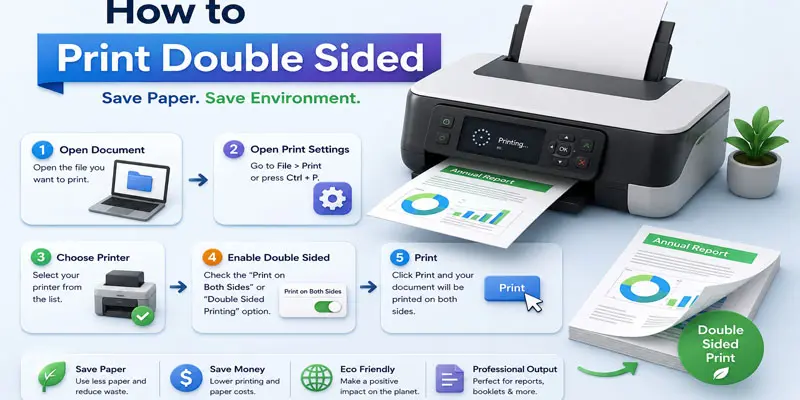
- Open the Document
- Open the Print Settings
- Select Your Printer
- Enable Two-Sided Printing
- Choose Long Edge or Short Edge
- Check the Print Preview
- Start Printing
- Check Both Sides of the Printed Pages
Check Printer Duplex Support
First, check if your printer supports automatic double-sided printing. Open the printer settings or check the printer manual for options like “Print on Both Sides” or “Duplex Printing.” If you see this option, your printer can print both sides automatically.
Open the Document
Open the file you want to print on your computer. It can be a Word document, PDF, spreadsheet, or another printable file. Check the pages once to make sure everything looks correct before printing.
Open the Print Settings
Open the File menu and select Print to view the printing options. You can also press Ctrl + P on Windows to open the print settings quickly.
Select Your Printer
Find your printer in the list of available printers. Click its name to select it as the device you want to use for printing.
Enable Two-Sided Printing
Look for the Two-Sided, Print on Both Sides, or Duplex Printing option. Select this option to let the printer print on both sides of each sheet. This setting helps you save paper and keeps your document more compact.
Choose Long Edge or Short Edge
Choose Flip on Long Edge for normal documents, such as reports or assignments. Choose Flip on Short Edge for documents that need to turn from the top. For most portrait pages, Long Edge is the best choice.
Check the Print Preview
Check the print preview before you start printing. Make sure the pages appear in the correct order and direction. This quick check can help you avoid wasted paper and printing mistakes.
Start Printing
Click the Print button to begin the job. Your printer will print the pages on both sides of each sheet. Wait until the printer finishes, then check a few pages to make sure everything looks correct.
Check Both Sides of the Printed Pages
Check the front and back of the printed pages. Make sure the text is clear and the pages are in the correct order. If everything looks right, your double-sided printing is complete.
How to Print Double Sided on Windows?
Printing on both sides of the paper is easy on a Windows computer. Follow these simple steps:
- Open your document: Open the Word file, PDF, or other document you want to print.
- Open the Print menu: Press Ctrl + P or select File > Print.
- Choose your printer: Select the printer you want to use from the available printer list.
- Find the two-sided option: Look for Print on Both Sides, Two-Sided, or Duplex Printing.
- Choose the page direction: Select Flip on Long Edge for normal documents, such as reports and assignments. Use Flip on Short Edge when pages need to turn from the top.
- Check the preview: Make sure the pages look correct before printing.
- Click Print: Start the print job and check both sides when the printer finishes.
How to Print Double Sided on a Mac?
Mac users can print on both sides of a page in just a few steps. The exact options may vary by printer, but the basic process stays simple.
- Open your document: Open the Word file, PDF, or other document you want to print.
- Open Print settings: Click File > Print or press Command + P on your Mac.
- Select your printer: Choose the correct printer from the printer list.
- Enable two-sided printing: Look for the Two-Sided option and turn it on. Some printers may show Duplex Printing instead.
- Choose the page direction: Use Long Edge for reports, letters, and normal portrait documents. Choose Short Edge when you want pages to turn from the top.
- Check the preview: Review the pages to make sure they look correct.
- Start printing: Click Print and check both sides after the printer finishes.
How to Print Double-Sided from a PDF?
Printing a PDF on both sides can help you save paper and keep your documents neat. You can use these simple steps:
- Open the PDF: Open the file with a PDF reader such as Adobe Acrobat or your computer’s default PDF app.
- Open Print settings: Click File > Print or press Ctrl + P on Windows. On a Mac, press Command + P.
- Select your printer: Choose the printer you want to use.
- Enable two-sided printing: Look for Print on Both Sides, Two-Sided, or Duplex Printing. Turn this option on if your printer supports it.
- Choose the page flip: Select Long Edge for normal documents like reports. Choose Short Edge when pages need to turn from the top.
- Check the preview: Review the page order and layout.
- Click Print: Start printing and check both sides when the job finishes.
How to Print Double Sided Without Automatic Duplex?
Does your printer lack an automatic duplex feature? You can still print on both sides of the paper by using a manual double-sided printing method. Follow these simple steps:
- Open your document: Open the Word file, PDF, or other document you want to print.
- Open Print settings: Select File > Print and choose your printer.
- Print odd pages: Select the option to print only odd-numbered pages, then start printing.
- Turn the paper: Collect the printed sheets and place them back into the paper tray. Check your printer guide to learn the correct paper direction.
- Print even pages: Choose even-numbered pages in the print settings and start the second print job.
- Check the pages: Make sure both sides have the correct text and page order.
How to Print Double Sided in Different Programs?
You can print on both sides in many popular programs. The steps may look slightly different in each app.
- Microsoft Word
- Google Docs
- Adobe Acrobat
- Microsoft Excel
- Google Sheets
- LibreOffice Writer
- Apple Pages
Microsoft Word
- Open your Word document.
- Go to File > Print.
- Select Print on Both Sides.
- Choose Flip on Long Edge for normal documents.
- Click Print.
Google Docs
- Open your document in Google Docs.
- Click File > Print.
- Select your printer.
- Turn on the Two-Sided option.
- Click Print.
Adobe Acrobat
- Open your PDF in Adobe Acrobat.
- Click File > Print.
- Select your printer.
- Enable Print on Both Sides.
- Click Print.
Microsoft Excel
- Open your spreadsheet.
- Go to File > Print.
- Select your printer.
- Choose the Two-Sided or Duplex option.
- Start printing.
Google Sheets
- Open your spreadsheet.
- Click File > Print.
- Select your printer.
- Enable Two-Sided Printing in the printer settings.
- Click Print.
LibreOffice Writer
- Open your document.
- Click File > Print.
- Choose your printer.
- Select the double-sided printing option.
- Click Print.
Apple Pages
- Open your Pages document.
- Click File > Print.
- Select your printer.
- Turn on Two-Sided printing.
- Click Print.
How to Print Double Sided from a Phone?
You can print documents on both sides from your phone if your printer supports two-sided or duplex printing. The steps may differ between iPhone and Android, but the process is simple.
On iPhone
- Open the document, photo, or PDF you want to print.
- Tap the Share button and select Print.
- Choose your connected printer.
- Turn on the Two-Sided option if it appears.
- Select the required page settings and tap Print.
On Android
- Open the file or document you want to print.
- Tap the Menu or Share option and select Print.
- Choose your printer from the available list.
- Find and enable Two-Sided Printing or Duplex Printing.
- Tap Print to start the job.
What is the Difference Between Long Edge and Short Edge?
The long-edge and short-edge settings control how your double-sided pages turn. Choosing the right option helps keep the text upright and easy to read.
| Feature | Long | Short |
|---|---|---|
| Page turning | Pages turn like a book. | Pages turn from the top. |
| Best for | Reports and documents. | Calendars and some cards. |
| Normal documents | Usually the best choice. | Less common. |
| Portrait pages | Keeps pages upright. | May turn pages upside down. |
| Landscape pages | May not suit every layout. | Often useful. |
| Reading style | Side-to-side. | Top-to-bottom. |
| Common use | Books, assignments, letters. | Calendars, notes, flip-style pages. |
| Main purpose | Easy book-style reading. | Top-flip reading. |
| Recommended setting | Most portrait documents. | Special layouts. |
| Tip | Use for regular pages. | Test before printing a large file. |
How Can You Fix Common Double-Sided Printing Problems?
Double-sided printing can sometimes cause simple issues, such as upside-down pages or missing print options. Try these easy fixes:
- Printer prints only one side: Check if your printer supports automatic duplex printing. Also make sure the Two-Sided or Print on Both Sides option is enabled.
- Back page appears upside down: Check the page-flip setting. Try Long Edge for normal portrait documents and Short Edge for top-flip layouts.
- Two-sided option is missing: Your printer may not support automatic duplex printing. Check the printer manual or use the manual double-sided method.
- Pages print in the wrong order: Check the page order in your print settings. For manual printing, print odd pages first and then even pages.
- Paper gets stuck: Use the correct paper size and type. Do not overfill the paper tray.
- Print quality looks poor: Check the ink or toner level and clean the printer if needed.
What Tips Can Help You Get Better Double-Sided Printing?
Follow these simple tips to make double-sided printing easier and avoid common printing mistakes:
- Check the print preview: Review your pages before printing. Make sure the text, images, and page order look correct.
- Choose the right paper: Use good-quality paper that suits your printer. Thin paper may allow ink to show through the other side.
- Use the correct flip setting: Select Long Edge for most reports, letters, and assignments. Use Short Edge for top-flip documents.
- Test a few pages: Print two or four pages first. This helps you check the paper direction and page order.
- Keep the paper tray ready: Use clean, flat sheets and avoid filling the tray above its limit.
- Check ink or toner: Make sure your printer has enough ink or toner before starting a large job.
- Use automatic duplex printing: If your printer supports it, automatic two-sided printing saves time and makes the process easier.
Final Thoughts
Double-sided printing is a simple way to save paper, lower printing costs, and reduce paper waste. You can use automatic duplex printing or print both sides manually. Always check your printer settings and choose the correct page-flip option. Now that you know how to print double sided, try it with a small document first. With the right settings, your next print job can be easier and more efficient.
FAQs
Enable Two-Sided, Print on Both Sides, or Duplex Printing in your printer settings. Select your printer, choose the option, and pick Long Edge for most documents. Then check the preview and start printing.
If your printer has no double-sided option, use manual duplex printing. Print the odd-numbered pages first, place the printed sheets back into the tray, and print the even-numbered pages. Test a few sheets first to find the correct paper direction.
To flip paper for double-sided printing, turn the printed sheets and place them back into the printer tray in the correct direction. The exact method varies by printer, so test one sheet first to avoid upside-down pages.
You may not be able to print double-sided because the printer setting, driver, or duplex feature has changed. Check Print on Both Sides, update the printer driver, and confirm that your printer still supports automatic duplex printing.

- Be Respectful
- Stay Relevant
- Stay Positive
- True Feedback
- Encourage Discussion
- Avoid Spamming
- No Fake News
- Don't Copy-Paste
- No Personal Attacks
- Be Respectful
- Stay Relevant
- Stay Positive
- True Feedback
- Encourage Discussion
- Avoid Spamming
- No Fake News
- Don't Copy-Paste
- No Personal Attacks
