How to Print from Canva | Easy Step-by-Step Guide
Published: 16 Aug 2026
Have you ever created a beautiful design in Canva, only to feel confused when it is time to print it? You may worry about the wrong paper size, blurry images, cut-off text, or colors that look different on paper. These small problems can make a simple printing task frustrating. The good news is that printing in Canva is easier than it seems.
With the right design size and print settings, you can turn your Canva project into a clean, professional print. Whether you want to print an invitation, poster, flyer, worksheet, business card, or photo, Canva gives you simple options to prepare your design.
In this guide, you will learn how to print in Canva step by step. We will also cover the best file format, paper size, print quality, and common printing problems. By the end, you will know how to prepare your design and print it with confidence.
What Do You Need Before You Print in Canva?
Before you print in Canva, take a few minutes to prepare your design and printer. The right setup helps you avoid blurry images, cut-off text, and incorrect page sizes. Here are the main things you need:
- A finished Canva design: Check your text, images, logos, and layout before printing.
- Correct design size: Match the Canva design size with your paper, such as A4, Letter, or business card size.
- A working printer: Make sure your printer is connected to your computer or phone and has enough ink or toner.
- Suitable paper: Choose paper based on your project. Use plain paper for worksheets and thicker cardstock for invitations or cards.
- Good-quality images: Use clear images so your printed design does not look blurry.
- Correct print settings: Check paper size, orientation, color, and number of copies.
- Print preview: Review the design before printing to catch layout or spacing issues.
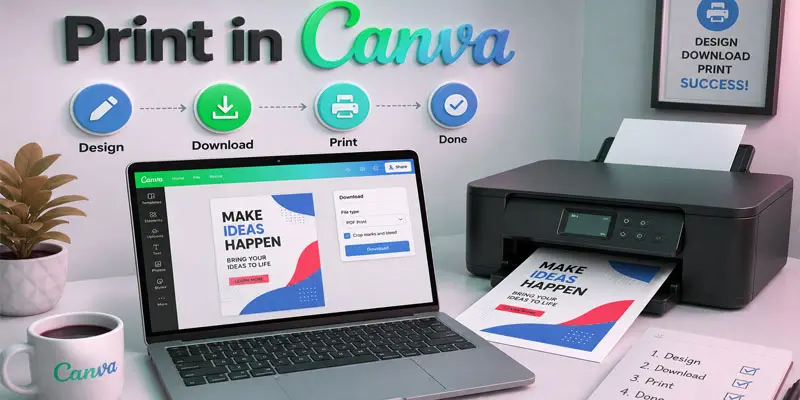
How to Print on Canva?
Want to print on Canva without dealing with wrong sizes, blurry images, or cut-off content? Follow these simple steps to print your Canva design clearly and correctly.
- Open Your Canva Design
- Check Your Design Size
- Click the Share Button
- Select Print
- Choose Your Print Type
- Check Print Settings
- Select Your Printer
- Review the Print Preview
- Choose the Number of Copies
- Click Print
Open Your Canva Design
First, open Canva and sign in to your account. Find the design you want to print and open it. Check your text, images, and layout carefully. Make sure everything looks correct before you move to the printing steps.
Check Your Design Size
Check the size of your Canva design before printing. Make sure it matches your paper size, such as A4 or Letter. A correct size helps your design fit the paper properly. This also prevents text or images from getting cut off.
Click the Share Button
Find the Share option on the upper-right side of the Canva editor. Click it to open the sharing options. You will see different ways to save, share, or print your design. Find the printing option in this menu.
Select Print
After clicking Share, look through the available options. Find and select Print to continue. Canva will show different printing choices based on your design. Choose the option that best matches what you want to print.
Choose Your Print Type
Choose the print type that matches your project. Canva may show options like flyers, posters, cards, or other products. Select the option you need for your design. Check the size and details before moving to the next step.
Check Print Settings
Review your print settings before you start printing. Check the paper size, page orientation, color, and number of copies. Make sure these settings match your design and paper. This helps you get a clean and correct print.
Select Your Printer
Pick the printer you plan to use from the available printer options. Make sure the printer is turned on and connected to your device. Check that it has enough paper and ink. Then, select your printer to continue.
Review the Print Preview
Check the print preview before you print your design. Make sure all text, images, and pages look correct. Look for any cut-off content or spacing problems. A quick review can help you avoid printing mistakes.
Choose the Number of Copies
Select how many copies of your design you want to print. Check the copy number carefully before starting the print job. For example, choose 5 copies if you need five printed pages. This helps you avoid wasting paper and ink.
Click Print
Once everything looks correct, click the Print button. Your printer will start printing the Canva design. Wait for the pages to finish before checking the final result. Review the printed copy to make sure everything looks clear and correct.
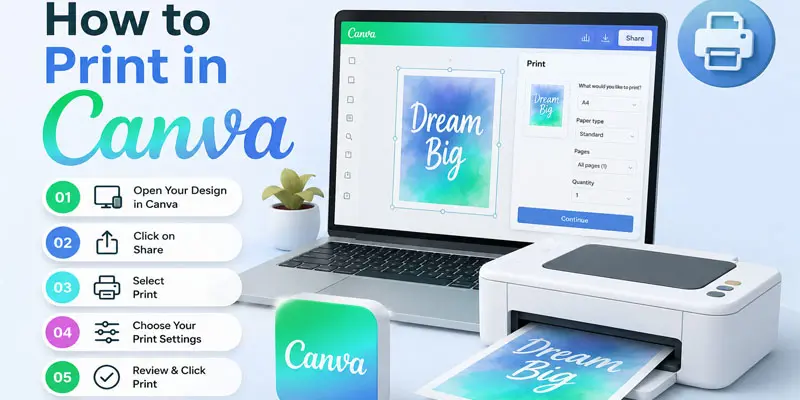
How to Print a Canva Design Using Your Home Printer?
Printing a Canva design at home is simple. You just need a working printer, the right paper, and correct print settings. Follow these steps:
- Open your Canva design: Check your text, images, and layout before printing.
- Choose the correct paper: Use plain paper for documents or cardstock for invitations and cards.
- Check your printer: Make sure it is turned on, connected to your computer or phone, and has enough ink or toner.
- Download your design: Save the design in a suitable format, such as PDF Print, for better print quality.
- Open the print settings: Select your home printer and choose the correct paper size.
- Check the print preview: Make sure the design fits the page and no content is cut off.
- Print a test copy: Check the first page before printing several copies.
How to Print Canva Designs From a Computer?
Printing a Canva design from a computer is quick and easy. You can create your design on a Windows computer or Mac and send it to your printer when it is ready.
- Open Canva: Sign in to your Canva account and open the design you want to print.
- Check your design: Make sure the text, images, and layout look correct.
- Click Share: Select the Share button at the top-right of the screen.
- Choose Print: Select the available Print option or download your design for printing.
- Select a file format: Choose PDF Print for a clear and print-ready file.
- Open the file: If you download the design, open it on your computer.
- Select your printer: Choose your connected printer from the print menu.
- Check settings: Select the correct paper size, orientation, and number of copies.
- Click Print: Review the preview and start printing your Canva design.
How to Print From Canva on a Phone?
You can easily print a Canva design from your phone using the Canva mobile app. Check that both your phone and printer are using the same Wi-Fi connection before you start printing. Then follow these simple steps:
- Open Canva: Launch the Canva app and sign in to your account.
- Choose your design: Open the design you want to print.
- Check your design: Make sure the text, images, and layout look correct.
- Tap Share: Tap the Share icon to view the available options.
- Download the design: Choose PDF Print for a clear, high-quality file.
- Open the file: Open the downloaded PDF on your phone.
- Tap Print: Select the print option from your phone’s sharing menu.
- Choose your printer: Select your connected printer.
- Check settings: Choose the paper size, orientation, and number of copies.
- Start printing: Tap Print and check the final page.
How to Download a Canva Design for Printing?
Downloading your Canva design before printing gives you more control over the final result. Save your design in a format that works for your needs, then open the file on your computer or phone to print it.
- Open your design: Sign in to Canva and open the design you want to print.
- Click Share: Select the Share button at the top-right corner.
- Choose Download: Click Download from the available options.
- Select a file type: Choose PDF Print for documents, flyers, cards, and other print projects.
- Pick your pages: For a multi-page design, select only the pages you want to save.
- Save your design: Click the Download option and store the file on your device.
- Open the file: Check the downloaded design before printing.
- Print your design: Open the file and select your printer and print settings.
What is the Best Canva Format for Printing?
Choosing the right Canva file format for printing helps keep your design clear and sharp. Here is a simple comparison:
| Canva | Best | Print Qua |
|---|---|---|
| PDF Print | Flyers, invitations, business cards, brochures, documents. | ⭐⭐⭐⭐⭐ Excellent. |
| PNG | Posters, graphics, images, simple designs. | ⭐⭐⭐⭐ Very Good. |
| JPG | Photos and basic image designs. | ⭐⭐⭐ Good. |
| PDF Standard | Digital documents and online sharing. | ⭐⭐⭐ Good. |
Best choice: PDF Print is usually the best Canva format for professional printing. It helps preserve your text, images, and overall layout.
How to Print Canva Designs Without Losing Quality?
Do you want your Canva design to look sharp and clear on paper? The right design size, file format, and printer settings can make a big difference. Follow these simple tips:
- Use the correct design size: Choose the final print size before creating your Canva design. For example, use A4 for an A4 document.
- Use high-quality images: Avoid small or blurry images. Use clear graphics that look sharp when printed.
- Choose PDF Print: Download your design as PDF Print for most print projects. This helps keep text and graphics clear.
- Check the print preview: Look for blurry images, missing text, or cut-off content before printing.
- Choose the right paper: Match the paper with your design. Use cardstock for cards and invitations.
- Use good printer settings: Select the correct paper size and print quality on your printer.
- Print a test copy: Print one copy first. Check the result before printing many copies.
How to Print Double-Sided in Canva?
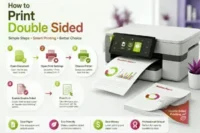
Printing a Canva design on both sides of a page can save paper and make your project look neat. You can use this method for brochures, flyers, invitations, and other multi-page designs.
- Create two pages: Use one Canva page for the front and another page for the back.
- Check the page order: Make sure both pages appear in the correct order.
- Download your design: Choose PDF Print to keep the design clear.
- Open the PDF: Open the downloaded file on your computer.
- Open print settings: Select your printer and look for the Double-Sided, Two-Sided, or Duplex Printing option.
- Turn on double-sided printing: Select this option if your printer supports automatic two-sided printing.
- Check page orientation: Choose the correct paper orientation so the back page does not print upside down.
- Print a test copy: Check both sides before printing more copies.
How to Print Multiple Pages in Canva?
Canva lets you create designs with several pages in one project. You can print all pages or choose only the pages you need. Follow these simple steps:
- Open your Canva design: Sign in and open the multi-page design you want to print.
- Check the page order: Make sure each page appears in the correct order.
- Click Share: Select the Share button and choose Download or Print, based on your available options.
- Choose PDF Print: Select PDF Print for clear text and images.
- Select the pages: Choose All pages to print the full design, or select specific pages.
- Open print settings: Select your printer and check the paper size and orientation.
- Choose the number of copies: Enter how many sets you need.
- Review the preview: Check every page for missing text or cut-off content.
- Click Print: Start the print job after checking all settings.
What are the Common Problems When Printing in Canva?
Printing a Canva design can sometimes give unexpected results. You may see cropped text, blurry images, or colors that look different on paper. Here are some common problems and simple fixes:
- Cropped design: Your paper size may not match the Canva design size. Check both settings before printing.
- Blurry images: Low-quality images can look unclear on paper. Use sharp, high-resolution images.
- Different colors: Screen colors can look different after printing. Check your printer settings and use suitable paper.
- Missing text: Text near the edge can get cut off. Keep important content away from the edges.
- Wrong print size: Check the paper size and scaling settings before printing.
- White borders: Some printers cannot print to the very edge of the paper. Enable the borderless print setting when your printer has this feature available.
- Printer not showing: Check the printer connection, Wi-Fi, paper, and ink or toner.
What are the Best Canva Printing Tips for Beginners?
New to Canva printing? A few simple checks can help you get clean and professional results. Use these tips before you print your design:
- Check the design size: Match your Canva design with your paper size, such as A4 or Letter.
- Use clear images: Choose high-quality images to avoid blurry prints.
- Choose PDF Print: Use the PDF Print format for most documents, flyers, cards, and invitations.
- Check the print preview: Look for missing text, cut-off images, or spacing problems.
- Choose the right paper: Use plain paper for worksheets and cardstock for cards or invitations.
- Check printer settings: Select the correct paper size, orientation, color, and print quality.
- Keep content away from edges: Leave enough space around important text and images.
- Print a test copy: Check one printed page before printing many copies.
When Should You Use a Professional Print Shop?
A home printer works well for small projects. But some Canva designs need better print quality, special paper, or a large number of copies. A professional print shop can handle these jobs with better equipment and more options.
- Large posters: Print shops can produce large Canva designs that home printers may not support.
- Business cards: Professional printing gives business cards a clean and polished finish.
- Brochures and flyers: Print shops can print many copies quickly and evenly.
- Wedding invitations: You can choose thicker paper, special finishes, and better print quality.
- High-volume printing: A print shop can handle hundreds of copies without using your home printer.
- Special paper: You can choose cardstock, glossy paper, matte paper, or other paper types.
- Professional results: Print shops use high-quality printers that can produce sharp text and detailed images.
Final Thoughts
Printing your Canva design does not have to be difficult. Choose the correct Canva design size, use a suitable file format, check the print preview, and match your printer settings with the paper. These simple steps can help you get sharper images, better layouts, and cleaner results. Ready to print your next design? Check everything once before printing, then go ahead with confidence. Your perfect print is just a few clicks away.
FAQs
You may not be able to print from Canva because of printer connection issues, incorrect design settings, or an unavailable print option. Check your printer, internet connection, paper size, and Canva print settings before trying again.
Yes, you can create and prepare designs for printing with Canva for free. You can download many designs and print them using your home printer. Some Canva printing products and premium features may require payment.
To get Canva to print correctly, match your design size with your paper size and choose the right print settings. Use PDF Print, check the preview, select the correct printer, and print one test copy first.
Yes, you can print directly from Canva when the Print option is available for your design. Open your project, click Share, choose Print, select the print type, review the settings, and continue with printing.

- Be Respectful
- Stay Relevant
- Stay Positive
- True Feedback
- Encourage Discussion
- Avoid Spamming
- No Fake News
- Don't Copy-Paste
- No Personal Attacks
- Be Respectful
- Stay Relevant
- Stay Positive
- True Feedback
- Encourage Discussion
- Avoid Spamming
- No Fake News
- Don't Copy-Paste
- No Personal Attacks
