How to Use Laser Printer Quickly with Easy Steps
Published: 4 Oct 2025
Laser printers are one of the most common machines used in offices and homes today. They are fast, reliable, and perfect for printing large volumes. But many beginners still wonder how to use a laser printer the right way.
Ever tried to print a document and got lost in the settings? You’re not alone—many people feel confused about how to use laser printer step by step. That’s why a simple, beginner-friendly guide can save time and frustration.
Paper jams, unclear prints, or connection issues often make users give up. Learning to use a laser printer properly helps you avoid these problems. Once you know the basics, printing becomes smooth and stress-free.
How Can You Get Started with a Laser Printer?
Getting started with a laser printer may seem tricky, but with a few easy steps, you can set it up and begin printing smoothly.
- Place the printer on a clean and stable surface.
- Turn on the printer by plugging in the power cable.
- Connect the printer to your computer with a USB cable or Wi-Fi.
- Insert the toner cartridge carefully.
- Load plain paper into the paper tray.
- Install printer drivers or software on your computer.
- Run a test print to check if everything is working.
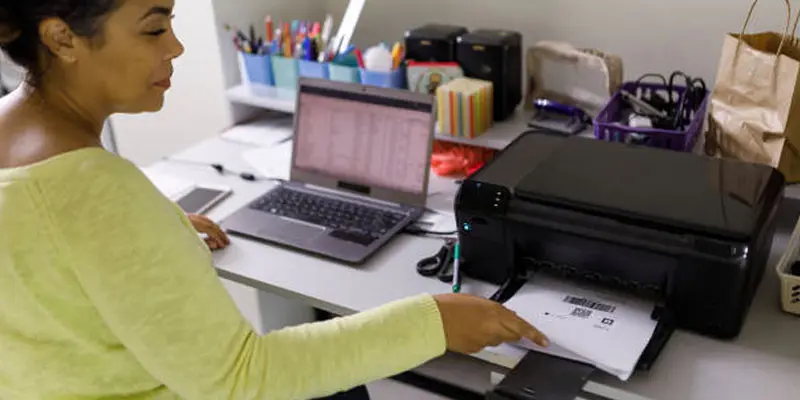
How Do You Connect a Laser Printer?
Connecting a laser printer is easy when you know the right steps, whether you choose a wired setup or a wireless option.
- Wired Connection
- Wireless Connection
Wired Connection
A USB cable can be used to connect a laser printer to your computer in a wired manner. Plug one end into the printer and the other into the computer’s USB port. The system will usually detect the printer automatically. If not, install the printer driver to complete the setup. Once done, you can start printing right away.
Wireless Connection
Turn on the laser printer’s Wi-Fi feature before attempting to connect it wirelessly. Choose your Wi-Fi name by going to the network settings. Enter the password to connect. On your computer or phone, choose the same printer from the list. After setup, you can print without any cables.
How Do You Install Printer Drivers and Software?
Installing printer drivers and software is important because they help your computer and laser printer work together smoothly.
- Check if your printer comes with a driver CD.
- Insert the CD into your computer to start the installation.
- Follow the on-screen steps shown in the setup wizard.
- If no CD is included, visit the printer brand’s official website.
- Search for your exact printer model on the website.
- Download the latest driver and software for your system.
- Make sure to select the right version (Windows or Mac).
- Open the downloaded file and start the installation.
- Accept the license agreement and click “Next.”
- Choose whether the printer connects via USB or Wi-Fi.
- Plug in the printer if you are using a wired connection.
- Make sure your PC and printer are connected to the same network if you’re using wireless.
- It can take a few minutes for the driver to install.
- Restart your computer after installation for best results.
- Print a test page to confirm everything is working.
How Do You Run Your First Print on a Laser Printer?
Running your first print on a laser printer is easy and helps you check if the setup is working correctly.
- Test Page Printing
- Printing a Document
Test Page Printing
To print a test page on a laser printer, select the “Printers and Devices” option in the computer’s settings. Select your laser printer from the list. Click on “Manage” and then choose “Print a Test Page.” The printer will print a sample page to confirm everything is working properly.
Printing a Document
Open the document you wish to print, such as Word or a PDF, before printing it on a laser printer. After clicking “File,” choose “Print.” From the list of printers, select your laser printer. Lastly, press the “Print” button to begin printing your document.
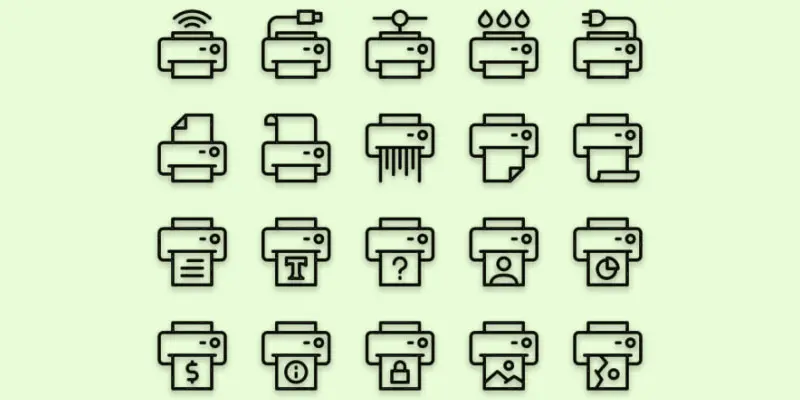
What Extra Features Can You Try on a Laser Printer?
Laser printers offer extra features that make printing faster, smarter, and more convenient for everyday use.
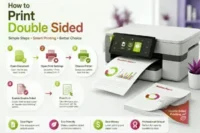
- Duplex printing (print on both sides).
- Print in draft mode to save toner.
- High-quality printing for sharp documents.
- Use mobile printing apps.
- Print directly from a USB drive.
- Cloud printing for remote access.
- Adjust paper size settings.
- Print labels and envelopes.
- Use secure printing with password protection.
- Try booklet printing.
- Watermark printing for branding.
- Adjust color or grayscale options.
- Schedule delayed printing.
- Use eco-mode to save energy.
- Print multiple pages on one sheet.
What are the Common Problems with Laser Printers and How Can You Fix Them?
Laser printers sometimes face common problems like paper jams, faded prints, or slow printing. These issues can happen due to wrong paper loading, low toner, or dust inside the machine. Knowing the cause makes it easier to fix.
If the printer shows faded or unclear prints, check the toner cartridge and replace it if needed. For paper jams, gently remove the stuck paper and reload the tray properly. Also, cleaning the inside of the printer helps prevent many issues.
When the printer is not connecting, check the USB cable or Wi-Fi settings. Restarting the printer and updating drivers often solves software-related errors. With these simple fixes, you can keep your laser printer working smoothly.
What are the Best Practices for Using a Laser Printer?
Following best practices for using a laser printer helps you get better print quality and extend the life of your machine.
- Keep the printer clean and dust-free.
- Use the right type of paper recommended by the brand.
- Do not overload the paper tray.
- Replace toner cartridges on time.
- Store toner in a cool, dry place.
- Use original toner for best results.
- Avoid frequent turning on and off.
- Place the printer on a flat, stable surface.
- Print in draft mode when high quality is not needed.
- Regularly update printer drivers and software.
- Run a test print after setup or maintenance.
- Keep the printer away from direct sunlight and moisture.
- Handle paper jams gently to avoid damage.
- Follow the user manual for maintenance tips.
- Schedule regular servicing if used heavily.
Final Thought
The above sentence shows that learning how to use a laser printer is simple when you follow the right steps. From my personal experience, I recommend always reading the printer manual first, as it saves time and avoids mistakes. Now it’s your turn, set up your printer today and enjoy fast, clear prints without any stress.
FAQS
To print in a laser printer, open your file on the computer and click “File → Print.” Select the laser printer from the list, adjust settings if needed, and click “Print.” The printer will give you the document in a few seconds.
Printing a lot of papers fast and in high quality is the primary function of a laser printer. They are commonly used in offices, schools, and businesses.
No, laser printers do not use ink. Instead, they use toner powder, which lasts longer and prints more pages than normal ink cartridges.
Laser printers work best on plain and smooth paper. They can print on different sizes, but very thick or special papers may not give good results.
A USB cable or Wi-Fi can be used to link a laser printer to a computer. For USB, just plug it in. For Wi-Fi, connect both devices to the same network and select the printer.
Yes, a laser printer can print photos, but the quality is not as good as inkjet printers. They are better for text and documents than high-quality pictures.
Ink tank printers are good for photo printing and color work, while laser printers are better for fast, bulk document printing. The choice depends on your need.
Laser printers usually work with plain, office-quality paper. Some can handle labels, envelopes, and thicker sheets, but always check the printer’s guide first.
Yes, you need to replace or refill the toner cartridge when it runs out. The good thing is that toner lasts longer than regular ink, so refills are less frequent.
Some laser printers can print on cotton paper, but it depends on the model. Always check your printer manual, as thick papers can cause jams if not supported.


- Be Respectful
- Stay Relevant
- Stay Positive
- True Feedback
- Encourage Discussion
- Avoid Spamming
- No Fake News
- Don't Copy-Paste
- No Personal Attacks
- Be Respectful
- Stay Relevant
- Stay Positive
- True Feedback
- Encourage Discussion
- Avoid Spamming
- No Fake News
- Don't Copy-Paste
- No Personal Attacks
