How to Clean Laser Printer | Simple Step by Step Guide
Published: 3 Oct 2025
Laser printers collect dust, toner, and paper particles over time. If left uncleaned, they cause streaks, faded prints, and even paper jams. That’s why learning how to clean a laser printer is an important part of printer care.
Ever wondered why your prints look dull even with a new toner? Or why your pages keep jamming? The confusion often comes from not knowing how to clean a laser printer the right way. A simple cleaning routine can fix these common issues.
Many users struggle with messy toner spills, blurry text, or noisy machines. These problems are frustrating but easy to prevent. By following the right steps on how to clean a laser printer, you can save time, money, and enjoy sharper results.
Why Does Cleaning a Laser Printer Matter?
Cleaning a laser printer matters because it keeps your prints sharp, prevents paper jams, and helps the machine last longer.
- It keeps print quality sharp and clear.
- It stops streaks and smudges on paper.
- It reduces paper jams during printing.
- It makes the printer last longer.
- It saves money on repairs.
- It avoids toner build-up inside the machine.
- It helps the printer work faster and more smoothly.
- It lowers the risk of overheating.
- It prevents dust from damaging parts.
- It gives professional-looking documents.
- It keeps the work environment clean.
- It ensures your printer is always ready to use.

What Safety Steps Should You Take Before Cleaning a Laser Printer?
Before cleaning a laser printer, you must follow some safety steps to protect yourself and keep the printer safe from damage.
- Turn off the printer before touching it.
- Unplug the power cord for safety.
- Let the printer cool down to avoid burns.
- Wear gloves to protect your hands from toner.
- Use a mask if you are sensitive to dust or toner.
- Place the printer on a flat and clean surface.
- Keep a soft cloth and cleaning tools ready.
- Do not use water or liquid cleaners inside.
- Avoid touching the drum or internal glass parts.
- Handle the toner cartridge carefully to prevent spills.
- Work in a well-ventilated area.
- Read your printer’s manual for any special cleaning instructions.
What Is the Step-by-Step Guide to Cleaning a Laser Printer?
Cleaning a laser printer is easy if you follow a step-by-step guide that keeps your printer safe and improves print quality.
- Clean the exterior
- Remove and clean the paper tray
- Take out the toner cartridge
- Clean the inside of the printer
- Clean the corona wire
- Reinstall the toner cartridge and tray
- Close the printer lid
- Run a test print
Clean the exterior
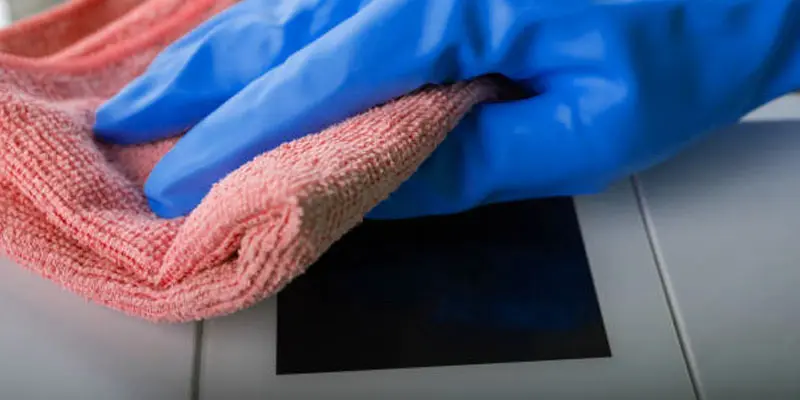
To clean the outside, first turn off and unplug the printer. Dust and grime can be removed from the surface with a gentle, dry cloth. If needed, slightly dampen the cloth with water, but never spray liquid directly on the printer. Clean gently around buttons and openings. This keeps the printer looking neat and prevents dust from going inside.
Remove and clean the paper tray
Take out the paper tray slowly and place it on a flat surface. Remove any paper and shake off dust or tiny paper bits. Wipe the tray with a soft, dry cloth to keep it clean. Make sure the tray is fully dry before putting the paper back. This helps the printer feed paper smoothly without jams.
Take out the toner cartridge
Open the printer cover carefully and locate the toner cartridge. Hold it by the handle and lift it out slowly without shaking. Place it on a clean sheet of paper or cloth to avoid toner spills. Keep it away from sunlight or heat while you clean the printer. This keeps the cartridge safe and ready to use again.
Clean the inside of the printer
Dust the printer’s inside with a gentle, dry cloth. You can also use compressed air to blow out small particles stuck in corners. Be careful not to touch the drum or other sensitive parts. Never use water or liquid cleaners inside. This keeps the printer safe and ready for smooth printing.
Clean the corona wire
Most laser printers have a small slider near the toner cartridge to clean the corona wire. Gently slide it back and forth a few times to remove dust. If your printer doesn’t have a slider, use a soft cloth very carefully. Do not touch the wire directly with your fingers. A clean corona wire helps your prints look clear and sharp.
Reinstall the toner cartridge and tray
Pick up the toner cartridge and place it back into its slot firmly. Make sure it sits properly without forcing it. After that, slide the paper tray back into the printer. Check that both parts are fixed in the right position. This step makes your printer ready to close and use again.
Close the printer lid
Once the toner cartridge and paper tray are in place, gently lower the printer lid. Press it down until you hear a click or feel it lock. Make sure it is fully closed, so no dust gets inside. A properly closed lid also keeps the printer safe during use. Now your printer is almost ready to print again.
Run a test print
Turn on the printer and load a few sheets of paper into the tray. Go to your computer and select the print option to run a test page. Check the paper for clear text and sharp images. If the print looks clean, your printer is ready to use. This step confirms that your cleaning was successful.
What Extra Tips Can Help You Keep Your Printer Clean?
A few extra tips can make it easier to keep your laser printer clean and working smoothly for a longer time.
- Keep the printer covered when not in use.
- Place the printer in a dust-free area.
- Store paper in a clean, dry place.
- Use good-quality paper to avoid extra dust.
- Avoid overfilling the paper tray.
- Shake paper stacks to remove dust before loading.
- Do not eat or drink near the printer.
- Clean the outside with a soft cloth once a week.
- Use compressed air for hard-to-reach spots.
- Replace toner cartridges carefully to prevent spills.
- Empty the waste toner box (if your model has one).
- Avoid touching the drum with your hands.
- Turn off and unplug the printer before cleaning.
- Schedule a monthly cleaning routine.
- Get professional servicing once or twice a year.
What Common Mistakes Should You Avoid When Cleaning a Laser Printer?
While cleaning a laser printer, many people make small mistakes that can harm the printer, so it’s important to know what to avoid.
- Cleaning the printer while it’s still plugged in.
- Use a wet cloth inside the printer.
- Spraying liquid cleaners directly on the printer.
- Touching the drum with bare hands.
- Shaking the toner cartridge roughly.
- Using rough or dirty clothes for cleaning.
- Forgetting to let the printer cool before opening.
- Leaving the toner cartridge in sunlight.
- Using normal vacuum cleaners instead of a toner-safe one.
- Ignoring the printer manual’s cleaning instructions.
- Not removing paper dust from the tray.
- Overfilling the paper tray after cleaning.
- Forgetting to run a test print after cleaning.
- Rushing through the cleaning process.
- Not cleaning the printer regularly.
Conclusion
Learning how to clean a laser printer is important for better performance. I personally recommend using a soft, lint-free cloth and avoiding harsh chemicals, as they can damage your printer. If you want your device to last longer and work without errors, start following these simple cleaning steps today. Take care of your printer now, and it will take care of your printing needs, so why not begin cleaning it today?
FAQS
Yes, laser printers need cleaning. Dust, toner, and paper particles build up inside and affect print quality. Regular cleaning keeps prints clear and prevents damage.
Most laser printers have a built-in cleaning cycle in the settings menu. You just press the clean option, and the printer removes dust and toner inside automatically.
Turn off the printer, remove the toner and paper tray, and use a soft cloth to wipe dust. For a deep clean, use a small vacuum or compressed air carefully.
Never touch the drum or use wet cloths inside. Avoid strong chemicals, as they can damage parts. Also, never clean the printer while it’s still plugged in.
Laser machines are cleaned by removing toner, wiping dust with a lint-free cloth, and sometimes using compressed air. The focus is to keep lenses and rollers clear.
Check the toner cartridge and drum. Clean or replace them if needed. Run the printer’s cleaning cycle and make sure the paper is not dusty or damp.
Remove the cartridge and wipe the nozzle gently with a soft, damp cloth. Use warm water if the ink is dry. Let it dry fully before placing it back.
Isopropyl alcohol works best for dissolving toner powder or ink marks. Always use it in small amounts with a cloth to avoid damaging the printer.
A laser printer can last 3 to 5 years with normal use. With proper care and regular cleaning, some models work well for even longer.
Check common issues like low toner, paper jams, or dirty rollers. Restart the printer, clean it, and replace parts if needed. Follow the manual for advanced fixes.



- Be Respectful
- Stay Relevant
- Stay Positive
- True Feedback
- Encourage Discussion
- Avoid Spamming
- No Fake News
- Don't Copy-Paste
- No Personal Attacks
- Be Respectful
- Stay Relevant
- Stay Positive
- True Feedback
- Encourage Discussion
- Avoid Spamming
- No Fake News
- Don't Copy-Paste
- No Personal Attacks
