How to Remove Virus from Your Computer Quickly and Safely
Published: 31 Jul 2026
Is your computer suddenly slow or acting strange? Do pop-ups appear even when you are not browsing? Many users face this problem every day, and it often points to one hidden issue: a virus. A computer virus can quietly enter your system and start causing trouble. It may steal your files, slow down your PC, or even damage important data. Most people do not notice it at the start. But later, it becomes frustrating and stressful.
This is where the need to learn how to remove virus computer becomes very important. The good news is that you are not stuck with this problem. You can fix it with simple steps at home. You do not need to be a tech expert. With the right method, you can scan your system, remove harmful files, and bring your computer back to normal speed.
This guide shows you simple and useful techniques to clean your computer from harmful viruses. We will also share safety tips so you can protect your device in the future. If your system feels “not right,” this guide will help you take control again and make your computer safe and fast.
What is a Computer Virus?
A computer virus is a small, harmful program that can enter your system without your permission. It spreads from one file to another and can damage your data or slow down your computer. Many users get a virus after downloading unsafe files or clicking unknown links. For example, you may install a free game from a risky website, and it secretly installs malware in your system. A virus can steal information, show unwanted ads, or crash your system. It often runs in the background, so you may not notice it at first. Understanding what a computer virus is helps you stay alert and protect your device from future threats.
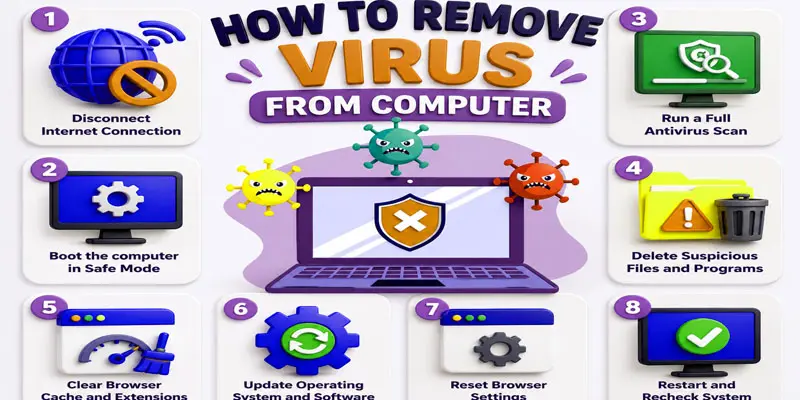
How to Remove Virus from Computer? (Step-by-Step Guide)
Removing a virus from your computer is easy when you follow the right step-by-step process to clean your system and restore its performance.
- Disconnect Internet Connection
- Boot the computer in Safe Mode
- Run a Full Antivirus Scan
- Delete Suspicious Files and Programs
- Clear Browser Cache and Extensions
- Update Operating System and Software
- Reset Browser Settings
- Restart and Recheck System
Disconnect Internet Connection
- Turn off your internet connection right away when you notice a virus.
- This stops the virus from sending or receiving data.
- It also stops the virus from spreading to other devices.
- Unplug the Wi-Fi or turn off the mobile hotspot if you are using one.
- This simple step keeps your data safer while you clean your computer.
Boot the Computer in Safe Mode
- Restart your computer and open Safe Mode.
- Safe Mode starts your system with only basic files and settings.
- It helps stop most viruses from running in the background.
- This makes it easier to find and remove harmful programs.
- Use Safe Mode as a safe step before scanning your computer.
Run a Full Antivirus Scan
- Open your trusted antivirus program on the computer.
- Start a full system scan to check all files and folders.
- The antivirus will search for viruses, malware, and threats.
- Wait until the scan is complete and follow the results.
- Remove or quarantine any harmful files it finds.
Delete Suspicious Files and Programs
- Check your installed programs and files carefully.
- Look for anything you do not recognize or did not install.
- Select those suspicious files or apps and remove them.
- This helps stop hidden viruses from harming your system.
- Always be careful and delete only unknown or unsafe items.
Clear Browser Cache and Extensions
- Open your web browser settings.
- Clear the cache, cookies, and browsing history.
- Remove any unknown or unwanted extensions.
- These can sometimes carry hidden viruses or malware.
- This step helps make your browser safe and clean again.
Update Operating System and Software
- Make sure your computer system is updated with the latest software versions.
- Install updates for Windows or your operating system.
- Also, update all installed software and apps.
- Updates help fix security holes used by viruses.
- This helps keep your computer secure and working without problems.
Reset Browser Settings
- Open your browser settings menu.
- Find the option to reset settings to the default.
- Click reset to remove unwanted changes made by viruses.
- This will fix the homepage, search engine, and extensions.
- Your browser will return to its original safe state.
Restart and Recheck System
- Restart your computer after completing all steps.
- This helps apply all changes properly.
- Check your system for any remaining virus signs.
- Make sure your computer is running smoothly now.
- If needed, run another quick antivirus scan.
How Can You Tell If Your Computer Has a Virus?
If your computer is acting strangely, is slow, or is showing unwanted pop-ups, it may be a sign that a virus has entered your system.
- Your computer starts running very slowly, even when you are not using heavy apps. This is a common sign of a computer virus or malware infection.
- You may notice annoying pop-up ads appearing on your screen, even when your browser is not open.
- Unknown apps or files appear on your system. For example, you notice a new program that you never installed.
- Your browser homepage changes without your permission. It may open strange websites or search engines.
- Files or folders go missing or become corrupted. This can happen when a virus damages your data.
- Your computer crashes or freezes again and again. This makes simple tasks very hard to complete.
- You notice unusual activity, like your system working even when you are not using it. This can be a sign of hidden malware or spyware.
- Your antivirus software gets turned off automatically. Many viruses try to disable security tools first.
How Can You Prevent Viruses in the Future?
Preventing computer viruses is easy when you follow simple safety habits that keep your system secure and protect it from future threats.
- Install a trusted antivirus program and keep it active all the time. It helps block malware and virus attacks before they enter your system.
- Avoid clicking unknown links in emails, messages, or websites. For example, a “free prize” link can often be a virus trap.
- Download software only from official and safe websites. Unsafe downloads often carry hidden computer viruses or spyware.
- Keep your operating system and apps updated. Updates fix security problems that hackers can use to attack your device.
- Use strong and unique passwords for all your accounts. This helps protect your personal data from hackers.
- Do not plug unknown USB drives into your computer. They can transfer viruses directly into your system.
- Turn on your firewall for extra protection. It helps block suspicious network activity.
What are Some Helpful Tips for Beginners?
Beginners can easily protect their computer by following a few simple and smart habits. These small steps help reduce the risk of viruses, malware, and other online threats. You do not need advanced skills. Just basic awareness and care can keep your system safe. Always install a trusted antivirus program and keep it updated. It helps detect and remove threats early. Only download software and files from reliable and trusted websites.
For example, a free “cracked app” may contain hidden malware that harms your computer. Avoid clicking on any doubtful links in emails or messages. Many hackers use fake offers to trick users. Always check before you click. Regularly scan your USB drives before opening them on your system. Keep your operating system and apps updated. Updates fix security problems and improve performance.
Also, back up your important files on cloud storage or an external drive. This helps you recover data if something goes wrong. These simple habits make a big difference. By following them, beginners can keep their computer safe, fast, and protected from virus attacks.
Final Thoughts
Removing a virus is not as hard as it seems. With the right steps, you can scan your system, delete harmful files, and improve your computer speed. Learning how to remove virus computer also helps you protect your personal data and avoid future problems. Stay alert, use antivirus tools, and keep your system updated for better safety and performance. Take action today and keep your computer clean, fast, and secure.
FAQs
You can clear a virus quickly by running a full antivirus scan and removing detected threats. Booting your computer in Safe Mode helps stop malware and speeds up the removal process.
Antivirus software kills computer viruses by scanning, detecting, and removing malicious files. Tools like Windows Defender or trusted antivirus programs stop malware and protect your system from further damage.
You cannot always just delete a virus because it may hide in system files. Use antivirus software to safely remove it, as manual deletion can miss hidden malware or cause system errors.
Yes, you can get rid of a virus for free using built-in tools like Windows Defender. Free antivirus programs also help detect and remove malware without paying for premium software.
You can 100% remove a virus by combining Safe Mode, a full antivirus scan, system updates, and resetting your browser. This ensures all hidden malware and infected files are completely removed.



- Be Respectful
- Stay Relevant
- Stay Positive
- True Feedback
- Encourage Discussion
- Avoid Spamming
- No Fake News
- Don't Copy-Paste
- No Personal Attacks
- Be Respectful
- Stay Relevant
- Stay Positive
- True Feedback
- Encourage Discussion
- Avoid Spamming
- No Fake News
- Don't Copy-Paste
- No Personal Attacks
