How to Scan iPhone for Malware Quickly and Easily
Published: 10 Aug 2026
Have you ever noticed your iPhone acting strange for no clear reason? Maybe it starts running slow, shows unwanted pop-ups, or your battery drains faster than usual. It can feel confusing and a little scary because most people believe iPhones are always safe. But the truth is, even iPhones can face security issues when harmful files or risky websites get involved.
Many users start worrying and ask the same question: how to scan iPhone for malware in a simple and safe way. The good news is, you don’t need advanced skills or expensive tools to check your device. You just need to know the right steps and where to look. This guide will show you simple and practical ways to detect unusual activity, review your apps and settings, and strengthen your iPhone’s security.
These steps are simple, beginner-friendly, and designed to help you feel more in control of your device again. If you want a simple and secure iPhone experience, this guide will take you through each step in an easy way.
What is Malware on iPhone?
Malware on an iPhone means harmful software or files that try to damage your device or steal your data. It is not very common on iPhones, but it can still happen through unsafe websites, fake apps, or phishing links. For example, you may click a “free prize” link and unknowingly allow unwanted activity on your phone. Malware can slow down your iPhone, show pop-up ads, or track your personal information. It may also change settings without your permission. In simple words, malware is a hidden threat that affects iPhone security and performance.
How Can You Tell If Your iPhone May Have Malware?
If your iPhone has malware, it often shows small but clear warning signs. These signs may look normal at first, but they can point to security issues or unwanted software.
- Battery drains quickly: Your phone may lose power faster than usual. For example, it drops from 80% to 40% in a short time without heavy use.
- Slow performance: Apps take longer to open, and your iPhone may freeze or lag during simple tasks.
- Unwanted pop-ups or ads: You may see random ads while using Safari or even on your home screen.
- Unknown apps appear: Sometimes, apps you did not install may show up on your device.
- High data usage: Your mobile data may increase without reason because hidden apps are running in the background.
- Safari redirects: You may get sent to strange websites when you try to open normal pages. For example, typing a news site but landing on an unknown page.
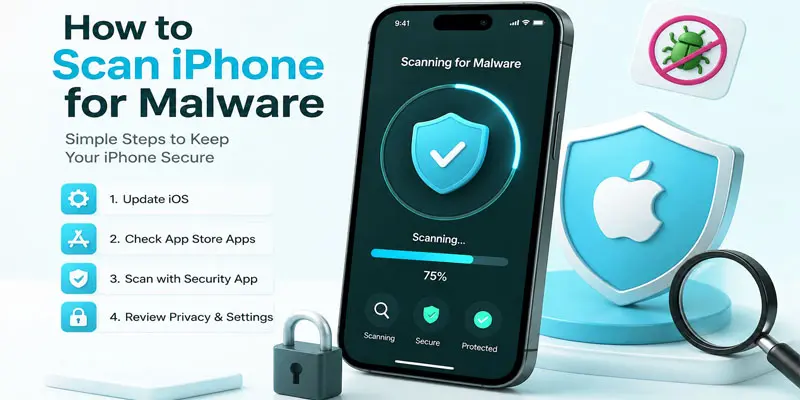
How to Scan iPhone for Malware? (Step-by-Step)
To scan your iPhone for malware, follow these easy step-by-step methods to detect hidden threats and keep your device safe and running smoothly.
- Check Installed Apps
- Remove Unknown or Suspicious Apps
- Clear Safari History and Website Data
- Update iOS to Latest Version
- Restart iPhone
- Check App Permissions
- Reset Network Settings
- Factory Reset iPhone (If Needed)
Check Installed Apps
Go to your iPhone and open the home screen. Look at all the apps installed on your device carefully. If you see any app that you don’t remember downloading, it may be suspicious. Tap and hold the app to check its details or remove it. Delete any unknown or unused apps to keep your iPhone safe and clean.
Remove Unknown or Suspicious Apps
Press and hold the app icon on your iPhone’s home screen. Wait until the menu appears or the apps start shaking. Tap “Remove App” or “Delete App” to uninstall it. If you see any app you don’t trust or did not install, remove it right away. This helps protect your iPhone from malware and keeps it running safely.
Clear Safari History and Website Data
Open the Settings app on your iPhone. Scroll down and tap on Safari. Find the option “Clear History and Website Data” and tap it. Confirm your action to remove all saved browsing data. This helps remove harmful website files and improves your iPhone security.
Update iOS to Latest Version
Open the Settings app on your iPhone, then head to General. Next, tap on Software Update. If a new update is shown, select Download and Install to begin updating your device. Make sure your phone is connected to Wi-Fi and has enough battery. Updating iOS helps fix security issues and protects your iPhone from malware.
Restart iPhone
Press and hold the power button on your iPhone. Slide to power off when the option appears on the screen. Wait a few seconds until your phone turns off completely. Then press the power button again to turn it back on. Restarting your iPhone can help remove small glitches and improve performance.
Check App Permissions
Open the Settings app on your iPhone. Scroll down and tap Privacy & Security. Choose a permission option such as Camera, Microphone, or Location. Look through the list of apps that have permission to access these features and check which ones really need it. Disable access for any app that seems unnecessary or untrusted. This will help keep your data private and improve your iPhone’s security.
Reset Network Settings
Open the Settings app on your iPhone. Tap General, then scroll down until you find Transfer or Reset iPhone. Select Reset and then tap Reset Network Settings. Enter your passcode to confirm the action. This will fix network issues and remove any harmful or unknown network changes.
Factory Reset iPhone (If Needed)
Open the Settings app on your iPhone and go into the General section. From there, scroll down and select Transfer or Reset iPhone. Select Erase All Content and Settings. Enter your passcode and confirm the reset. This will completely remove all data and malware from your iPhone.
How Can You Use Built-in iPhone Security Features?
Your iPhone already has strong built-in security tools. You just need to use them the right way. These features help protect your data, apps, and privacy from malware and unsafe activity.
- Enable App Store protection: Only download apps from the App Store. For example, avoid installing apps from unknown links in messages.
- Use Privacy settings: Go to Settings > Privacy & Security. Check which apps can access your camera, location, or microphone.
- Turn on Face ID or Passcode: This keeps your phone locked and stops strangers from accessing your data.
- Enable Two-Factor Authentication (2FA): This adds extra security to your Apple ID. Even if someone knows your password, they still may not be able to sign in easily because extra security steps are required.
- Review app permissions regularly: Remove access for apps that do not need your personal data.
What are Some Extra Safety Tips to Prevent Malware?
Keeping your iPhone safe from malware is easy when you follow smart daily habits. These extra safety tips help protect your device, data, and privacy from hidden threats.
- Avoid unknown links: Do not tap links in random emails or messages. For example, fake “prize win” links can be dangerous.
- Download apps only from App Store: Always use trusted sources. Avoid third-party websites or unofficial app stores.
- Use a strong Apple ID password: Create a long password with numbers and letters. This stops hackers from accessing your account.
- Turn on Two-Factor Authentication (2FA): This adds extra security when you log in from a new device.
- Keep iOS updated: Updates fix security bugs and protect your phone from new malware.
- Avoid public Wi-Fi for sensitive tasks: For example, do not enter banking details on free public networks.
- Check website safety before browsing: Do not visit suspicious or unknown websites.
When Should You Take Serious Action?
You should take serious action when your iPhone shows repeated signs of malware or unusual behavior that does not go away. Small issues like slow speed or pop-ups may sometimes fix themselves on their own, but constant problems need attention. For example, if your iPhone keeps showing unwanted ads even after clearing Safari data, it may be a warning sign.
If apps crash often, unknown apps appear again after deletion, or your battery drains very fast, it is time to act quickly. You should also be careful if your Apple ID shows unknown login attempts or your settings keep changing without your permission.
In such cases, simple fixes may not be enough. You may need to reset your iPhone, remove all data, or restore it from a clean backup. These steps help remove hidden malware and protect your personal data. Taking quick action helps improve iPhone security and keeps your device safe from further risk.
Final Thoughts
Scanning your iPhone for malware is not complicated when you follow the right steps. By checking apps, updating iOS, clearing browser data, and reviewing settings, you can quickly spot and remove suspicious activity. These simple actions help improve iPhone security and keep your data safe. Stay consistent with regular checks and safe browsing habits. If you notice unusual behavior again, repeat these steps or reset your device if needed. Take control of your iPhone safety today and keep your device protected for the long run.
FAQs
You can check whether your iPhone shows signs of hacking by looking for unusual app behavior, reviewing battery usage, and checking your settings for any changes. Look for unknown apps or unusual activity. These simple checks help detect security issues early.
You can clean your iPhone by deleting suspicious apps, clearing Safari data, and updating iOS. Restart your device and reset settings if needed. These steps help remove malware safely.
Apple does not offer a traditional malware scan on iPhone. Instead, it uses built-in security in iOS to block threats. Keeping your system updated helps maintain strong protection.
Yes, an iPhone can be hacked with malware, but it is rare. It usually happens through fake links, unsafe websites, or phishing apps. Safe browsing reduces this risk greatly.
Turning off your iPhone does not remove malware. It only pauses activity temporarily. To fully fix the issue, you must delete harmful apps or reset your device for complete security.




- Be Respectful
- Stay Relevant
- Stay Positive
- True Feedback
- Encourage Discussion
- Avoid Spamming
- No Fake News
- Don't Copy-Paste
- No Personal Attacks
- Be Respectful
- Stay Relevant
- Stay Positive
- True Feedback
- Encourage Discussion
- Avoid Spamming
- No Fake News
- Don't Copy-Paste
- No Personal Attacks
