How to Scan the Malware | Easy Step-by-Step Guide
Published: 7 Aug 2026
Have you noticed that your computer or phone is acting strangely lately? Maybe it is running slower, showing unwanted pop-ups, opening unknown apps, or using more data than usual. These problems can be signs that malware is hiding on your device. Malware can damage files, steal personal information, and affect your online safety if you ignore it.
Many people think malware only affects large companies, but personal devices can also become targets. The good news is that you can find and remove many threats with the right steps. Learning how to scan for malware helps you protect your device and keep your important data safe.
This guide shows you simple and practical methods to spot malware on your device, use reliable security tools, understand scan results easily, and apply helpful steps to protect against future threats. Whether you use Windows, Mac, Android, or another device, a proper malware scan can help you find hidden threats and improve your security. Let’s explore the easiest ways to detect malware and keep your device protected.
What are the Common Signs That Your Device May Have Malware?
Malware can sometimes stay hidden on your device, but it often shows warning signs. These signs can help you identify possible security problems early. If you notice unusual changes, you should check your device and run a malware scan.
- Your device becomes slow: Malware can use your device’s resources in the background. You may notice apps taking longer to open, programs freezing, or your system becoming slower than normal. For example, a laptop that used to work fast may suddenly take several minutes to start.
- You see too many pop-ups or unwanted ads: Frequent pop-ups, fake warnings, or strange advertisements can be a sign of adware or other harmful software. These types of ads may show up even when you are not browsing the internet or actively using online apps.
- Unknown apps or programs appear: If you find software, browser extensions, or apps that you did not install, they may be unsafe. Always check unfamiliar programs before using them.
- Your battery drains quickly: Malware may run hidden tasks in the background, which can increase battery usage. Phones and laptops may lose power faster than usual.
- Your internet data usage increases: Some malware sends information from your device without your knowledge. A sudden increase in data usage can be a warning sign.
- Your browser settings change automatically: Malware can change your homepage, search engine, or add unwanted extensions. These changes may affect your browsing experience.
- Your files or settings change unexpectedly: Missing files, locked documents, or changed settings can indicate a malware infection.
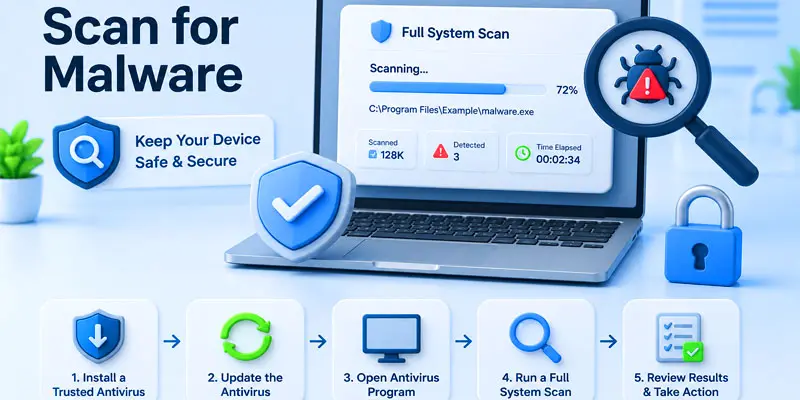
How to Scan for Malware? (Step-by-Step Guide)
Follow this simple step-by-step guide to scan for malware, detect hidden threats, and protect your device from harmful software.
- Check for Malware Symptoms
- Use Built-In Security Tools
- Install a Trusted Malware Scanner
- Run a Full Malware Scan
- Review Scan Results
- Remove or Quarantine Detected Threats
- Restart Your Device and Scan Again
- Keep Your Security Tools Updated
Check for Malware Symptoms
Before running a malware scan, look for common warning signs on your device. Malware may cause slow performance, unwanted pop-ups, unknown apps, or unusual system behavior. Check if your battery drains faster or if your internet data usage increases without reason. Finding these symptoms early can help you take quick action and protect your device.
Use Built-In Security Tools
Most devices come with built-in security tools that help find and remove malware. Open your device’s security settings and start a basic or full system scan. These tools check your files, apps, and system areas for possible threats. Using built-in protection is an easy first step to keep your device safe.
Install a Trusted Malware Scanner
Download a trusted malware scanner from a safe and official source. These tools help detect hidden viruses and harmful software on your device. Always choose well-known security apps to avoid fake programs. A good scanner gives better protection and keeps your system safe from new threats.
Run a Full Malware Scan
Start a full malware scan using your security tool. This scan checks all files, apps, and system areas for hidden threats. It may take some time, but it gives better results than a quick scan. Running a full scan helps you find and remove harmful software from your device.
Review Scan Results
After the scan is complete, carefully check the results. Your security tool will show if any threats are found on your device. Read the report to understand which files or apps are harmful. This step helps you know what needs to be removed or fixed to keep your device safe.
Remove or Quarantine Detected Threats
If malware is found, take action right away. You can remove it completely or move it to quarantine. Quarantine keeps the threat isolated so it cannot harm your device. Follow your security tool’s instructions to clean infected files safely. This step helps protect your system from further damage.
Restart Your Device and Scan Again
After removing threats, restart your device to apply all changes. This helps clear any leftover files or processes. Once your device turns back on, run another malware scan. It ensures that no hidden threats are still present. This step gives you extra safety and a clean system.
Keep Your Security Tools Updated
Always keep your security tools updated to the latest version. Updates add new features and fix security problems. They also help detect the newest malware threats. Turn on automatic updates if possible for better protection. This process helps protect your device and keeps it running in a stable and smooth way.
How Can You Scan for Malware on Different Devices?
Different devices like Windows, Mac, Android, and others need slightly different steps to scan for malware, but the goal is always the same find and remove hidden threats to keep your device safe and secure.
- How to Scan Malware on Windows
- How to Scan for Malware on Mac
- How to Scan Malware on Android
How to Scan Malware on Windows
- Windows has a built-in security tool called Windows Security (Windows Defender). It helps you find and remove malware easily.
- Open the Start menu, type “Windows Security” in the search field, and choose it from the results to launch the app.
- Go to Virus & threat protection. This is where malware scanning starts.
- Click on Quick Scan to check important system areas. For better safety, choose Full Scan.
- A full scan checks all files, apps, and hidden folders on your computer. It may take some time, but it gives better results.
- If any threats are found, Windows will show alerts and suggest removal steps. Follow them to clean your system.
How to Scan for Malware on Mac
- Mac devices have built-in security features that help protect against malware and viruses.
- You can start by checking System Settings and looking for security and privacy options.
- macOS automatically blocks many harmful apps, but you should still run a manual malware check for safety.
- Install a trusted malware scanner from the App Store or official website for better protection.
- Run a full system scan to check files, apps, and downloads for hidden threats.
- If any suspicious files are found, follow the tool’s instructions to remove or quarantine them.
How to Scan Malware on Android
- Android phones can get malware from unsafe apps, fake links, or unknown downloads.
- Start by opening Google Play Protect in the Play Store. It helps scan apps for security issues.
- Go to Play Store > Profile > Play Protect > Scan to check your device.
- Install a trusted mobile security app for a deeper malware scan. These apps help find hidden threats.
- Run a full device scan to check installed apps, files, and system activity.
- If malware is found, remove or uninstall the suspicious app right away.
What are the Best Tips to Prevent Malware After Scanning?
After removing malware, you must take simple steps to stop future infections. These tips help protect your device from viruses, spyware, and other security threats.
- Keep your software updated: Always update your operating system and apps. Updates fix security issues and block new malware attacks. For example, an outdated browser can easily get infected.
- Download apps from trusted sources only: Use official stores like Microsoft Store, Apple App Store, or Google Play Store. Avoid unknown websites that offer free software downloads.
- Do not open links from unknown emails, messages, or pop-up alerts. Such links can silently install harmful malware on your system.
- Use a strong antivirus or security tool: A good antivirus helps detect real-time threats and blocks harmful files before they enter your system.
- Turn on automatic security scans: Set your malware scanner to run regular scans. This helps catch threats early without manual effort.
- Make sure to use strong and different passwords for each of your accounts. Weak passwords can be guessed easily, so it is better to combine letters, numbers, and special symbols for stronger protection.
- Back up your important data: Save your files on cloud storage or external drives. If malware attacks, you will not lose your important data.
What are the Common Mistakes People Make During Malware Scanning?
Many users make simple mistakes during a malware scan, which can reduce protection and leave threats on the device.
- Skipping full system scans: Some people only run quick scans. Quick scans may miss hidden malware in deep files and folders.
- Ignoring security warnings: When antivirus tools show alerts, users sometimes ignore them. This can allow malware to stay active.
- Not updating security software: Old antivirus tools cannot detect new viruses or spyware. Updates are important for strong protection.
- Using multiple antivirus programs: Running more than one security tool can slow down the system and cause conflicts during scanning.
- Downloading fake malware removal tools: Some unsafe websites offer fake “free virus cleaners.” These can actually install more malware.
- Not scanning regularly: Many users scan only when their device becomes slow. Regular scans help detect threats early.
Final Thoughts
Knowing how to scan for malware helps you detect harmful programs, protect your files, and improve device security. Regular malware scans, safe browsing habits, software updates, and trusted security tools can reduce risks. Take action today by checking your device and removing possible threats. A safer digital experience starts with simple protection steps.
FAQs
To check your computer for malware, open your antivirus program or built-in protection tool and start a complete system scan to detect any hidden threats. This checks files, apps, and folders for hidden threats and removes them safely.
You can check if you have malware by looking for slow performance, pop-ups, unknown apps, or strange system behavior. Run a malware scan to confirm infections and detect hidden threats quickly.
You can detect malware using antivirus software, built-in security tools, and regular system scans. These tools identify suspicious files, unusual activity, and help protect your device from viruses and spyware.
You can clean malware from a PC by running a full antivirus scan, removing or quarantining threats, and restarting your system. Always update your security tool for better protection and complete cleanup.
Yes, you can remove malware for free using built-in tools like Windows Security or free trusted antivirus programs. These tools help detect and remove common threats without needing paid software.




- Be Respectful
- Stay Relevant
- Stay Positive
- True Feedback
- Encourage Discussion
- Avoid Spamming
- No Fake News
- Don't Copy-Paste
- No Personal Attacks
- Be Respectful
- Stay Relevant
- Stay Positive
- True Feedback
- Encourage Discussion
- Avoid Spamming
- No Fake News
- Don't Copy-Paste
- No Personal Attacks
