What is a SSD? Definition, Examples, Types, Work and its History
Published: 9 Mar 2025
Is your computer taking too long to start or load simple files? Many users face slow laptops and PCs every day, and it becomes very frustrating. You click something and wait, and wait again. This slow performance can waste your time, reduce productivity, and even make work stressful. The main reason behind this issue is often old or traditional hard drives that cannot keep up with modern speed needs.
This is where the Solid State Drive (SSD) comes in as a powerful solution. A Solid State Drive (SSD) improves your computer speed, reduces loading time, and makes your system feel brand new. In this guide, you will learn what a Solid State Drive (SSD) is, how it works, and why it is much faster than regular storage.
You will also understand how it can boost performance for gaming, office work, and daily use. By the end, you will clearly know whether upgrading to an SSD is the right choice for you and how it can completely change your computer experience. It also helps extend battery life in laptops and improves overall reliability.
What is Solid State Drive (SSD)? (Clear Definition)
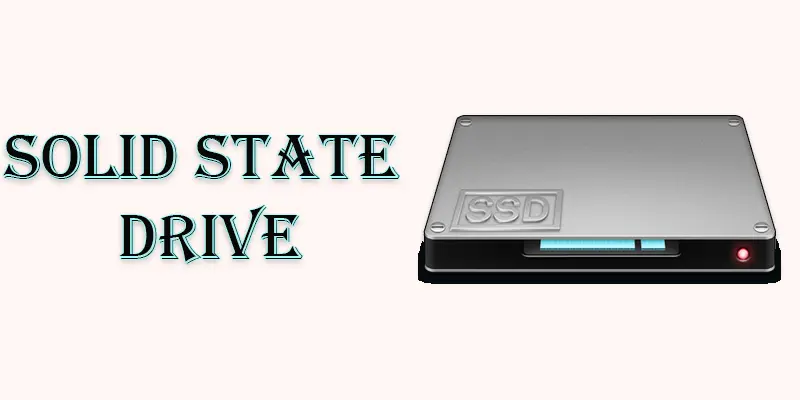
An SSD is a quick-loading and fast-saving storage device. Compared to a hard disc, it is speedier and more robust because it doesn’t have any moving parts.
What are the Best Real-Life SSD Examples?
Here are some examples of SSD
- SATA SSD: Common and affordable, faster than HDDs.
- NVMe SSD: High-speed, great for gaming and professional use.
- M.2 SSD: Compact and fits directly onto the motherboard.
- PCIe SSD: Ultra-fast, used in high-performance computing.
- External SSD: Portable storage for backups and file transfers.
What is the Purpose of SSD in a Computer System?
An SSD’s main purpose is to store and access data quickly. It makes computers run faster by reducing boot times and loading applications instantly. This helps with gaming, video editing, and everyday tasks.
SSDs also improve a device’s lifespan and energy efficiency. They are perfect for laptops and other portable devices since they are more robust and consume less power due to the absence of moving parts.
What are the Types of Solid State Drives with Features?
There are different types of SSDs, each designed for various speeds, sizes, and performance needs.
- External SSD
- PCIe SSD
- SATA SSD
- M.2 SSD
- NVMe SSD
SATA SSD
Utilising the SATA interface, a SATA SSD is a type of storage disc that is slower than NVMe SSDs but faster than conventional hard drives. It is a budget-friendly option for upgrading older computers. For example, the Samsung 870 EVO is a popular SATA SSD known for its reliability and speed.
NVMe SSD
Using the PCIe interface, an NVMe SSD is a high-speed storage disc that is significantly quicker than SATA SSDs. It is ideal for gaming, video editing, and heavy workloads. Example: WD Black SN850X is a powerful NVMe SSD with ultra-fast speeds for top performance.
M.2 SSD
An M.2 SSD is a compact, stick-shaped storage drive that connects directly to the motherboard, saving space and improving speed. It comes in both SATA and NVMe versions, depending on performance needs. Example: Samsung 980 Pro is a high-speed M.2 NVMe SSD, perfect for gaming and professional use.
PCIe SSD
A PCIe SSD is a high-speed storage drive that connects through the PCIe slot, offering much faster data transfer than SATA SSDs. It is great for gaming, 3D rendering, and other heavy tasks. Example: Seagate FireCuda 530 is a powerful PCIe SSD with ultra-fast speeds for top performance.
External SSD
An external SSD is a portable storage device with endurance and quick data transfer that connects via Thunderbolt or USB. It is great for backups, file transfers, and expanding storage on laptops and consoles. Example: Samsung T7 is a popular external SSD known for its speed, compact size, and reliability.
What is the History and Development of Solid State Drives?
SSDs have been around since the 1970s, but they were very expensive and used only in high-end computers. In the 1990s and early 2000s, flash memory technology improved, making SSDs more affordable and faster. By the 2010s, SSDs became popular for personal computers, replacing traditional hard drives due to their speed and durability. Today, SSDs are widely used in laptops, gaming PCs, and even external storage devices, offering better performance and reliability than ever before.
How Does an SSD Function in Computers and Laptops?
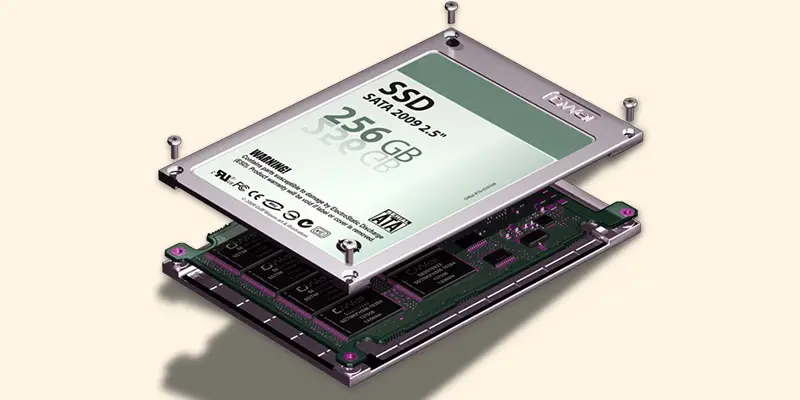
SSD works by using flash memory to store data, allowing your computer to access files instantly without any moving parts.
- Use Flash Memory: SSDs store data using NAND flash memory chips (just like USB drives).
- No Moving Parts: Unlike hard drives, SSDs have no spinning disks or moving heads.
- Store Data in Cells: Data is saved in small memory cells that hold bits (0s and 1s).
- Quick Access: SSDs can read and write data almost instantly.
- Connected via Interface: They connect to your computer using SATA, M.2, or NVMe interfaces.
- Controller Manages Flow: An internal controller manages where data is saved and how it’s accessed.
- Retain Data When Off: Data stays saved even when the power is off.

How Do You Install a Solid State Drive in a Laptop or PC?
Installing or upgrading to an SSD is a simple way to speed up your computer. You just need to remove the old hard drive and connect the SSD in its place. Most laptops and desktops support SATA or M.2 SSDs, depending on the model.
Before starting, always back up your data to avoid loss. Once installed, you can either clone your old drive or do a fresh Windows installation. Many free tools are available online to help with the setup.
What Should You Check Before Purchasing a Solid State Drive?
Here are some simple things to consider before buying an SSD:
- Storage Size: Choose the right size. Common options are 256GB, 512GB, or 1TB.
- Speed & Type: NVMe is faster than SATA, but also more expensive.
- Compatibility: Check if your laptop or PC supports SATA, M.2, or NVMe SSDs.
- Budget: SSD prices vary by brand, speed, and storage size. Pick what fits your needs.
- Connector Type: Make sure the SSD fits your motherboard’s slots.
- Brand & Warranty: Go for trusted brands with at least 3 to 5 years of warranty.
- Usage Purpose: For basic use, go for SATA; for gaming or editing, choose NVMe.
- Data Migration Tools: Some SSDs come with free cloning software very useful for upgrades.
Final Thoughts
Understanding Solid State Drive (SSD) helps you improve your computer performance and speed. It reduces loading time, boosts system response, and improves overall storage experience. Upgrading to an SSD is a smart choice for faster work, gaming, and daily use. If your PC feels slow, consider switching to an SSD today. Learn more about computer storage upgrades and take action to enjoy better speed and performance.
FAQs
Can SSDs fail over time?
Yes, SSDs can fail over time, but they last longer than HDDs. Most SSDs have a lifespan of several years, depending on usage.
Who is eligible for an SSD upgrade?
Anyone with a computer, laptop, or gaming console that supports SSDs can upgrade. It’s great for faster speed and better performance.
Why are SSDs faster than HDDs?
SSDs use flash memory instead of spinning disks, allowing them to read and write data much faster than HDDs.
Why are SSDs more expensive than HDDs?
SSDs use advanced technology and high-speed flash memory, which costs more to make than traditional HDDs.
Are SSDs better than HDDs?
Yes, SSDs are better because they are faster, quieter, and more durable than HDDs. However, HDDs are cheaper for large storage needs.






- Be Respectful
- Stay Relevant
- Stay Positive
- True Feedback
- Encourage Discussion
- Avoid Spamming
- No Fake News
- Don't Copy-Paste
- No Personal Attacks
- Be Respectful
- Stay Relevant
- Stay Positive
- True Feedback
- Encourage Discussion
- Avoid Spamming
- No Fake News
- Don't Copy-Paste
- No Personal Attacks
