Laser Printer Resolution DPI | How It Affects Prints
Published: 23 Oct 2025
Laser Printer Resolution (DPI) plays a big role in how sharp and clear your prints look. Most users don’t realize that DPI, or dots per inch, directly affects image quality, text smoothness, and color depth. The higher the DPI, the more professional and detailed your prints appear.
Have you ever wondered why some documents look crisp while others appear blurry, even from the same printer? The answer often lies in the laser printer resolution (DPI) settings. Understanding this simple but powerful feature can completely change how you view print quality at home or in the office.
Many users face dull or faded prints without knowing that their laser printer resolution (DPI) is set too low. Poor settings can waste toner, slow print speed, and lower the quality. Learning how DPI works helps you print sharper text, better images, and achieve professional-looking results every time.
What is DPI in a Laser Printer?
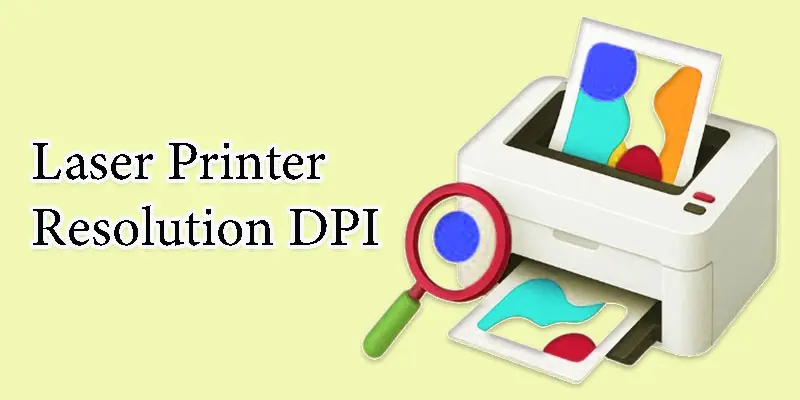
DPI in a laser printer stands for Dots Per Inch. It measures how many tiny dots of toner a printer can place on one inch of paper. The more dots it prints, the sharper and clearer the image or text looks. A higher laser printer resolution (DPI) means better print quality, while a lower DPI gives basic results for everyday use.
How Does Laser Printer Resolution Work?
Laser printer resolution (DPI) works by using a laser beam to place tiny dots of toner on paper, creating sharp text and clear images with precise detail.
- Laser and Toner Process
- Dots Formation on Paper
- Role of Drum and Heat
- Impact of Paper Quality
- Precision and Print Clarity
Laser and Toner Process
In a laser printer, the laser and toner work as a team to create your print. The laser draws your image or text on a drum using light. This charged drum then attracts toner powder to the right spots. Finally, the toner is pressed and heated onto the paper, forming clean and sharp prints.
Dots Formation on Paper
Dots are formed on paper when the laser printer places tiny spots of toner powder in the right positions. The laser controls where each dot goes, creating shapes, letters, and images. These dots are so small that they blend smoothly, making prints look sharp and detailed. More dots mean better quality and clearer results.
Role of Drum and Heat
The drum in a laser printer holds the image or text made by the laser. It transfers the toner powder onto the paper in the right pattern. Then, heat and pressure from the fuser unit melt the toner onto the paper. This makes the print permanent, smooth, and smudge-free.
Impact of Paper Quality
Paper quality plays a big role in how clear your prints look. Smooth, high-quality paper helps toner stick evenly, giving sharp and clean results. Rough or thin paper can absorb toner unevenly, making prints look dull or blurry. For the best laser printer resolution (DPI), always use good-quality paper.
Precision and Print Clarity
Precision means how accurately a laser printer places each dot on paper. When dots are placed perfectly, the text looks sharp, and images appear smooth. If the printer is less precise, prints can look fuzzy or unclear. Good precision helps achieve high print clarity and professional-quality results.
What are the Common DPI Levels in Laser Printers?
Different laser printers offer various DPI levels, which determine how sharp and detailed your prints will look.
- 300 DPI: Good for basic text and everyday printing.
- 600 DPI: Ideal for office documents with clear text and simple images.
- 1200 DPI: Great for photos, charts, and detailed graphics.
- 2400 DPI: Best for professional prints with high-quality images and designs.
- 4800 DPI (and above): Used in advanced printers for premium photo or design work.
How Does DPI Affect Print Quality and What Do You Really Need?
DPI, or Dots Per Inch, affects how clear and sharp your prints look. A higher DPI means more dots on the paper, which creates smoother text and detailed images. Lower DPI is fine for simple documents, while higher DPI is better for designs or photos.
However, print quality doesn’t depend only on DPI. Other factors like paper type, toner quality, and printer model also make a big difference. Even a 600 DPI print can look great if the paper and toner are good.
For most users, 600 to 1200 DPI is enough for clear and professional results. Choose higher DPI only if you need photo-level clarity or design printing. It’s all about balancing quality with printing speed and toner use.
How Can You Choose the Right DPI for Your Printing Needs?
Choosing the right DPI depends on what you print most text, photos, or graphics, since each needs a different level of detail and clarity.
- For text documents: 300 to 600 DPI is enough for clear and sharp writing.
- For office use: 600 DPI gives a good balance between quality and speed.
- For photos or graphics: 1200 DPI or higher provides fine detail and smooth color.
- For professional printing: 2400 DPI ensures top-quality and crisp results.
- Quick tip: Higher DPI means better quality, but slower speed and more toner use.
How Can You Check and Adjust DPI Settings on Your Printer?
You can easily check and adjust your printer’s DPI settings through your computer’s printer preferences to get the best print quality for your needs.
- Accessing Printer Settings
- Finding the DPI Option
- Adjusting DPI for Quality or Speed
- Testing Your Print Output
- Saving Your Settings
Accessing Printer Settings
You can open your printer settings through your computer’s control panel or system settings. Simply click on Devices and Printers, then choose your printer from the list. Then click on Printing Preferences or Properties. This is where you can view and change options like DPI, paper type, and print quality.
Finding the DPI Option
You can find the DPI option in your printer’s printing preferences or quality settings. After opening your printer settings, look for tabs like Quality, Advanced, or Resolution. There you’ll see choices such as 300, 600, or 1200 DPI. Pick the one that fits your printing needs best.
Adjusting DPI for Quality or Speed
To adjust DPI, go to your printer’s preferences and open the quality settings tab. Higher DPI gives sharper prints but may take longer and use more toner. Lower DPI prints faster and saves toner, but with less detail. Choose a DPI level that balances both quality and speed for your needs.
Testing Your Print Output
You can test your print output by printing a sample page after changing the DPI. This helps you see how clear the text and images look. Try printing the same file at different DPI levels to compare results. Choose the setting that gives you the best balance of quality and speed.
Saving Your Settings
After adjusting your DPI settings, click Apply or Save in the printer settings window. This keeps your chosen resolution for future prints. If you want to use different DPI levels later, you can always go back and change them. Saving the right settings helps you get consistent print quality every time.
What Is the Difference Between DPI and PPI?
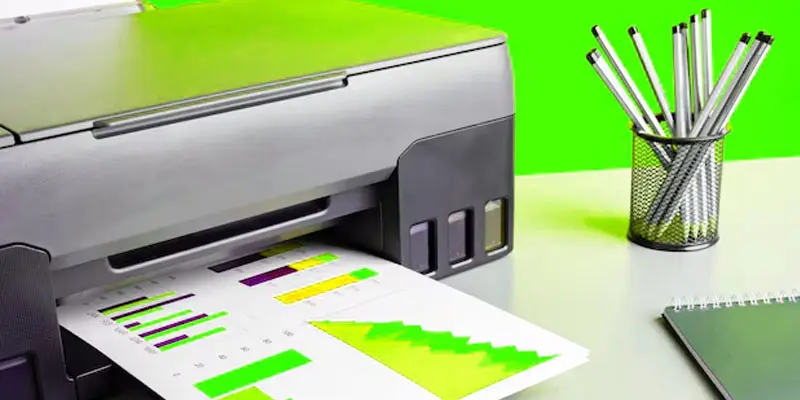
DPI and PPI may sound similar, but they measure different things—DPI is for print quality, while PPI is for screen image clarity.
| DPI | PPI |
|---|---|
| Dots Per Inch. | Pixels Per Inch. |
| Printing. | Digital screens and images. |
| Number of toner dots printed per inch. | Number of pixels displayed per inch. |
| Print sharpness and detail. | Image clarity and resolution on screens. |
| The Laser printer prints at 600 DPI. | Monitor displays at 300 PPI. |
| Sharper and more detailed prints. | Clearer and more detailed digital images. |
Conclusion
Laser printer resolution (DPI) plays a key role in how sharp and professional your prints look. I recommend using 600 DPI for regular documents and 1200 DPI or higher for images or designs. Always check your printer settings before printing to get the best results. Start testing different DPI levels today and see the difference in your print quality.
FAQS
A good DPI for a laser printer is usually 600 DPI, which gives clear text and decent images. For photos or detailed graphics, 1200 DPI is better. Lower DPI, like 300, works for simple documents.
Not exactly. 300 DPI refers to dots per inch in printing, while resolution can mean pixels for digital images. In print, 300 DPI is a standard for clear documents.
High-quality printing usually starts at 1200 DPI. This level gives smooth images, sharp text, and clear details. Anything above 1200 DPI is excellent for professional or photo prints.
For everyday text, 600 DPI is enough. For images or graphics, 1200 DPI or higher works best. Choose DPI based on the type of print and quality you need.
You can check DPI in your printer settings. Go to Printer Properties or Printing Preferences on your computer, then look for Resolution or Quality settings.
For print-on-demand products like books or posters, 300–600 DPI is standard for text. For images, 1200 DPI ensures clear and sharp prints.
Commercial printers often use 1200 DPI or higher for sharp text and detailed graphics. High DPI ensures professional-looking prints for marketing and large orders.
Open your printer settings on your computer, go to Printing Preferences, then select Resolution or DPI. Choose the level based on text, graphics, or photos.
Common mistakes include using too low DPI for images, printing at very high DPI unnecessarily, or ignoring paper quality. Wrong DPI can cause blurry or wasted prints.
For large posters or banners, 150–300 DPI is usually enough. High DPI isn’t needed for very big prints because they are viewed from a distance.




- Be Respectful
- Stay Relevant
- Stay Positive
- True Feedback
- Encourage Discussion
- Avoid Spamming
- No Fake News
- Don't Copy-Paste
- No Personal Attacks
- Be Respectful
- Stay Relevant
- Stay Positive
- True Feedback
- Encourage Discussion
- Avoid Spamming
- No Fake News
- Don't Copy-Paste
- No Personal Attacks
