What Does Collate Mean on a Printer? Explained Easily
Published: 3 Aug 2026
Have you ever clicked Print, noticed the Collate option, and wondered if you should turn it on or leave it off? You are not alone. Many people see this setting every day but are not sure what it actually does. Selecting the incorrect setting may cause your printed pages to appear out of sequence, particularly when creating several copies of reports, assignments, or important documents.
That means extra time sorting papers by hand and more frustration than necessary. The good news is that understanding what does collate mean when printing is much easier than it sounds. Once you know how it works, you can print documents in the correct order, save time, and avoid common printing mistakes.
Whether you use a home printer, an office printer, or a school printer, this simple setting can make a big difference in your printing experience. In this guide, you will learn what collated and uncollated printing mean, when to use each option, and how to choose the right setting for different print jobs. By the end, you will feel more confident every time you click the Print button.
What Does Collate Mean When Printing?
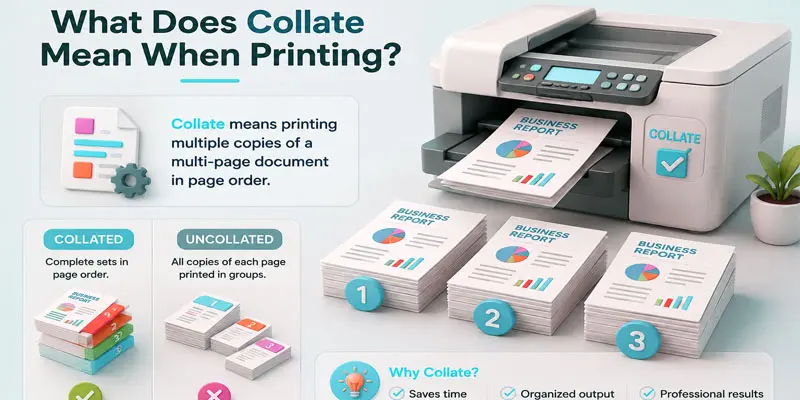
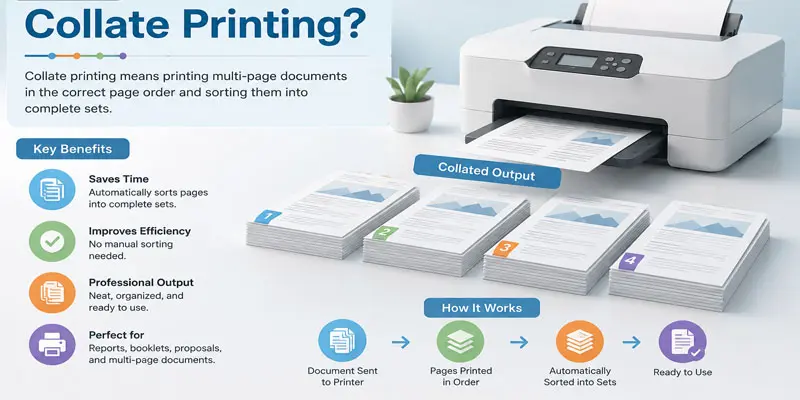
Collate is a printer feature that automatically arranges the pages of each copy in the proper sequence when you print several sets of a document. For example, if you print three copies of a five-page report with collated printing, the printer prints Pages 1–5 for the first copy, then Pages 1–5 for the second, and so on. Without collating, it prints all Page 1s first, then all Page 2s, which means you must sort the pages yourself. This feature is useful for school assignments, business reports, manuals, and other multi-page documents where keeping pages organized saves time.
How Does Collate Work When Printing?
It automatically arranges the pages of each document copy in the correct order, making it easier to print organized reports, assignments, and other multi-page documents without sorting them by hand.
- Collated Printing Example
- Uncollated Printing Example
- Side-by-Side Comparison
Collated Printing Example
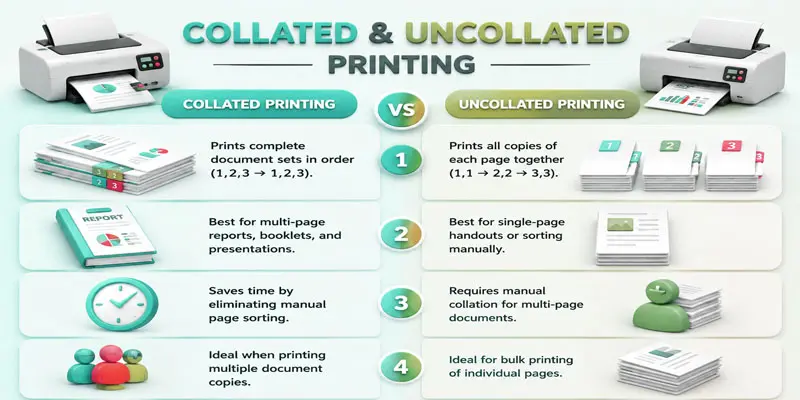
Imagine you are printing 3 copies of a 4-page document. When collated printing is enabled, the printer creates each full copy in the correct page sequence, such as printing Pages 1, 2, 3, and 4 together before moving on to the next copy. This keeps every copy in the correct order and ready to use.
Uncollated Printing Example
Imagine you are printing 3 copies of a 4-page document. With uncollated printing, the printer prints all copies of Page 1 first, then all copies of Page 2, followed by Page 3 and Page 4. You need to arrange the pages manually to create complete document sets.
Side-by-Side Comparison
Collated printing keeps each copy in the correct page order, making it useful for reports, books, and presentations. Uncollated printing groups the same pages together, which works better for forms and single-page documents. The main difference is how the printer arranges multiple copies before you collect them.
What is the Difference Between Collated and Uncollated Printing?
Confused about choosing between collated and uncollated printing? Understanding the difference can help you organize documents better, save time, and avoid sorting pages manually after printing multiple copies.
| Collated | Uncollated |
|---|---|
| Prints pages in the correct order for each copy. | Prints the same page together before moving to the next page. |
| Creates complete document sets automatically. | Requires manual sorting after printing. |
| Reports, books, presentations, and manuals. | Flyers, forms, and single-page documents. |
| Each copy is ready to use immediately. | Pages need to be arranged into sets. |
| Saves time by reducing page sorting work. | Takes extra time to organize pages. |
| Keeps documents neat and organized. | Pages may become mixed if not arranged. |
| Prints Page 1, 2, 3, then repeats for each copy. | Prints all Page 1 copies, then Page 2 copies, and so on. |
| Requires less manual work. | Requires more manual handling. |
| Used in offices, schools, and businesses. | Used for bulk printing tasks. |
| Selected using the “Collate” option in print settings. | Selected by turning off the “Collate” option. |
| Better for long multi-page documents. | Better for short or repeated pages. |
| Provides ready-to-share document copies. | Provides grouped pages that need sorting. |
When Should You Use Collated or Uncollated Printing?
Choosing between collated and uncollated printing depends on the type of document you want to print. The right option helps you save time, keep pages organized, and avoid manual sorting.
Use Collated Printing When You Need Complete Document Sets: Choose the collate option when printing multiple copies of a multi-page document. The printer will arrange each copy in the correct page order automatically.
Collated printing is useful for:
- Business reports: Create fully organized report copies that are ready to distribute among clients, colleagues, or team members.
- School assignments: Keep every student’s document in the correct order without arranging pages manually.
- Presentations: Create organized handouts where each set includes all pages.
- Instruction manuals: Print booklets or guides with pages already sorted.
- Meeting documents: Prepare separate copies for each attendee quickly.
Use Uncollated Printing When You Need Groups of the Same Page: Choose uncollated printing when you need multiple copies of individual pages instead of complete sets.
Uncollated printing is useful for:
- Forms and worksheets: Print many copies of the same page for students or customers.
- Flyers: Create bulk copies of a single-page document.
- Simple handouts: Print repeated pages without needing page order.
How to Turn On Collate Before Printing?
Turning on the collate option before printing is simple. It helps your printer arrange multiple copies in the correct page order automatically. Follow these easy steps:
- Open the document you want to print.
- Go to the File section and select the printing option to begin the print process.
- Pick your desired printer, then access the available print configuration settings.
- Find the Collate checkbox or option in the printing preferences.
- Turn on the Collate option before starting the print job.
- Choose the number of copies you need.
- Click Print to create organized document sets.
Where Can You Find the Collate Option?
You can find the collate option inside your printer settings when you start a print job. It usually appears in the Print window under options like Copies and Pages, Printer Properties, or Advanced Settings. Some printers show it directly near the number of copies section. If you use software like Microsoft Word, Google Docs, or PDF readers, you can also check the print settings before printing. The location may look different depending on your printer model, but the purpose remains the same: it helps arrange multiple copies in the correct order automatically.
What are the Advantages of Collated Printing and Disadvantages of Collated Printing?
Understanding the advantages and disadvantages of collated printing helps you choose the right print setting for your needs. It can save time, keep documents organized, and help you decide when collated printing is the best choice.
Advantages of Collated Printing
- Keeps pages organized: Collated printing arranges each copy in the correct page order automatically.
- Saves time: You do not need to sort pages manually after printing.
- Creates ready-to-use copies: Each document set comes out complete and ready to share.
- Reduces printing mistakes: It lowers the chance of mixing pages or creating incomplete copies.
- Works well for large documents: It is useful for reports, manuals, presentations, and booklets.
- Improves productivity: It helps offices, schools, and businesses manage large print jobs easily.
Disadvantages of Collated Printing
- May take longer for large print jobs: The printer needs extra time to arrange pages correctly.
- Uses more printer processing power: Some printers may slow down when handling many pages.
- Not useful for single-page copies: Collating is unnecessary when printing only one page.
- May require more memory: Older or basic printers may struggle with large collated documents.
- Less control over page grouping: Some users may prefer sorting pages manually for specific tasks.
Why is the Collate Option Important?
The collate option is important because it helps organize multiple copies of a document automatically. Instead of arranging pages by hand, your printer creates complete sets in the correct order. It helps you complete large printing tasks faster while minimizing errors, whether you are printing detailed reports, presentations, manuals, or academic work.
For example, if you print five copies of a 20-page report, the collate setting makes each copy ready to share. Without this option, you may receive groups of the same pages and need to sort them manually. The collated printing feature improves productivity and makes large print jobs easier to manage. Whether you use a home printer or office printer, choosing the right print setting helps you save effort and keeps your documents organized.
What are the Common Mistakes People Make with the Collate Option?
Many users select the wrong print settings because they do not fully understand how the collate option works. Avoiding these common mistakes can make printing faster and easier.
- Forgetting to enable collate: Users often print multiple copies without turning on the collate setting, which results in mixed pages.
- Confusing collated with double-sided printing: Collate only arranges pages in order. It does not print on both sides of the paper.
- Choosing collate for single-page documents: This option is not useful when printing only one page.
- Ignoring print preview: Checking the preview helps confirm the correct page order before printing.
- Using the wrong number of copies: Always select the correct copy amount before enabling the collate feature.
- Not checking printer support: Some older printers may not handle large collated print jobs properly.
How Can You Troubleshoot Common Collate Printing Problems?
Sometimes the collate option may not work as expected due to printer settings, software issues, or printer limitations. Follow these simple solutions to fix common collate printing problems:
- Check the collate setting: Make sure the collate option is turned on before starting the print job.
- Restart your printer: A quick restart can fix temporary printing errors.
- Update printer drivers: Old drivers may cause problems with print settings and page order.
- Check document settings: Make sure the application you use supports the collate feature.
- Print a test copy: Try a small document first to confirm the correct page arrangement.
- Check printer memory: Large documents may fail to collate if your printer has limited memory.
- Review print preferences: Confirm that no other settings are changing the page order.
Does Every Printer Support Collated Printing?
Not every printer supports collated printing, but many modern printers include this useful feature. Most office printers, laser printers, and multifunction printers can automatically arrange multiple copies in the correct order. Some basic home printers may not have a built-in collate option, especially older models.
In these cases, you may need to arrange pages manually or use software settings before printing. Before starting a large print job, check your printer preferences to see if the collated printing feature is available. This helps you choose the right printing method and avoid page sorting problems.
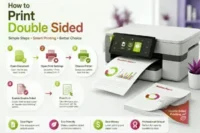
What is the Difference Between Collate and Double-Sided Printing?
Confused between collate and double-sided printing? Understanding the difference between these two printer settings helps you organize documents correctly, save paper, and choose the right option for every print job.
| Collate | Double-Sided |
|---|---|
| Arranges pages in the correct order for multiple copies. | Prints content on both sides of a single sheet. |
| Organizes document pages. | Saves paper by using both sides. |
| Creates complete document sets automatically. | Does not change page order. |
| Reports, manuals, presentations, and booklets. | Long documents, brochures, and notes. |
| Uses the same amount of paper as normal printing. | Reduces paper consumption. |
| Prints Pages 1–5 together for each copy. | Prints Page 1 on the front and Page 2 on the back. |
| Found under the “Collate” option. | Found under “Two-Sided” or “Duplex Printing”. |
| Reduces the need to sort pages. | Reduces the need to flip and add extra sheets. |
| Creates multiple organized copies. | Creates compact and eco-friendly documents. |
| Can be used with double-sided printing. | Can work together with collated printing for large documents. |
Final Thoughts: What is Collate Printing
Now that you know what does collate mean when printing, choosing the right print setting becomes simple. Whether you need collated printing for complete document sets or uncollated printing for bulk pages, using the correct option saves time and keeps your pages organized. Check your printer settings before every print job, and enjoy faster, hassle-free printing with confidence every time.
FAQs
Yes, you should use collate printing when you print multiple copies of a multi-page document. It keeps each copy in the correct page order, saves sorting time, and makes reports, assignments, and presentations ready to use.
If you do not collate, your printer groups the same pages together instead of creating complete document sets. You may need to arrange pages manually before sharing or using the printed copies.
Turn collate on when printing multiple copies of multi-page documents. Keep it off when printing repeated single pages, forms, or pages that do not need a specific order.
No, collated printing and double-sided printing are different settings. Collate arranges pages in order, while double-sided printing prints content on both sides of the paper to save sheets.
Choose collated printing for reports, manuals, and presentations that need organized copies. Choose uncollated printing for bulk pages like flyers or forms where page order is not important.




- Be Respectful
- Stay Relevant
- Stay Positive
- True Feedback
- Encourage Discussion
- Avoid Spamming
- No Fake News
- Don't Copy-Paste
- No Personal Attacks
- Be Respectful
- Stay Relevant
- Stay Positive
- True Feedback
- Encourage Discussion
- Avoid Spamming
- No Fake News
- Don't Copy-Paste
- No Personal Attacks
