How to Connect the Laser Printer to WiFi for Beginners
Published: 27 Oct 2025
Did you know most modern laser printers now support wireless connections, making printing faster and easier than ever? Yet, many people still use cables without realizing how simple it is to connect a laser printer to WiFi. Going wireless not only saves time but also keeps your workspace clean and organized.
Ever tried connecting your printer and got lost in confusing setup steps? You’re not alone. Many users wonder how to connect a laser printer to WiFi without dealing with tech jargon or endless error messages.
If you’re tired of messy cables, constant disconnections, or complex settings, this guide is made for you. Let’s simplify the process and show you the easiest way to get your laser printer connected to WiFi in just a few steps.
What Should You Know Before Connecting Your Laser Printer to WiFi?
Before you start the setup, it’s important to understand a few basic things that help your laser printer connect smoothly to WiFi.
- Make sure your laser printer supports wireless connectivity.
- Check your WiFi network name (SSID) and password before starting.
- For a strong signal, keep the printer close to the WiFi router.
- Plug in and turn on the printer properly.
- Update your printer’s firmware if needed.
- Have your computer or mobile device ready for setup.
- Read the printer’s manual or brand website for model-specific steps.
What Things Do You Need Before Connecting Your Laser Printer to WiFi?
Before you begin the setup, make sure you have all the necessary items and information ready to connect your laser printer to WiFi smoothly.
- WiFi-enabled laser printer
- WiFi network name (SSID)
- WiFi password
- Stable internet connection
- Computer or mobile device
- Printer manual or setup guide
- Power source nearby
- WiFi-enabled laser printer: Make sure your printer supports wireless connectivity. Without it, you can’t connect to WiFi.
- WiFi network name (SSID): You need the correct network name to link your printer to the right WiFi connection.
- WiFi password: Keep your WiFi password ready to enter during setup.
- Stable internet connection: A strong and stable signal ensures smooth pairing and prevents disconnections.
- Computer or mobile device: You’ll need one to run the setup process or install printer software.
- Printer manual or setup guide: It helps you follow brand-specific connection steps easily.
- Power source nearby: Make sure your printer is plugged in and powered on during the setup.
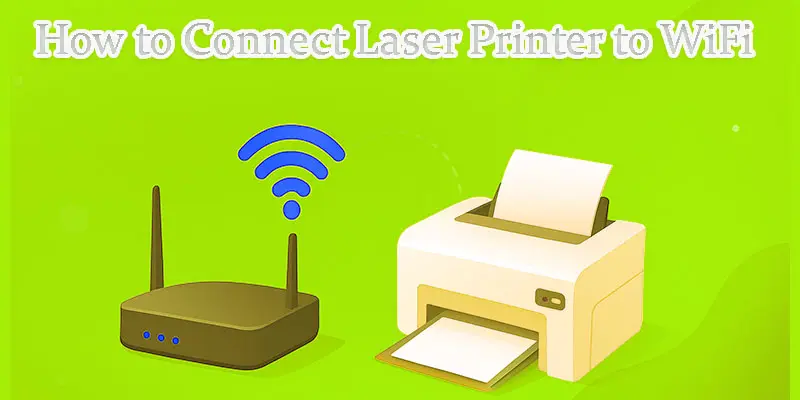
What Are the Step-by-Step Instructions to Connect a Laser Printer to WiFi?
Connecting your laser printer to WiFi is simple when you follow clear steps designed to make the setup quick and hassle-free.
- Using the printer control panel.
- Using WPS (WiFi Protected Setup).
- Using a computer or mobile app.
How Can You Connect a Laser Printer to WiFi Using the Printer Control Panel?
Adhere to these precise instructions. Keep your password and WiFi name (SSID) close at hand.
- Activate the router and printer.
- Open the Home or Menu screen on the printer.
- Find Settings or Setup and tap it.
- Go to Network or Wireless Settings.
- Choose WiFi Setup Wizard or Wireless Setup.
- The printer will scan for networks. Wait a few seconds.
- From the list, choose your WiFi network (SSID).
- Using the on-screen keyboard, enter the WiFi password.
- Confirm the password and press OK or Connect.
- Wait for the printer to show a Connected message or a WiFi icon.
- Print a test page from the printer menu to confirm the link.
- Take note of the printer’s IP address in network settings if necessary. It will be used to connect a printer to a computer.
Quick tips:
- If the screen is small, use the printer manual for typing help.
- If the printer can’t find your network, move it closer to the router.
- If the password fails, retype it slowly. Watch for capital letters.
Troubleshoot fast: Restart the router and printer, then repeat steps 2–9.
How Can You Connect a Laser Printer to WiFi Using WPS (WiFi Protected Setup)?
You can quickly connect your laser printer to WiFi using the WPS feature, which lets the printer and router link automatically without typing a password.
Push-Button WPS (most common)
- Turn on the printer and router.
- Find the router’s WPS button.
- Navigate to the Network or Wireless menu on the printer.
- Select a WiFi-protected setup or WPS.
- On the router, press the WPS button.
- Press WPS or Start on the printer within two minutes.
- Wait while the devices connect.
- Look for a Connected message or WiFi icon on the printer.
- Print a test page to confirm the connection.
WPS PIN Method (less common)
- In the printer network menu, choose WPS PIN.
- The printer shows a numeric PIN on its screen.
- On your router’s admin page (or WPS PIN option), enter that PIN.
- Submit the PIN and wait for the printer to connect.
- Confirm with a test page.
Quick Tips & Troubleshooting
- Make sure WPS is enabled on your router.
- Press the router and printer buttons within the allowed time (usually 2 minutes).
- If the connection doesn’t work, move the printer closer to the router.
- If it still fails, restart the router and printer, then try again.
Security Note:
- WPS is quick, but it can be less secure than a normal WiFi password.
- If you worry about security, use the printer control panel or the brand app to connect instead.
Simple Example:
Press the router’s WPS button. Then press WPS on the printer within 2 minutes. The printer shows “Connected.” Print a test page.
How Can You Connect a Laser Printer to WiFi Using a Computer or Mobile App?
Follow these simple steps. Have your WiFi name (SSID) and password ready.
Using a Computer (Windows)
- Turn on the printer and connect it to the same WiFi network (use the control panel/WiFi wizard first if needed).
- Navigate to Settings → Devices → Printers & scanners on Windows.
- To add a printer or scanner, click Add.
- As Windows searches, wait. From the list, choose your printer.
- If Windows asks, install the driver or follow on-screen prompts.
- Once added, click Manage → Print a test page to confirm.
Quick tip: If Windows does not find the printer, use “The printer I want isn’t listed” and choose the network or IP option.
Using a Computer (Mac)
- Turn on the printer and make sure it is on the same WiFi network.
- Go to Printers & Scanners under System Settings (also known as System Preferences).
- To add a printer, click the Add button.
- From the list, choose your printer.
- Follow any prompts to download drivers.
- To verify the connection, print a test page.
Quick tip: If your printer supports AirPrint, it will appear automatically without extra drivers.
Using a Mobile App (Android / iPhone)
- Download the printer brand app (for example, HP Smart, Canon PRINT, Brother iPrint&Scan).
- Open the app and choose Add Printer or Set up a new device.
- On your WiFi, the app will look for printers. Choose your printer.
- To complete setup, follow the on-screen instructions (enter password if prompted).
- Print a test photo or document from the app to confirm.
Example: In HP Smart, tap + → Set up a new printer → follow the guided steps.
Troubleshooting & Tips
- Make sure your phone/computer is on the same WiFi as the printer.
- If the Wi-Fi signal is weak, place the printer nearer to the router.
- Restart both your printer and phone if the app doesn’t detect the device.
- For optimal performance, update the printer app and drivers.
- For manual configuration, take note of the printer’s IP address in its network menu.

How Can a Printer Be Added to a Computer?
The last step after connecting your PC to WiFi is to add your laser printer. It enables wireless printing and aids in your system’s recognition of the printer.
Navigate to Settings → Devices → Printers & Scanners → Add a Printer on Windows. If your printer is connected to the same WiFi network, it will show up automatically. To install drivers and complete setup, according to the on-screen instructions.
Go to System Settings → Printers & Scanners → Add Printer on a Mac. Verify the settings after choosing your printer from the list. Print a test page when it has been inserted to make sure everything is operating as it should.
How Can You Troubleshoot Common Issues When Connecting a Laser Printer to WiFi?
Sometimes, your laser printer may face connection problems, but with a few simple checks and fixes, you can get it back online quickly.
- To reestablish the connection, restart your computer, printer, and router.
- Make sure the printer and computer are on the same WiFi network.
- Check that the WiFi signal is strong and stable.
- Re-enter your WiFi password carefully—watch for capital letters or symbols.
- Check the connection again after restarting to confirm setup.
- Update your printer’s firmware and drivers.
- If problems remain, reset the printer’s network settings and reconnect.
- Check your router settings to ensure WiFi is enabled and not blocked.
- If the printer still doesn’t connect, use a USB cable to set up WiFi manually.
What Are Some Useful Tips for Smooth and Easy Printing?
To keep your laser printer working perfectly, follow a few simple tips that make printing smoother, faster, and more reliable every time.
- Keep your printer’s firmware and drivers updated regularly.
- For a strong signal, place the printer in close proximity to your WiFi router.
- Don’t change your password or WiFi name too often.
- Use the same WiFi network for your printer and devices.
- Clean the printer regularly to prevent paper jams and ink issues.
- Print a test page after setup to confirm everything works fine.
- Use official brand ink or toner for the best print quality.
- Turn off the printer properly after use to save energy and maintain performance.
Final Thought
To keep your laser printer working perfectly, follow a few simple tips that make printing smoother, faster, and more reliable every time. I personally recommend keeping your printer close to the router and using the official brand app for easy setup. Now that you know how to connect a laser printer to WiFi, try these steps today and enjoy effortless wireless printing.
FAQS
You can make your laser printer wireless by connecting it to your WiFi network. Go to the printer’s Network Settings, choose WiFi Setup, and enter your WiFi password. Once connected, you can print from any device on the same network.
No, Bluetooth and WiFi are different. Bluetooth works only for short distances and one device at a time. To connect your printer to WiFi, use the printer’s wireless setup or WPS option instead.
Modern WiFi-enabled printers are easiest to connect. Brands like HP, Canon, Epson, and Brother have simple setup apps that guide you step-by-step through the process.
Yes, you can. Use a wireless print server or WiFi USB adapter to make your old printer wireless. It enables you to print from several devices by connecting the printer to your network.
WiFi is best for wireless convenience and shared printing from different devices. USB is better for a single computer and faster data transfer. Choose what suits your setup.
Navigate to Network Settings in the control panel of your printer, then choose WiFi Setup Wizard. Pick your WiFi name, enter the password, and confirm. Once connected, a WiFi icon appears on the screen.
First, unplug the USB cord. Next, connect your printer to your WiFi network by going to Wireless Setup on your printer. Use the WiFi option to re-add the printer to your computer under Printers & Scanners.
Using your printer’s WiFi Setup Wizard, you can manually establish a connection. Simply choose your WiFi network, input the password, and watch for the confirmation message to appear. No need to press the WPS button.
Yes, in some cases. Printer setup software or mobile apps (like HP Smart or Canon PRINT) make it easier to connect and install drivers automatically.
If your router doesn’t have a WPS button, connect using the WiFi Setup Wizard or the printer brand app. You can manually enter your WiFi name and password to connect easily.


- Be Respectful
- Stay Relevant
- Stay Positive
- True Feedback
- Encourage Discussion
- Avoid Spamming
- No Fake News
- Don't Copy-Paste
- No Personal Attacks
- Be Respectful
- Stay Relevant
- Stay Positive
- True Feedback
- Encourage Discussion
- Avoid Spamming
- No Fake News
- Don't Copy-Paste
- No Personal Attacks
