How to Check for Malware on an iPhone | Easy Guide
Published: 18 May 2026
Is your iPhone acting strange lately? Does the battery drain fast, or do you see apps you never installed? These small issues can feel confusing and stressful. Many people think iPhones are always safe, but that is not 100% true. Even iPhones can face security risks if you are not careful.
The real problem is this: most users do not know how to check for malware on an iPhone. They ignore warning signs until it is too late. This can lead to data loss, privacy issues, or slow phone performance. But don’t worry. You are in the right place. In this guide, you will learn how to check for malware on iPhone in simple steps.
No technical skills needed. We will show you easy ways to find problems, remove threats, and keep your device safe. Think of this as a quick health check for your phone. Ready to protect your iPhone and your personal data? Let’s get started.
What is Malware on iPhone?
Malware on an iPhone means harmful software that tries to damage your device or steal your data. It can come from fake apps, unsafe links, or phishing messages. Even though iPhones are secure, risks still exist. For example, you may install an app that secretly tracks your activity or shows unwanted ads. Common threats include spyware, adware, and data-stealing apps. These can affect your phone’s speed, privacy, and battery life.
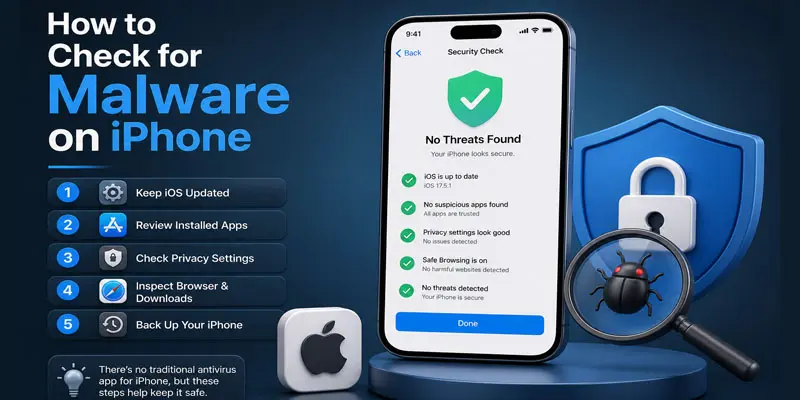
What are the Signs Your iPhone May Have Malware?
Not sure if your iPhone is infected? These common signs can help you quickly spot possible malware and protect your device.
- Battery drains very fast: Your iPhone loses charge quickly, even when you are not using it. Malware can run in the background and use power. For example, your phone drops from 80% to 30% in a few hours.
- Phone becomes slow or laggy: Apps take longer to open. The screen may freeze. Harmful apps can overload your system and reduce performance.
- Unknown apps appear: You see apps you never installed. This is a strong warning sign. Always check your app list regularly.
- Too many pop-up ads: You get random ads while using apps or browsing. Adware often causes this issue and affects user experience.
- High data usage: Your mobile data finishes quickly without heavy use. Malware may send data from your phone in the background.
- Phone overheats often: Your iPhone feels hot even during normal use. This can happen when hidden processes run continuously.
- Strange messages or links sent from your phone: Your contacts receive messages you did not send. This may mean your device is compromised.
- Unusual settings changes: Settings like Wi-Fi, Bluetooth, or homepage change automatically. This can be a sign of security issues.
- Frequent app crashes: Apps close suddenly without reason. Malware can disturb normal app behavior.
How to Check for Malware on iPhone? (Step-by-Step)
Worried your iPhone might be infected? Follow these simple steps to check for malware and keep your device safe and secure.
Check installed apps
Open your app list and look for unknown or suspicious apps. Delete anything you do not remember installing. For example, a random game or tool you never downloaded could be risky.
Review app permissions
Go to Settings and check which apps can access your camera, microphone, location, and photos. Remove access from apps that do not need it. This helps protect your privacy.
Check battery usage
Open Battery settings and see which apps use the most power. If an app uses too much battery without heavy use, it may be unsafe.
Monitor data usage
Go to Mobile Data settings and check usage. If an app consumes too much data in the background, it could be sending your data without your knowledge.
Look for pop-ups and ads
Notice if you see too many ads while browsing. This can be a sign of adware or unsafe websites.
Check browser history
Open Safari or your browser and review history. Remove unknown websites. Clear cookies and cache to stay safe.
Update your iOS
Open the Software Update section and download the newest available update for your device. Updates fix security issues and protect your iPhone from threats.
Restart your iPhone
A simple restart can stop harmful processes. It also refreshes your system and improves performance.
Avoid jailbreaking
If your iPhone is jailbroken, it is more open to malware. Keep your device in its original secure state.
Scan using trusted security apps (optional)
You can use reliable security tools from the App Store for an extra check. Make sure they are well-reviewed and safe.
Reset settings if needed
If problems continue, reset your settings. This removes risky changes without deleting your data.
Factory reset as a last option
If your iPhone still shows malware signs, back up your data and perform a full reset. This removes all harmful files.
How to Remove Malware from iPhone?
If your iPhone is acting strange, these simple steps can help you quickly remove malware and restore your device’s safety and performance.
- Delete suspicious apps: Find apps you do not trust and remove them. For example, if you installed a random app and issues started, delete it first.
- Clear browser data: Go to Safari settings and clear history, cookies, and cache. This removes harmful scripts from unsafe websites.
- Restart your iPhone: Turn your phone off and on. This stops unwanted background activity and refreshes the system.
- Update iOS: Install the latest iOS version. Updates fix security bugs and remove known threats.
- Reset all settings: Go to Settings > General > Reset > Reset All Settings. This removes risky changes without deleting your personal data.
- Remove unknown profiles: Check for unknown configuration profiles in settings. Delete anything suspicious.
- Factory reset (last option): Back up your data, then erase all content and settings. This fully cleans your device.
How to Protect Your iPhone from Malware?
Want to keep your iPhone safe? These simple protection tips will help you prevent malware and keep your data secure every day.
- Install apps only: through the official App Store, and do not open or use links and websites that you do not trust. For example, a fake app download can carry hidden malware.
- Keep iOS updated: Install the latest updates regularly. Apple fixes security issues in every update.
- Avoid clicking suspicious links: Do not open unknown messages or emails. These may lead to phishing or harmful websites.
- Use strong passwords: Set a strong passcode and use Face ID or Touch ID for extra safety.
- Enable two-factor authentication (2FA): This adds an extra layer of protection to your Apple ID.
- Check app permissions: Only allow access to camera, location, or mic when needed.
- Restart your iPhone regularly: This helps clear hidden background processes.
- Avoid public Wi-Fi for sensitive tasks: Use mobile data or a trusted network for banking or logins.
What are the Common Myths About iPhone Malware?
Think iPhones are completely safe from malware? Let’s clear up some common myths that often confuse users about iPhone security and protection.
- iPhones cannot get malware: This is a common myth. iPhones are secure, but not 100% safe. Malware can still enter through fake apps or phishing links. For example, a fake download page can trick users and harm their data.
- Only jailbroken iPhones get malware: Jailbreaking increases risk, but normal iPhones can also get infected. Clicking unsafe links or installing risky apps can still cause problems.
- App Store apps are always safe: Most apps are safe, but some harmful apps may still pass review. Always check ratings and reviews before installing.
- Antivirus is not needed on iPhone: iPhones do not need a heavy antivirus, but security apps and safe habits still help protect your data and privacy.
- Malware only slows down the phone: Malware can do more damage. It can steal personal data, track activity, or send messages without your permission.
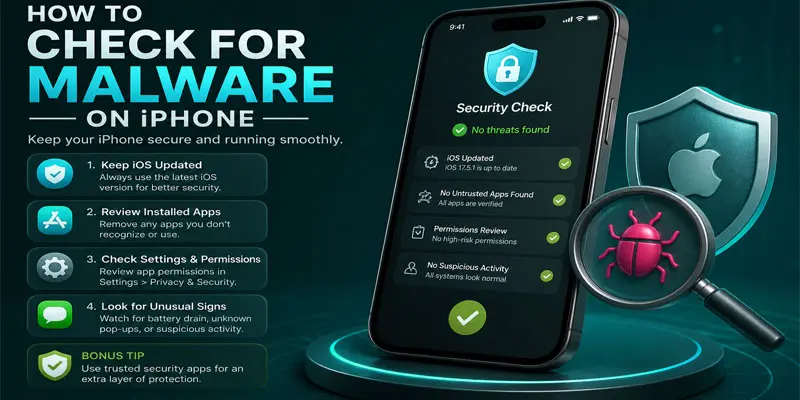
Final Thoughts
Checking your iPhone for malware is simple and important. Look for strange apps, high data use, and slow performance. Keep your iOS updated and follow basic mobile security tips. Stay alert and protect your data privacy. Take action today and make your iPhone safe, fast, and secure.
FAQs
How do I check if my iPhone has malware installed?
You can check if your iPhone has malware by reviewing unknown apps, battery usage, data consumption, and strange behavior like pop-ups or slow performance in settings.
How do I clean malware off my iPhone?
You clean malware off your iPhone by deleting suspicious apps, clearing browser data, updating iOS, and restarting your device to remove harmful background activity safely.
How to see if your iPhone got a virus?
You can see if your iPhone got a virus by noticing signs like fast battery drain, unknown apps, overheating, and unusual data usage or pop-up ads.
Can I run a security scan on my iPhone?
You cannot run a full system antivirus scan on iPhone, but you can use trusted security apps and check settings for unusual activity to stay protected.
Can I run a test to see if my phone is hacked on my iPhone?
You can run a basic test by checking apps, Apple ID activity, data usage, and settings changes to quickly spot if your iPhone shows hacking or malware signs.





- Be Respectful
- Stay Relevant
- Stay Positive
- True Feedback
- Encourage Discussion
- Avoid Spamming
- No Fake News
- Don't Copy-Paste
- No Personal Attacks
- Be Respectful
- Stay Relevant
- Stay Positive
- True Feedback
- Encourage Discussion
- Avoid Spamming
- No Fake News
- Don't Copy-Paste
- No Personal Attacks
