Laser Printer Troubleshooting Guide | Easy Steps to Repair
Published: 25 Oct 2025
Did you know that more than 60% of printer issues happen due to small, fixable errors? From paper jams to faded prints, most problems don’t need expert repair. This Laser Printer Troubleshooting Guide helps you solve common printer issues in minutes.
Ever felt confused when your printer suddenly stops working right before an urgent task? You’re not alone! Many users face errors they don’t understand. This simple Laser Printer Troubleshooting Guide explains what’s going wrong and how to fix it step by step.
Nothing feels worse than wasting time and toner on blurry prints or constant jams. But don’t worry, every issue has an easy solution. In this Laser Printer Troubleshooting Guide, you’ll learn quick, clear, and practical fixes to get your printer running smoothly again.
How Can You Understand Your Laser Printer Better?
To understand your laser printer better, you need to know how its main parts work together to create sharp, clean prints.
- Learn how a laser printer uses light, toner, and heat to print images.
- Know the main parts: laser beam, drum unit, toner cartridge, and fuser.
- Understand how data from your computer turns into printed text or pictures.
- Notice how the printer’s settings affect print quality and speed.
- Keep an eye on toner levels and paper type for smooth printing.
- Remember, regular cleaning helps your printer last longer and print better.
What are the Typical Issues with Laser Printers and How Can They Be Solved?
Although laser printers occasionally experience minor difficulties that impair print quality or cause them to cease printing, most of these can be resolved with a few simple actions.
- Printer Not Turning On
- Paper Jams
- Faded or Blurry Prints
- Printer Not Responding
- Toner Smudges or Spots on Paper
- Slow Printing
- Error Messages on Screen
Printer Not Turning On
Sometimes your printer doesn’t turn on because of a small power issue. It could be a loose cable, a faulty plug, or a power button that isn’t pressed properly. In some cases, the power supply inside the printer might be the problem. Before worrying too much, check a few basic things to find what’s wrong.
How Can You Fix It?
- Make sure the power cable is firmly plugged into both the printer and the wall outlet.
- If the outlet doesn’t work, try connecting the printer to another power source.
- Press and hold the power button for a few seconds.
- Remove and reconnect the power cable to reset the printer.
- If it still doesn’t work, check the fuse or contact a technician.
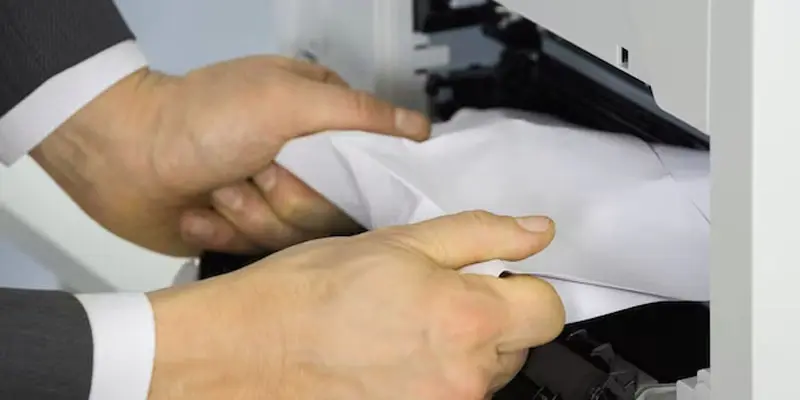
Paper Jams
Paper jams are one of the most common laser printer issues. They usually happen when the paper is loaded the wrong way, the tray is overfilled, or there’s dust inside the printer. Sometimes, using torn or curled paper can also cause jams. A little care while loading paper can save you a lot of trouble.
How Can You Fix It?
- Turn off the printer before removing jammed paper.
- Gently pull out the stuck paper from the tray or rear access.
- Check for any small paper pieces left inside.
- Don’t overload the paper tray; keep it half-full.
- Use clean, smooth, and dry paper to avoid future jams.
Faded or Blurry Prints
Faded or blurry prints often happen when the toner is low, the drum is dirty, or the paper type doesn’t match the settings. Sometimes, using poor-quality toner or moisture in the paper can also affect print clarity. Regular cleaning and proper toner use can help keep your prints sharp and clear.
How Can You Fix It?
- If the toner level is low, check it and replace it.
- Remove the toner cartridge and gently shake it to spread the toner evenly.
- Use a gentle, dry cloth to clean the printer’s drum and rollers.
- Verify that the paper type you are using is appropriate for your printer.
- Adjust the print quality settings to “Best” or “High Quality” for clear prints.
Printer Not Responding
A printer may stop responding due to connection issues, software errors, or outdated drivers. Sometimes, a simple restart can fix the problem. Network printers may lose connection if Wi-Fi signals are weak or interrupted. Checking connections and settings usually helps get things working again.
How Can You Fix It?
- Verify that the printer is powered on and that it is linked to your computer correctly.
- Check Wi-Fi or USB connections for any loose cables.
- Restart both the printer and your computer.
- Set your printer as the default device in settings.
- Reinstall or update the printer drivers if the issue continues.
Toner Smudges or Spots on Paper
Toner smudges or spots usually appear when the printer’s drum or rollers are dirty. Sometimes, extra toner powder inside the printer or a damaged cartridge can also cause marks. These spots not only make prints look messy but can also spread to other pages if not cleaned properly.
How Can You Fix It?
- Turn off the printer and let it cool before cleaning.
- Gently wipe the inside using a soft, dry, lint-free cloth.
- Remove the toner cartridge and clean around the drum area.
- Avoid touching the drum surface directly.
- Replace the toner cartridge if the smudges don’t go away.
Slow Printing
A bad network connection, too many print jobs in the queue, or the printer being in high-quality mode can all cause slow printing. Sometimes, old printer drivers or large image files can also slow things down. A few quick setting changes can make your printer work faster.
How Can You Fix It?
- Change print settings to “Draft” or “Fast” mode for regular documents.
- Clear any pending print jobs from the queue.
- Check your Wi-Fi or USB connection for stable performance.
- Update printer drivers to the latest version.
- Restart your printer to refresh its speed and performance.
Error Messages on Screen
Error messages usually appear when the printer faces hardware or software issues. It could be due to low toner, paper jams, or connection errors. Sometimes, printers show errors after a driver update or a miscommunication with the computer. Reading the message carefully helps you find the right fix quickly.
How Can You Fix It?
- Note down the exact error message shown on the screen.
- Check for common issues like paper jams or low toner.
- Restart your printer to clear temporary errors.
- Make sure all cables and connections are secure.
- Visit the printer manufacturer’s website to look up specific error codes.
What are the Best Preventive Maintenance Tips for Your Laser Printer?
Regular maintenance keeps your laser printer running smoothly, reduces printing errors, and helps it last much longer.
- Clean your printer regularly using a soft, dry cloth to remove dust.
- Keep your printer in a cool, dry, and dust-free place.
- Use high-quality toner cartridges to avoid damage.
- Replace toner and drum units on time.
- Run printer self-cleaning cycles if available.
- Update your printer’s software and drivers often.
- Turn off the printer when not in use for long periods.
- Handle paper properly, keep it clean and flat before loading.
When Should You Call a Professional for Your Laser Printer?
Sometimes, a printer problem is more serious than it looks. If your printer makes loud grinding or clicking sounds, it could mean a mechanical fault inside. Trying to fix it yourself might cause more harm. That’s when a professional’s help becomes important.
If you notice repeated paper jams or toner leaks even after cleaning, it’s a sign something deeper is wrong. A trained technician can check the drum, fuser, or other internal parts safely. They have the right tools to fix issues without damaging your printer.
You should also call a professional when your printer shows error codes you can’t clear. Experts can diagnose software or hardware issues quickly. Their help ensures your printer stays reliable and runs smoothly for a long time.
Final Thought
The above sentence sums up the importance of using a reliable Laser Printer Troubleshooting Guide. From my experience, taking a few minutes to check common issues like paper jams or toner errors can save hours of frustration later. I personally recommend keeping your printer manual and troubleshooting guide nearby for quick fixes. Don’t wait until your printer stops, start using this guide today and keep your prints running smoothly.
FAQS
The most common problems in laser printers are paper jams, low toner, and faded prints. Sometimes the printer won’t connect properly or gives error messages. These issues often happen due to dust, old toner, or misaligned paper. Regular cleaning helps avoid such problems.
Start by checking the power and cable connections. Verify that there is paper and toner in the printer. Clear any paper jams and restart it. You can also run the printer’s built-in troubleshooting tool to fix simple issues.
The most frequent mistake is a jammed paper. It occurs when paper becomes lodged in the printer. Other frequent errors include low toner or “offline” status. These can be fixed by clearing the jam or refilling the toner.
Check power, cables, and Wi-Fi connections. Restart your printer and computer. Clean the paper feed area and replace the low toner. If problems continue, update printer drivers or reset the printer to default settings.
Yes, most modern printers have a reset button or option in the menu. Pressing it helps fix software or connection issues. It returns the printer to its original factory settings.
This occurs when the print head becomes clogged or the toner or cartridge is empty. Verify that the cartridge is installed correctly and that you are using the right one. Cleaning the print head can also solve the problem.
If prints are faint or missing areas, the toner cartridge is often the cause. Paper jams point to rollers or feed trays. Connection errors usually come from the network or USB port.
Printer errors and omissions mean small mistakes in printing, like missing lines, wrong colors, or blank spots. These happen due to low toner, dirty drums, or software glitches. Regular maintenance helps avoid them.
Three common faults are paper jams, faded printing, and connection errors. These problems usually come from dust, low toner, or old printer drivers. Cleaning and updates fix most of them easily.
Laser printers last longer than inkjet printers. They can print thousands of pages before needing toner replacement. Laser printers are also more durable for office or heavy use.





- Be Respectful
- Stay Relevant
- Stay Positive
- True Feedback
- Encourage Discussion
- Avoid Spamming
- No Fake News
- Don't Copy-Paste
- No Personal Attacks
- Be Respectful
- Stay Relevant
- Stay Positive
- True Feedback
- Encourage Discussion
- Avoid Spamming
- No Fake News
- Don't Copy-Paste
- No Personal Attacks
