How to Fix My Printer Offline | Complete Guide
Published: 19 Aug 2026
Has your printer suddenly stopped working and shows an “Offline” message even though it is turned on? You are not alone. This common printer problem can happen when the Wi-Fi connection drops, the USB cable has an issue, the print queue gets stuck, or your computer selects the wrong printer. When you need to print an important file in a hurry, this problem can quickly become stressful.
The good news is that you can often fix the problem without calling a technician. In this guide, we will show you how to fix printer offline issues with simple steps. You will learn how to check the printer connection, reconnect Wi-Fi, clear stuck print jobs, turn off offline mode, restart the Print Spooler, and update the printer driver. We will also cover easy fixes for Windows, Mac, and wireless printers.
Whether you use an HP, Canon, Epson, Brother, or another printer, these troubleshooting steps can help you bring your printer back online and start printing again.
What Does “Printer Offline” Mean?
When your printer shows “Offline,” it means your computer or phone cannot properly communicate with the printer. The printer may still be turned on, but your device cannot send the print job to it. This can happen with both wireless and USB printers.
What Happens When a Printer Goes Offline?
An offline printer usually cannot receive new print jobs. You may see an “Offline” status in your printer settings, and your documents may stay in the print queue. Common causes include:
- Weak or disconnected Wi-Fi
- Loose or damaged USB cable
- Printer turned off or in sleep mode
- Wrong printer selected
- Stuck print jobs
- Outdated printer drivers
- Incorrect printer settings
Example: Your printer is powered on, but your laptop cannot find it after you change your Wi-Fi password. The printer may then appear offline. Checking the network connection and reconnecting the printer can often solve the problem.
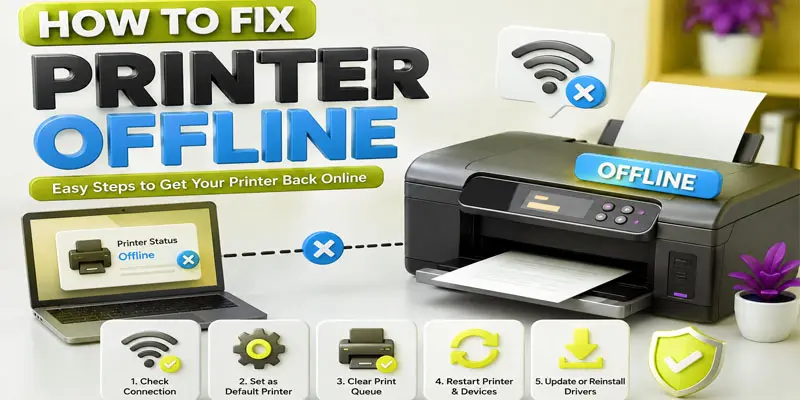
What Should You Check Before Fixing an Offline Printer?
Before trying advanced fixes, check a few basic things. These simple checks can often bring your offline printer back online quickly.
- Check the power: Check that the printer is powered on and receiving electricity properly.
- Check the display: Look for error messages, paper jams, or low ink and toner warnings.
- Check the paper: Make sure the paper tray has enough paper and the sheets are placed correctly.
- Check the USB cable: If you use a wired printer, make sure the cable fits firmly into the printer and computer.
- Check Wi-Fi: For a wireless printer, confirm that it connects to your Wi-Fi network.
- Check the printer name: Make sure your computer has selected the correct printer.
- Check the print queue: Remove any stuck documents that may block new print jobs.
- Restart both devices: Power down both the printer and computer, pause briefly, then restart each device.
How to Fix Printer Offline?
Is your printer showing “Offline” when you need to print? Learn simple ways to fix printer offline issues and get your printer back online quickly.
- Check if the Printer Is Turned On
- Check the Printer’s Wi-Fi Connection
- Check the USB Printer Cable
- Restart Your Printer and Computer
- Check the Correct Printer Selection
- Turn Off “Use Printer Offline”
- Clear the Print Queue
- Restart the Print Spooler Service
- Update or Reinstall the Printer Driver
- Run the Printer Troubleshooter
- Restart Your Wi-Fi Router
- Remove and Add the Printer Again
Check if the Printer Is Turned On
Make sure your printer is switched on and connected to a power source. Check the power light and look for any error message on the printer screen. If the printer is already on, turn it off, wait a few seconds, and turn it on again.
Check the Printer’s Wi-Fi Connection
Make sure your printer is connected to the correct Wi-Fi network. Your computer and printer should use the same network. If the connection is weak or lost, reconnect the printer to Wi-Fi and try printing again.
Check the USB Printer Cable
Make sure the USB cable is firmly connected to both the printer and computer. Check the cable for any visible damage. If the printer is still offline, try another USB port or use a different cable.
Restart Your Printer and Computer
Turn off your printer and computer, then wait for a few seconds. Turn them back on and wait until both devices are ready. Try sending a print job again to check if the printer is back online.
Check the Correct Printer Selection
Make sure your computer has selected the printer you want to use. Open your printer settings and check the selected device. Choose the correct printer and try printing again.
Turn Off “Use Printer Offline”
Open your computer’s printer settings and select your printer. Check if “Use Printer Offline” is enabled and turn it off. Then try sending your document to the printer again.
Clear the Print Queue
Open your printer settings and check the list of pending print jobs. Cancel any stuck or unwanted documents from the queue. Then try printing your file again to see if the printer works.
Restart the Print Spooler Service
The Print Spooler helps Windows manage your print jobs. Open Services on your computer, find Print Spooler, and select Restart. Then try printing your document again.
Update or Reinstall the Printer Driver
An old or damaged printer driver can make your printer appear offline. Update the driver from your printer maker’s website or reinstall it. Afterward, reboot your computer and send the print job once more.
Run the Printer Troubleshooter
Open your computer’s troubleshooting settings and select the Printer Troubleshooter. Follow the steps on the screen to find and fix common printer problems. After it finishes, try printing again.
Restart Your Wi-Fi Router
Turn off your Wi-Fi router and wait for a few seconds. Turn it on again and wait until the internet connection is ready. Then check if your printer reconnects to the network and comes back online.
Remove and Add the Printer Again
Remove the offline printer from your computer’s printer settings. Restart your computer, then add the printer again using the available devices list. As a final step, print a sample page to verify that the printer is working correctly.
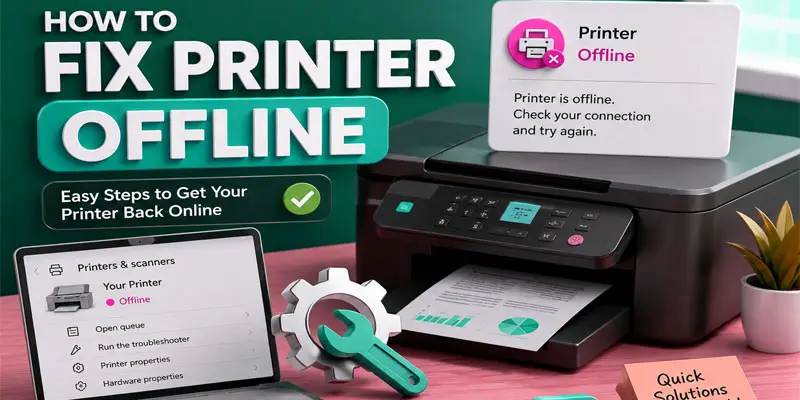
How to Fix an Offline Printer on Mac?
Is your printer showing offline on Mac when you try to print? You can often fix this issue with a few simple checks. Follow these steps:
- Check the printer connection: Confirm that the printer has power and is using the same wireless network as your Mac.
- Check the printer status: Go to System Settings > Printers & Scanners and select your printer. Check for any error or offline message.
- Clear the print queue: Open the printer queue and remove any stuck or paused print jobs.
- Restart the printer: Switch the printer off, pause briefly, and power it back on.
- Restart your Mac: Restarting your Mac can refresh the printer connection.
- Remove and add the printer: If the problem continues, remove the printer from Printers & Scanners and add it again.
How to Fix a Printer That Is Offline Over Wi-Fi?
A Wi-Fi printer may go offline when it loses the network connection or connects to the wrong network. Try these simple steps to bring it back online:
- Check the Wi-Fi connection: Make sure the printer is connected to your home or office Wi-Fi network.
- Use the same network: Connect your computer or phone to the same Wi-Fi network as the printer.
- Check the signal: Move the printer closer to the router if the Wi-Fi signal is weak.
- Restart the printer: Power down the printer, leave it off for a short moment, then switch it back on.
- Restart the router: Restart your router to refresh the network connection.
- Reconnect to Wi-Fi: Open the printer’s network settings and connect it to the correct Wi-Fi network.
- Print a test page: Send a small print job to check if the printer is back online.
How to Fix a Printer Offline After Changing Wi-Fi?
Did you recently change your Wi-Fi name or password? Your printer may go offline because it still tries to connect to the old network. You can reconnect it by following these simple steps:
- Check the new Wi-Fi: Make sure your computer or phone connects to the new Wi-Fi network.
- Open printer settings: Use the printer screen or wireless setup option to view network settings.
- Select the new network: Find your current Wi-Fi name from the available network list.
- Enter the new password: Type the updated Wi-Fi password carefully.
- Reconnect the printer: Wait until the printer shows a successful Wi-Fi connection.
- Check your computer: Make sure your computer uses the same Wi-Fi network as the printer.
- Print a test page: Send a small document to confirm that the printer is working.
How to Fix Printer Offline on Windows 10 and Windows 11?
If your printer shows offline on Windows 10 or Windows 11, you can try a few simple fixes. Follow these steps to restore the printer connection:
Windows 10
- Check the printer connection: Make sure the printer is turned on and connected to your computer or Wi-Fi.
- Open printer settings: Go to Settings > Devices > Printers & scanners.
- Select your printer: Click your printer and open the print queue.
- Turn off offline mode: Open the Printer menu and make sure Use Printer Offline is not selected.
- Clear stuck jobs: Cancel any documents that are waiting in the print queue.
- Restart the Print Spooler: Open Windows Services and restart the Print Spooler service.
Windows 11
- Open printer settings: Go to Settings > Bluetooth & devices > Printers & scanners.
- Check the printer status: Select your printer and check for connection or error messages.
- Run the troubleshooter: Use Windows troubleshooting tools to find common printer problems.
- Remove and add the printer: If the issue continues, remove the printer and add it again.
How to Fix Printer Offline on a Phone?
Is your printer showing offline on your phone when you want to print? The problem often comes from a Wi-Fi connection or printer app. Try these simple steps:
- Check Wi-Fi: Connect your phone and printer to the same Wi-Fi network.
- Check the printer: Make sure the printer is turned on and ready to print.
- Restart the printer: Shut down the device briefly, then power it back up and try again.
- Restart your phone: Restarting your phone can refresh the wireless connection.
- Check the printer app: Open the printer’s mobile app and check if it detects the printer.
- Reconnect the printer: If the app cannot find it, remove the printer and add it again.
- Update the app: Check your phone’s app store and download any available update for the printer app.
- Try a test print: Send a small document to check if the printer is back online.
Why Does My Printer Keep Going Offline?
Does your printer keep going offline even after you reconnect it? This problem often happens because of an unstable Wi-Fi connection, network changes, or printer settings. A weak wireless signal can make the printer lose contact with your computer. An old printer driver can also cause connection problems. In some cases, Windows may switch the printer to offline mode or stop the Print Spooler service.
A printer can also disconnect when it enters sleep mode or when your router changes its network settings. For USB printers, a loose or damaged cable can cause the same issue. Example: Your printer works in the morning but goes offline later. A weak Wi-Fi signal may cause the connection to drop. Place the printer nearer to the router and reboot both devices to improve the wireless connection.
How Can You Prevent Your Printer From Going Offline?
You can reduce printer connection problems by keeping your printer, computer, and network properly connected. Use these simple tips to keep your printer online:
- Keep Wi-Fi stable: Place your wireless printer near the router for a stronger signal.
- Use the same network: Verify that both your printer and computer are using the same wireless network.
- Update printer drivers: Install the latest driver to avoid connection and printing errors.
- Check cables: If you use a USB printer, keep the cable secure and replace it if damaged.
- Clear print jobs: Remove stuck documents from the print queue before they cause more problems.
- Restart when needed: Restart your printer and router if the connection becomes unstable.
- Keep software updated: Install available Windows, macOS, and printer software updates.
- Avoid frequent network changes: Changing your Wi-Fi name or password can disconnect the printer.
What are Common Printer Offline Problems and Their Quick Fixes?
Printer offline errors can happen for many simple reasons. This table covers frequent printer problems and quick fixes you can try on your own before getting expert assistance.
| Printer Problem | Quick Fix |
|---|---|
| Printer shows offline | Restart the printer and check its connection. |
| Wi-Fi printer goes offline | Connect the printer and computer to the same Wi-Fi network. |
| USB printer is offline | Check the USB cable and try another port. |
| Print jobs are stuck | Open the print queue and cancel pending jobs. |
| Printer keeps disconnecting | Check the Wi-Fi signal and move the printer closer to the router. |
| Windows cannot find printer | Remove the printer and add it again. |
| Printer goes offline after Wi-Fi change | Connect the printer to the new Wi-Fi network. |
| Driver causes connection issues | Update or reinstall the printer driver. |
When Should You Contact Printer Support?
Most printer offline problems are easy to fix at home. However, some issues may need help from a printer expert or the manufacturer’s support team. Consider contacting printer support if:
- The printer stays offline: You tried basic troubleshooting, but the printer still will not connect.
- Hardware looks damaged: The power port, USB port, buttons, or other parts show signs of damage.
- The printer shows a serious error: An error code keeps appearing, and you cannot clear it.
- Wi-Fi will not connect: The printer cannot connect to any available wireless network.
- Driver problems continue: You updated or reinstalled the driver, but the printer still does not work.
- The printer keeps disconnecting: The connection drops again and again after you fix it.
- Printing fails completely: The printer stays online but does not print any document.
Final Thoughts
A printer can go offline because of Wi-Fi issues, USB problems, stuck print jobs, incorrect settings, or driver errors. Start with basic checks, then try clearing the print queue, reconnecting the printer, and updating its driver. These simple printer troubleshooting steps can often restore your connection quickly. Try the fixes above and get your printer back online today.
FAQs
To get your printer from offline to online, check its power and Wi-Fi connection first. Then open printer settings and turn off “Use Printer Offline.” Clear stuck print jobs and restart the printer before trying again.
To turn off offline mode, open your printer settings and select the correct printer. Open the print queue, click the Printer menu, and disable “Use Printer Offline.” Then send a test page to check the connection.
Your printer may show offline even when connected to Wi-Fi because your computer uses a different network or has a stuck print queue. Check that both devices use the same network and restart them.
To reconnect your printer to the internet, open its wireless settings and select your current Wi-Fi network. Type in the right Wi-Fi password and allow the printer to connect. After that, join your computer to the same wireless network.
Your printer may suddenly lose internet access because of a Wi-Fi change, weak signal, router issue, or incorrect network settings. Restart your router and printer, then reconnect the printer to your current Wi-Fi network.




- Be Respectful
- Stay Relevant
- Stay Positive
- True Feedback
- Encourage Discussion
- Avoid Spamming
- No Fake News
- Don't Copy-Paste
- No Personal Attacks
- Be Respectful
- Stay Relevant
- Stay Positive
- True Feedback
- Encourage Discussion
- Avoid Spamming
- No Fake News
- Don't Copy-Paste
- No Personal Attacks
