How Do I Connect My HP Printer to WiFi? Easy Steps
Published: 13 Aug 2026
Have you ever tried to print an important document, only to find that your HP printer refuses to connect to WiFi? It can be frustrating, especially when you need to print homework, office files, or travel tickets without wasting time. Many people struggle with wireless printer setup because they are unsure where to start or what to do when the connection fails.
The good news is that you do not need to be a tech expert to solve this problem. In this guide, you will learn how to connect my hp printer to wifi using simple, step-by-step methods that anyone can follow. Whether your printer has a touchscreen, no display, or you want to use the HP Smart app, this article covers every option in an easy way.
You will also discover how to connect your printer on Windows, Mac, Android, and iPhone, plus learn practical tips to fix common WiFi connection problems. By the end of this guide, you will be ready to enjoy fast, wireless printing from any compatible device with confidence.
What Do You Need Before Connecting Your HP Printer to WiFi?
Before you start the HP printer WiFi setup, make sure you have everything ready. A few simple checks can save time and help you avoid common connection problems.
- An HP printer with wireless support: Check that your printer has built-in WiFi. Most HP DeskJet, OfficeJet, ENVY, and LaserJet wireless models support this feature.
- A working WiFi network: Make sure your wireless network is active and stable. A weak or unstable signal may interrupt the setup process.
- Your WiFi name (SSID): Find the name of your wireless network before you begin. You will need to select it during the setup.
- Your WiFi password: Keep your network password nearby. Enter it carefully because even one incorrect letter or number can stop the connection.
- A computer, laptop, phone, or tablet: Keep a compatible device nearby to finish the printer setup through the HP Smart app or the printer’s built-in settings.
- The printer placed near the router: Keep your printer close to the WiFi router during the first setup. This helps the printer detect a stronger wireless signal.
- The printer is turned on and ready: Make sure the printer is powered on and not showing any error messages.
- A stable power source: Avoid unplugging the printer while connecting it to the wireless network.
How Can You Tell If Your HP Printer Is Already Connected to WiFi?
Before you begin the setup process, it is helpful to check whether your HP printer is already connected to WiFi, as this can save time and prevent unnecessary troubleshooting.
- Check the Wireless Indicator Light
- View the WiFi Status on the Printer Display
- Print a Wireless Network Test Report
- Print a Network Configuration Page
- Check the Printer Status in the HP Smart App
- Look for the Printer on Your Computer
- Check the Printer’s IP Address
- Print a Test Page Over WiFi
- Verify the Connection in Windows Settings
- Verify the Connection in macOS Settings
Check the Wireless Indicator Light
- Look at the wireless (WiFi) light on your HP printer.
- A solid blue light usually means the printer is connected to WiFi.
- A blinking blue light means the printer is trying to connect.
- If the light is off, the printer is not connected to a wireless network.
- This is the quickest way to check your printer’s WiFi status.
View the WiFi Status on the Printer Display
- If your printer has a touchscreen, open the Wireless or Network menu.
- Check whether the printer shows Connected or Not Connected.
- You can also see the connected WiFi network name (SSID).
- This method confirms if your printer is using the correct wireless network.
Print a Wireless Network Test Report
- Open the printer’s Wireless Settings menu.
- Select Print Wireless Network Test Report.
- The report shows your WiFi connection status.
- It also highlights any network problems or setup errors.
- Use this report if your printer cannot connect to WiFi.
Print a Network Configuration Page
- Print the Network Configuration Page from the printer settings.
- The page displays your network information.
- Check the WiFi status, network name, and IP address.
- If an IP address is listed, the printer is usually connected to WiFi.
Check the Printer Status in the HP Smart App
- Open the HP Smart app on your phone or computer.
- Select your HP printer.
- The app will display whether the printer is online or offline.
- If connected, you can also view printer details and network information.
Look for the Printer on Your Computer
- Open the list of installed printers on your computer.
- Check if your HP printer appears as Ready or Online.
- Try sending a small print job.
- If the document prints successfully, the printer is connected to WiFi.
Check the Printer’s IP Address
- Open the printer’s Network or Wireless Settings.
- Find the printer’s IP address.
- A valid IP address usually means the printer is connected to the network.
- If no IP address appears, reconnect the printer to WiFi.
Print a Test Page Over WiFi
- Send a test page from your computer or smartphone.
- Make sure your device is connected to the same WiFi network.
- If the page prints successfully, the wireless connection is working properly.
- This is a simple way to confirm the setup.
Verify the Connection in Windows Settings
- Open Settings > Bluetooth & devices > Printers & scanners.
- Select your HP printer.
- Check if its status shows Ready or Online.
- You can also print a test page to confirm the connection.
Verify the Connection in macOS Settings
- Open System Settings (or System Preferences) and select Printers & Scanners.
- Choose your HP printer from the list.
- Check if the printer is available and shows an online status.
- Print a test page to make sure the WiFi connection is working correctly.
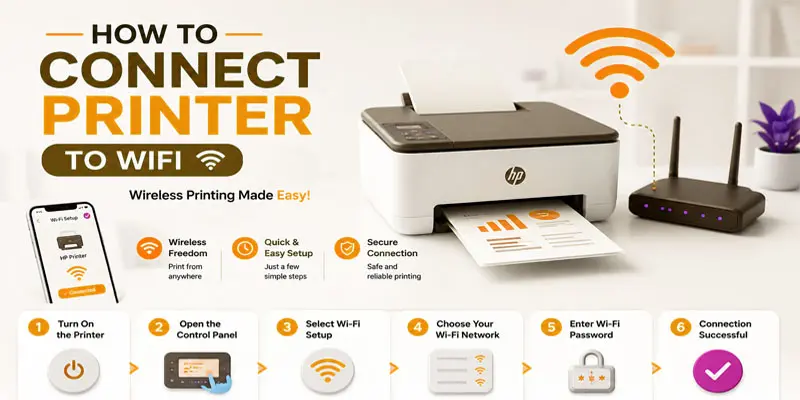
How to Connect an HP Printer to WiFi Using the Printer Control Panel?
If your HP printer has a touchscreen or control panel, you can connect it to your wireless network without using a computer. Follow these simple steps:
- Turn on your HP printer and make sure it is ready.
- Tap the Wireless or Network icon on the printer control panel.
- Open Wireless Settings and select Wireless Setup Wizard.
- Wait for the printer to scan for available WiFi networks.
- Choose your WiFi network name (SSID) from the list.
- Enter your WiFi password carefully using the on-screen keyboard.
- Tap OK, Connect, or Done to start the connection.
- Wait a few seconds until the printer confirms it is connected.
- Check that the wireless indicator light becomes solid blue.
- Print a test page to make sure the HP printer WiFi setup was successful.
How to Connect an HP Printer to WiFi Without a Screen?
If your HP printer does not have a touchscreen or display, you can still connect it to your WiFi network using the HP Smart app. First, turn on the printer and place it close to your WiFi router. If the printer has been used before, press and hold the Wireless and Cancel buttons (or follow your printer model’s instructions) to put it into WiFi Setup Mode.
The wireless light will start blinking, which means the printer is ready to connect. Next, open the HP Smart app on your computer, Android phone, or iPhone and follow the on-screen steps. The app will detect your printer, ask you to select your WiFi network, and prompt you to enter the WiFi password. Once connected, the wireless light will become solid. For example, many HP DeskJet printers without a display can be set up in just a few minutes using this method.
How to Connect an HP Printer to WiFi Using the HP Smart App?
The HP Smart app provides a simple way to set up your printer on a wireless network. Use the steps below to complete the WiFi connection.
- Download and install the HP Smart app on your Android phone, iPhone, Windows PC, or Mac.
- Turn on your HP printer and place it near your WiFi router.
- Make sure your phone or computer is connected to the same wireless network.
- Open the HP Smart app and tap Add Printer.
- If the printer is not found, put it into WiFi Setup Mode by pressing the Wireless button until the light starts blinking.
- Select your printer from the list of available devices.
- Choose your WiFi network name (SSID) and enter the WiFi password.
- Wait for the app to complete the wireless printer setup.
- When the connection is successful, print a test page to confirm everything works correctly.
How to Connect an HP Printer to WiFi Using WPS?
If your WiFi router supports Wi-Fi Protected Setup (WPS), you can connect your HP printer to WiFi without entering a password. Follow these simple steps:
- Make sure your HP printer and WiFi router are turned on.
- Place the printer close to the router for a stronger wireless signal.
- Press and hold the Wireless button on the printer until the wireless light starts blinking.
- Within two minutes, press the WPS button on your WiFi router.
- Wait while the printer and router connect automatically.
- The wireless indicator light will turn solid blue when the connection is complete.
- Run a quick test print to make sure the printer is connected to Wi-Fi and working correctly.
- If the connection fails, repeat the steps and ensure you press the router’s WPS button within the time limit.
How to Connect an HP Printer to WiFi on Windows?
You can easily add your HP printer to WiFi on Windows through the system settings. Follow these simple steps:
- Turn on your HP printer and place it near your WiFi router.
- Make sure your Windows computer is connected to the same WiFi network.
- Open Settings on your Windows PC.
- Select Bluetooth & devices, then click Printers & scanner.
- Click Add device and wait for Windows to find your HP printer.
- Select your HP printer from the list.
- Complete the setup by following the prompts displayed on your screen until the printer joins your Wi-Fi network.
- If Windows cannot find the printer, check that the printer’s WiFi light is on.
- You can also use the HP Smart app to complete the setup.
- Print a test page after installation to confirm the printer works.
How to Connect an HP Printer to WiFi on Mac?
Connecting an HP printer to WiFi on Mac lets you print documents and photos without a USB cable. Follow these simple steps:
- Turn on your HP printer and place it near your WiFi router.
- Print a sample page to check that the printer is communicating properly over the wireless network.
- Join your Mac to the Wi-Fi network that you want the printer to use.
- Click Printers & Scanners from the settings menu.
- Select Add Printer, Scanner, or Fax.
- Wait for your Mac to find nearby printers.
- Choose your HP printer from the list.
- Check that AirPrint or the correct HP printer software appears as the connection option.
- Click Add to complete the printer setup.
- Print a test page to confirm the wireless connection works.
How to Print From Your Phone After Connecting to WiFi?
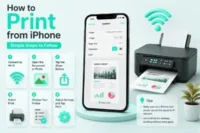
Once your HP printer is connected to WiFi, you can print documents, photos, and web pages directly from your phone. First, connect your Android phone or iPhone to the same WiFi network as your printer. Then open the document or photo you want to print and tap the Share or Print option. Select your HP printer from the available devices and choose your preferred paper size, number of copies, and other settings. Tap Print to start the job. You can also use the HP Smart app to manage printing from your phone. For example, you can quickly print a photo from your phone while your HP printer sits in another room. This makes wireless printing simple and convenient.
Why Won’t My HP Printer Connect to WiFi?
If your HP printer won’t connect to WiFi, a few common issues may be stopping the wireless connection. Check these points before trying advanced fixes:
- Wrong WiFi password: Enter the correct password. A single wrong character can stop the connection.
- Weak WiFi signal: Move the printer closer to your router during setup.
- Printer is offline: Check the wireless light and make sure WiFi is enabled.
- Router problems: Restart your router and try connecting again.
- Incorrect network: Make sure the printer connects to your current WiFi network.
- 5 GHz network: Some older HP printers support only 2.4 GHz WiFi.
- Outdated software: Update the printer firmware or HP Smart app.
- Network settings: Old WiFi settings can prevent a new connection.
How to Fix HP Printer WiFi Connection Problems?
If your HP printer is not connecting to WiFi, try these simple fixes before changing advanced settings:
- Restart the printer: Turn off your HP printer, wait a few seconds, and turn it on again.
- Restart the router: Unplug your WiFi router, wait briefly, and reconnect it.
- Check the WiFi password: Make sure you enter the correct password during the printer setup.
- Move the printer closer: A weak wireless signal can cause connection problems.
- Reconnect to WiFi: Open the printer’s wireless settings and select your network again.
- Reset network settings: Remove old WiFi details and start the wireless setup again.
- Update the printer: Install the latest firmware when an update is available.
- Check HP Smart: Use the HP Smart app to find and fix common connection issues.
How to Change the WiFi Network on an HP Printer?
If you have changed your router or WiFi password, you may need to connect your HP printer to a new WiFi network. Turn on the printer, then go to its Wireless or Network menu to access the available connection options. Select the option to change or set up the wireless connection. Choose your new WiFi network name (SSID) from the list and enter the correct password. If your printer does not have a screen, use the HP Smart app to update the wireless settings.
Wait for the printer to connect, then check the WiFi indicator light. You can also print a network report to confirm the new connection. For example, if you replace your old home router, reconnecting your HP printer to the new network lets you continue printing from your computer or phone.
How Can You Keep Your HP Printer Connected to WiFi?
A stable WiFi connection helps your HP printer stay ready whenever you need to print. Follow these simple tips:
- Keep the printer near your router: A shorter distance can provide a stronger wireless signal.
- Avoid thick walls: Walls and large objects can weaken the WiFi signal.
- Keep your router working properly: Restart the router if the connection becomes slow or unstable.
- Use the correct WiFi network: Make sure your printer connects to your main home network.
- Update printer firmware: Install available updates to improve printer performance and connection stability.
- Keep the HP Smart app updated: An updated app can help manage your wireless printer setup.
- Avoid frequent network changes: Changing your WiFi name or password can disconnect the printer.
- Check the WiFi light: A solid wireless light usually shows that the printer has an active connection.
What are Common HP Printer WiFi Error Messages and What Do They Mean?
Before troubleshooting, it helps to understand common HP printer WiFi error messages, as each message can point to a different connection problem.
| Error | Meaning | Solution |
|---|---|---|
| Printer Offline | The printer is not communicating with your device or network. | Check the WiFi connection and restart the printer. |
| Connection Failed | The printer could not connect to the WiFi network. | Check your WiFi password and try again. |
| No Network Found | The printer cannot find your wireless network. | Move the printer closer to the router and scan again. |
| Authentication Error | The WiFi password may be incorrect. | Enter the correct WiFi password. |
| Weak Signal | The printer receives a poor WiFi signal. | Move the printer closer to the router. |
| Network Unavailable | The WiFi network is not available. | Check your router and make sure WiFi is working. |
| WiFi Disconnected | The printer has lost its wireless connection. | Reconnect the printer to your WiFi network. |
| Unable to Connect | The printer could not complete the wireless setup. | Restart your printer and router, then try again. |
Final Thoughts
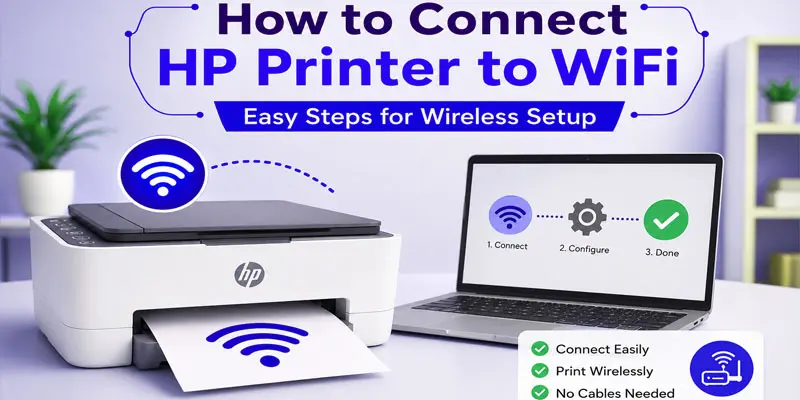
Learning how to connect HP printer to WiFi is easier when you follow the right steps. Whether you use the HP Smart app, the printer control panel, or WPS, a stable wireless connection lets you print from your computer, laptop, or smartphone with ease. If you run into problems, the troubleshooting tips in this guide can help you reconnect quickly. Follow these steps today and enjoy smooth, reliable wireless printing every time.
FAQs
Reset the printer’s wireless settings, then reconnect it to your new network. Open Wireless Settings, choose Restore Network Defaults, and run the wireless setup again. Select your new Wi-Fi network and enter its password.
Connect your printer to a new Wi-Fi by opening its Wireless Setup Wizard and selecting your network. Enter the correct Wi-Fi password and wait for the connection. Run a quick sample print to verify that the printer is connected and ready to print.
Check your HP printer’s Wi-Fi connection through the Wireless Settings menu or the HP Smart app. Look for a connected status, Wi-Fi name, or wireless light. You can also print a network report to confirm the connection.


- Be Respectful
- Stay Relevant
- Stay Positive
- True Feedback
- Encourage Discussion
- Avoid Spamming
- No Fake News
- Don't Copy-Paste
- No Personal Attacks
- Be Respectful
- Stay Relevant
- Stay Positive
- True Feedback
- Encourage Discussion
- Avoid Spamming
- No Fake News
- Don't Copy-Paste
- No Personal Attacks
