How to Remove the Malware From Android Fast & Easy
Published: 30 Jul 2026
Is your Android phone suddenly slow, showing unwanted ads, or using more battery than usual? These problems can be signs that your device has malware. Many users worry about losing personal data, private information, or control over their phones when they notice unusual activity. Malware can enter your Android device through unsafe apps, unknown links, or harmful downloads.
It can affect your phone’s performance and create security risks. The good news is that you can take simple steps to protect your device and remove harmful threats. This guide helps you understand how to quickly remove malware from Android using simple and effective steps. We will explain how to find suspicious apps, scan your device, delete harmful files, and improve your Android security.
You will also learn useful tips to prevent future malware infections. Whether your phone is running slowly or you want to keep your data safe, this guide will help you clean your device and make it work better. Follow these simple steps and take control of your Android phone again.
How to Remove Malware From Android? (Step by Step)
Follow these simple step-by-step methods to safely remove malware from your Android device and restore its speed and security.
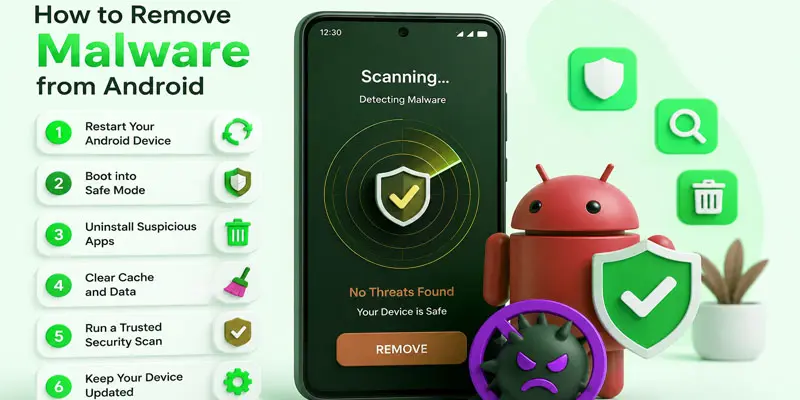
- Restart Your Android Phone in Safe Mode
- Find and Uninstall Suspicious Apps
- Run a Malware Scan With a Trusted Security App
- Clear Browser Data and Remove Unwanted Pop-Ups
- Check and Remove Unknown App Permissions
- Update Your Android Software
- Reset Your Android Device (If Needed)
Restart Your Android Phone in Safe Mode
Restart your Android phone in Safe Mode. This mode helps you find and stop harmful apps easily. Only system apps will run in Safe Mode. Third-party apps will stay disabled. If your phone works fine in this mode, a downloaded app may be causing the problem.
Find and Uninstall Suspicious Apps
Open your Android phone and check all installed apps carefully. Look for apps you do not remember downloading or apps that look strange. These apps may be harmful or linked to malware. Tap on the suspicious app and select uninstall to remove it. For example, if you see an unknown app installed recently, delete it right away to keep your phone safe.
Run a Malware Scan With a Trusted Security App
Install a trusted security app from the Google Play Store on your Android phone. Open the app and start a full malware scan of your device. The app will check files, apps, and hidden threats. If it finds any malware, follow the instructions to remove it. For example, the scan may detect a harmful app running in the background and help you delete it safely.
Clear Browser Data and Remove Unwanted Pop-Ups
Open your browser settings on your Android phone and clear all browsing data. This helps remove harmful cookies, cache, and saved website files. Pop-up ads often come from unsafe websites, so blocking them is important. Turn off notifications from unknown or suspicious sites. For example, if you keep seeing ads while not using the browser, clearing data can help stop them.
Check and Remove Unknown App Permissions
Go to your Android phone settings and open the app permissions section. Review which apps can access your camera, microphone, location, or files. Remove permissions from apps that do not need them or look suspicious. This helps stop malware from stealing your personal data. For example, if a simple flashlight app has access to your contacts, remove that permission right away.
Update Your Android Software
Go to your Android settings and check for software updates. Install the latest version when it is available. Updates fix security problems and protect your phone from malware. They also improve phone speed and performance. For example, after updating, your device may stop showing unwanted errors or strange app behavior.
Reset Your Android Device (If Needed)
Go to your Android settings and choose the reset option if malware is still not removed. A factory reset removes all apps, files, and any harmful software from your phone. This brings your device back to its original state. Always back up your important data before resetting. For example, if your phone keeps showing ads even after cleaning, a reset can fully fix the issue.
How Can You Tell If Your Android Phone Has Malware?
Malware can sometimes hide inside your Android phone without showing clear signs at first. It can affect your device’s speed, steal information, or create unwanted problems. Understanding warning signs can help you quickly identify malware and remove it before it spreads or causes damage. Here are some common signs that your Android phone may have malware:
- Your phone becomes slow suddenly: If apps take longer to open, your screen freezes, or your phone reacts slowly, malware may be using your device resources in the background.
- You see too many pop-up ads: Unexpected pop-up ads outside the browser can be a warning sign of adware or a harmful application installed on your phone.
- Unknown apps appear on your phone: Check your app list regularly. If you find apps that you did not install, they may be linked to malware infections.
- Battery drains faster than normal: Malware can run hidden processes that use extra power. A sudden battery drop may indicate a security issue.
- Your mobile data usage increases: Some malware sends information from your phone without your knowledge. Check your data usage if you notice unusual activity.
- Your phone overheats often: A device that gets hot while doing simple tasks may have unwanted apps running in the background.
- Apps crash or behave strangely: Malware can affect normal apps and cause random errors, crashes, or unusual behavior.
What Should You Do Before Removing Malware From Your Android Device?
Before you start removing malware from your Android phone, take a few simple steps to protect your data and make the cleaning process easier. Proper preparation helps you avoid losing important files and improves your device security. Follow these steps before removing malware:
- Back up your important data: Save your photos, contacts, documents, and other important files. You can use trusted backup options to keep your data safe.
- Update your Android system: Check for the latest software updates. Android updates often include security fixes that help protect your device from threats.
- Disconnect from the internet: Turn off Wi-Fi or mobile data if you notice suspicious activity. This can help limit malware communication with unknown sources.
- Check recently installed apps: Review the apps you downloaded recently. If your phone started having problems after installing an app, that app may be causing the issue.
- Note unusual phone behavior: Remember problems like pop-up ads, battery drain, or slow performance. This information can help you identify the malware source.
What To Do If Malware Is Still on Your Android Phone?
Sometimes malware stays on your Android phone even after basic cleaning steps. In this case, you need stronger actions to fully remove it and protect your device. Restart your device in Safe Mode and observe if the issue is still present to identify the cause. If the issue stops, a hidden app is still causing trouble.
Next, carefully review all installed apps and delete anything suspicious or unknown. Many malware problems come from fake apps that look normal but run harmful tasks in the background. You can also run a trusted antivirus or security scan to detect hidden threats and remove them safely.
If your phone still shows signs like pop-up ads, slow speed, or battery drain, a factory reset may be the best solution. This step removes all apps, files, and malware from your device. For example, if your phone keeps showing ads even after uninstalling apps, resetting can fix the issue completely. Always back up your important data before resetting. This helps you avoid losing photos, contacts, and files while cleaning your device.
How Can You Prevent Malware on Android in the Future?
Preventing malware on Android is easier than removing it later. You just need to follow safe habits and stay alert while using your phone. These simple actions help secure your device, personal information, and online accounts from threats. Here are easy ways to keep your Android phone safe from malware in the future:
- Always install apps from safe and trusted platforms, especially the Google Play Store, to avoid security risks. Avoid downloading APK files from unknown websites. For example, a free game from a random site may contain hidden malware.
- Keep your Android system updated: Install software updates regularly. Updates fix security issues and protect your phone from new threats.
- Avoid clicking unknown links: Do not open links in random messages, emails, or pop-ups. These links can install harmful software on your device.
- Check app permissions carefully: Only allow permissions that are needed. For example, a calculator app does not need access to your contacts or location.
- Use a trusted security app: A good antivirus app can scan your phone and block harmful apps before they cause damage.
- Do not install unknown apps shared by others: Even if a friend sends an app, check it first. Sometimes malware spreads through shared files.
- Turn on Google Play Protect: This built-in feature helps detect harmful apps and keeps your phone safer.
What are the Common Mistakes People Make When Removing Malware?
Many Android users make small mistakes while trying to remove malware. These mistakes can make the problem worse or allow malware to stay on the device. Knowing these errors can help you clean your phone safely and effectively. Here are the most common mistakes people make:
- Installing fake antivirus apps: Some apps look like security tools but are actually harmful. They can show fake scans and trick users into installing more malware. Always download trusted security apps from the Google Play Store.
- Not uninstalling suspicious apps properly: Many users ignore unknown apps or forget to remove them completely. Malware often hides inside these apps and continues running in the background.
- Skipping Safe Mode check: Safe Mode helps identify problem apps. Some users skip this step and miss the real source of infection.
- Ignoring software updates: Old Android versions have security weaknesses. If you do not update your phone, malware can easily attack again.
- Clicking on pop-ups or unknown links: Some users try to close pop-ups by clicking them. This can install more harmful software instead.
- Not checking app permissions: Harmful apps often misuse permissions like camera, location, or contacts. Ignoring permissions can lead to data theft.
- Avoiding a full factory reset when needed: If malware is strong, simple cleaning may not work. Some users avoid resetting their phone, and the issue stays active.
Final Thoughts
Removing malware from Android becomes easier when you follow the right steps. Checking suspicious apps, using security scans, clearing harmful files, and keeping your device updated can help protect your phone. Regularly practicing safe browsing and downloading habits also improves Android security. Take action today to remove malware, protect your personal data, and keep your device safe for the future.
FAQs
You can find hidden malware on Android by checking unknown apps, battery drain, and data usage. Also, use Safe Mode and a trusted antivirus scan to detect hidden, harmful apps.
You can run a malware scan on Android by installing a trusted security app from the Google Play Store. Open it, start a full device scan, and follow the steps to remove detected threats safely.
You can clean your device from malware by uninstalling suspicious apps, clearing browser data, running a security scan, and updating your Android system to remove hidden threats and improve performance.
You can manually remove malware by entering Safe Mode, deleting unknown apps, stopping suspicious permissions, and clearing browser data. These steps help stop harmful apps from running on your phone.
Yes, malware can be removed from a phone using Safe Mode, antivirus scans, and app removal. In severe cases, a factory reset fully cleans the device and restores normal performance safely.






- Be Respectful
- Stay Relevant
- Stay Positive
- True Feedback
- Encourage Discussion
- Avoid Spamming
- No Fake News
- Don't Copy-Paste
- No Personal Attacks
- Be Respectful
- Stay Relevant
- Stay Positive
- True Feedback
- Encourage Discussion
- Avoid Spamming
- No Fake News
- Don't Copy-Paste
- No Personal Attacks
