How to Remove the Malwarebytes Easily Step by Step
Published: 4 Aug 2026
Are you trying to remove Malwarebytes from your computer but do not know the right steps? Many users face problems when they want to uninstall security software, switch to another antivirus program, or fix app-related issues. Sometimes, Malwarebytes may not remove completely and can leave behind files that take up space or cause conflicts with other programs.
If you are looking for a simple way to remove Malwarebytes, this guide will help you complete the process safely. You will learn the correct methods to uninstall Malwarebytes from Windows, Mac, and other devices without confusion. Removing an application does not have to be difficult. With the right steps, you can uninstall Malwarebytes, delete leftover files, and keep your device running smoothly.
This article explains everything in an easy way, even if you have basic computer knowledge. Whether you are removing Malwarebytes because of software issues, changing your security tool, or simply no longer need it, you will find a clear solution here. Let’s explore the best ways to remove Malwarebytes properly and keep your device protected.
What Should You Do Before Removing Malwarebytes?
Before you remove Malwarebytes from your device, it is important to prepare your system. These simple steps help you avoid problems during the uninstall process and keep your important data safe. Follow these steps before removing Malwarebytes:
- Save important files: Create a backup of your important documents, photos, and other files. This keeps your data safe if any issues happen during the process.
- Close Malwarebytes completely: Make sure the Malwarebytes app is not running in the background. Open programs can sometimes stop the uninstall process.
- Check your device type: The removal steps can be different for Windows, Mac, Android, or iPhone. Knowing your device helps you follow the correct method.
- Turn off Malwarebytes protection: Disable real-time protection before uninstalling the software. This can help prevent removal errors.
- Check for other security software: If you plan to install another antivirus program, make sure it works properly after removing Malwarebytes.
How to Remove Malwarebytes on Windows?
Removing Malwarebytes from a Windows computer is simple when you follow the right steps. You may want to uninstall Malwarebytes because you are switching to another antivirus program, fixing software problems, or no longer need the app. Follow these easy methods to remove Malwarebytes on Windows:
- Uninstall Malwarebytes Using Windows Settings
- Remove Malwarebytes Through Control Panel
- Use Malwarebytes Support Tool for Complete Removal
- Delete Remaining Malwarebytes Files Manually
Uninstall Malwarebytes Using Windows Settings
- Open Windows Settings from the Start menu on your computer.
- Go to Apps and find Malwarebytes from the installed programs list.
- Click on Malwarebytes and select the Uninstall option.
- Follow the instructions shown on your screen to remove the program.
- Restart your computer after uninstalling to complete the removal process.
Remove Malwarebytes Through Control Panel
- Open the Control Panel on your Windows PC.
- Go to “Programs and Features” to see all installed applications.
- Search for Malwarebytes in the list and click on it.
- Select the “Uninstall” option and complete the steps shown on your screen.
- Restart your computer after the process finishes to ensure the software is fully removed.
Use Malwarebytes Support Tool for Complete Removal
- Download and open the Malwarebytes Support Tool from the official source.
- Select the option to remove Malwarebytes from your device.
- The tool helps delete the program and leftover files automatically.
- Follow the instructions shown on your screen to complete the removal.
- Restart your computer after using the tool to finish the process.
Delete Remaining Malwarebytes Files Manually
- Open your computer folders and check for any remaining Malwarebytes files.
- Remove leftover folders from the Malwarebytes installation location.
- Clear temporary files related to the program if they are still present.
- Restart your computer to apply the changes.
- Make sure Malwarebytes is fully removed from your system.
How to Remove Malwarebytes on Mac?
Removing Malwarebytes on Mac is simple when you follow the right steps. Many users uninstall it when they switch to another antivirus or when the app is no longer needed. Follow these easy steps to remove Malwarebytes safely from your Mac system.
- Uninstall Malwarebytes from the Applications Folder
- Use Malwarebytes Uninstaller Tool on Mac
- Remove Leftover Files from Library Folder
- Restart Mac to Complete Removal
Uninstall Malwarebytes from the Applications Folder
- Open the Applications folder on your Mac.
- Find the Malwarebytes app in the list.
- Drag the app to the Trash, or right-click it and choose “Move to Trash” from the options.
- Enter your Mac password if it asks for permission.
- Empty the Trash to fully remove the app from your device.
Use Malwarebytes Uninstaller Tool on Mac
- Download the Malwarebytes Uninstaller Tool from the official website.
- Open the tool on your Mac device.
- Select Malwarebytes from the list of installed apps.
- Click Uninstall and follow the simple on-screen steps.
- Restart your Mac to complete the removal process.
Remove Leftover Files from Library Folder
- Open Finder on your Mac and click on the Go menu.
- Select Go to Folder and type ~/Library.
- Look for Malwarebytes-related folders and files.
- Move these leftover files to the Trash.
- Clear the Trash bin to remove the files completely, then restart your Mac to complete the process.
Restart Mac to Complete Removal
- Open the Apple menu located in the upper-left side of your screen.
- Select the Restart option from the list.
- Wait while your Mac turns off and starts again.
- This helps remove any leftover Malwarebytes files from memory.
- After a restart, your system will be fully updated and clean.
How to Remove Malwarebytes From Mobile Devices?
Uninstalling Malwarebytes on a mobile device is easy. You only need to follow a few simple steps according to your phone’s operating system. This helps free up space and stop background security scans if you no longer need the app.
On Android Devices
- Open Settings on your phone.
- Tap Apps or App Management.
- Find and select Malwarebytes from the list.
- Tap Uninstall and confirm the action.
- Wait for the process to finish and restart your phone if needed.
On iPhone or iPad (iOS Devices)
- Go to your Home Screen and find the Malwarebytes app.
- Press the app icon and keep holding it for a moment until the menu shows up.
- Tap Remove App or the minus (–) option.
- Select Delete App to uninstall it completely.
- Confirm your choice when prompted.
Important Tips Before Removal
- Make sure you have another security app if needed.
- Close the app before uninstalling it.
- Check that no scan is running in the background.
- Restart your device for better performance after removal.
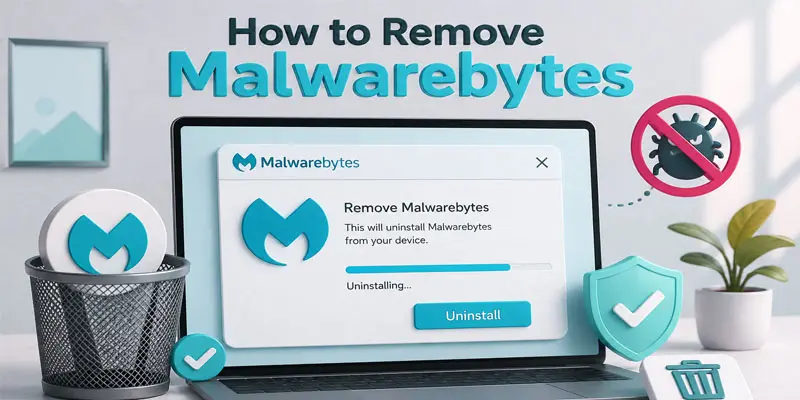
What are the Common Problems When Removing Malwarebytes?
Sometimes users face small issues when they try to uninstall Malwarebytes from their devices. These problems are normal and can be fixed with simple steps. One common problem is that Malwarebytes does not uninstall fully. This happens when the program is still running in the background. In this case, closing the app or restarting the device can help. Another issue is leftover files.
Even after removal, some files may stay on the system and take up space. Users can remove these files manually or use the official support tool. Some users also see error messages during uninstallation. This often happens due to system permission issues. Running the uninstall option as an administrator can fix this problem.
On mobile devices, the app may not be deleted if it is still active or updated in the background. For example, a user may try to remove Malwarebytes but find it still appears in the app list. A quick restart usually solves this issue. These small problems are easy to handle with the right steps and basic troubleshooting.
What are the Tips for a Smooth Malwarebytes Removal?
Removing Malwarebytes can be easy if you follow a few simple tips. These steps help you avoid errors and make the process smooth on Windows, Mac, or mobile devices.
- Close the program before uninstalling: Make sure Malwarebytes is not running in the background. This helps prevent uninstall errors.
- Restart your device first: A quick restart clears active processes and makes removal easier.
- Use the correct uninstall method: Follow the right steps for Windows, Mac, or mobile devices. Each system has a different process.
- Use the official support tool if needed: If the normal uninstall fails, the Malwarebytes Support Tool can remove hidden files.
- Check for leftover files: Sometimes, small files remain after removal. Delete them manually to free space.
- Keep another security tool ready: For example, install another antivirus if you still want protection after removal.
- Avoid interruptions during uninstall: Do not open other heavy apps while removing Malwarebytes.
What Should You Do After Removing Malwarebytes?
After removing Malwarebytes, it is important to take a few simple steps to keep your device safe and running smoothly. This helps you avoid security gaps and system issues. First, restart your device. This clears leftover system processes and helps complete the uninstallation. Next, check your computer or phone for any leftover files. Sometimes, small folders or cache files remain after removal.
Deleting them helps free up storage space. Then, install another trusted antivirus program if needed. This keeps your device protected from malware, viruses, and other online threats. For example, if you removed Malwarebytes because you switched to a new security tool, make sure the new one is active and updated.
Also, update your operating system. Regular updates improve security and fix hidden bugs. Finally, avoid downloading files from unknown sources to reduce the risk of infection. These simple steps help you maintain device safety after uninstalling Malwarebytes. They also ensure your system stays clean, fast, and protected for daily use.
Final Thoughts
Learning how to remove Malwarebytes helps you uninstall the program correctly and avoid leftover files or system issues. By following the right removal steps, you can free up space, fix software conflicts, and manage your device security better. Always keep a trusted antivirus tool active after removing Malwarebytes. Follow these simple steps and keep your computer safe and running smoothly.
FAQs
Malwarebytes won’t delete when it is still running in the background or protected by active services. Close the app, disable protection, or restart your PC. Then try uninstalling again using Control Panel or Windows Settings.
You should uninstall Malwarebytes if you are switching to another antivirus or facing system issues. Always keep another security tool active to protect your device from viruses, malware, and online threats after removal.
You can force uninstall malware using a dedicated removal tool or Safe Mode. These methods stop active processes and remove hidden files, helping you clean your system when normal uninstall options fail.
You can completely disable Malwarebytes by turning off real-time protection and stopping its background services. Open settings, disable protection features, and ensure the program is not running before uninstalling it safely.
Malwarebytes is on your PC because it was installed to protect your system from malware and viruses. It may come from manual installation or bundled security software used for scanning and system protection.




- Be Respectful
- Stay Relevant
- Stay Positive
- True Feedback
- Encourage Discussion
- Avoid Spamming
- No Fake News
- Don't Copy-Paste
- No Personal Attacks
- Be Respectful
- Stay Relevant
- Stay Positive
- True Feedback
- Encourage Discussion
- Avoid Spamming
- No Fake News
- Don't Copy-Paste
- No Personal Attacks
