How to Eliminate Malware on a Mac and Protect Your Device
Published: 9 Aug 2026
Have you ever noticed your Mac acting strange all of a sudden? Maybe it became slow, started showing pop-up ads, or opened websites you did not click. This can feel confusing and even a little scary. Many users think Macs cannot get viruses, but that is not true anymore. Today, malware can still infect your Mac through unsafe downloads, fake apps, or harmful links. Once it enters, it can slow down your system, steal data, or track your activity.
This is a real problem for many users who want a safe and smooth experience. If you are facing these issues, you are not alone. The good news is that you can fix it. In this guide on how to remove malware from Mac, you will learn simple and clear steps to clean your device. No technical skills needed.
You will also learn how to find hidden threats, remove bad apps, and protect your Mac from future attacks. Everything is explained in easy language so you can follow along without confusion. Let’s help you bring your Mac back to normal and keep it safe again.
What is Malware on Mac?
Malware on Mac is harmful software that is made to damage your system or steal information. It can enter your device through unsafe downloads, fake apps, or suspicious websites. Even Macs are not fully safe from these threats today. For example, you may download a free app, and it secretly installs adware that shows unwanted ads. Or a fake email link may install spyware that tracks your activity. Malware usually comes in different forms, such as viruses, spyware, and adware. These programs can slow your Mac, change browser settings, or expose personal data without your permission.
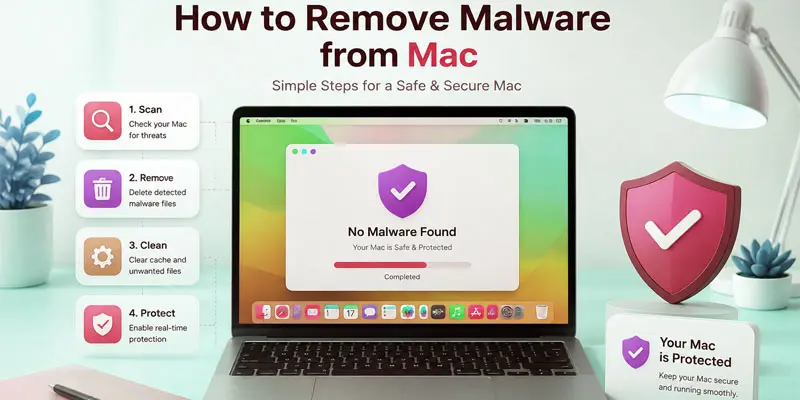
How to Remove Malware from Mac? (Step-by-Step Guide)
Want to clean your Mac safely? Follow this simple step-by-step guide to remove malware and restore your system’s speed and security.
- Disconnect Internet Connection
- Restart Mac in Safe Mode
- Check and Remove Suspicious Apps
- Clear Browser Extensions
- Delete Unknown Login Items
- Run a Trusted Malware Scan
- Update macOS System
- Reset Browser Settings
- Check Activity Monitor for Unknown Processes
- Restore Mac from Backup (If Needed)
Disconnect Internet Connection
Turn off your Wi-Fi or unplug the internet cable first. This stops malware from sending or receiving data. It also helps protect your personal information. Go to your Mac settings and switch off Wi-Fi with one click. This simple step keeps your device safe while you clean it.
Restart Mac in Safe Mode
Restart your Mac in Safe Mode to stop unwanted programs from running. This mode loads only the basic system files. It helps you find and remove malware more easily. To do this, turn off your Mac and hold the Shift key while restarting. This simple step makes your Mac safer for cleaning.
Check and Remove Suspicious Apps
Open your Applications folder on your Mac. Look through your apps and identify any you don’t recognize or remember adding. These unknown apps can be harmful or linked to malware. Drag suspicious apps to the Trash and empty it. This helps keep your Mac clean and safe.
Clear Browser Extensions
Open your browser settings on your Mac. Go to the extensions or add-ons section. Look for any extensions you do not recognize. Remove or disable them right away. This helps stop unwanted ads and keeps your browsing safe and clean.
Delete Unknown Login Items
Go to System Settings on your Mac. Open the Login Items section. Check the list of apps that start when your Mac turns on. Remove any apps you do not recognize or trust. This helps stop unwanted programs from running in the background.
Run a Trusted Malware Scan
Install a trusted antivirus or malware removal tool on your Mac. Open the app and start a full system scan. It will search for hidden threats and harmful files. If it finds anything, follow the steps to remove it. This keeps your Mac safe and running smoothly.
Update macOS System
Open System Settings on your Mac. Go to the Software Update section. Check if a new macOS update is available. Install the latest update if it shows on your screen. Updates fix security issues and help protect your Mac from malware.
Reset Browser Settings
Open your browser settings on your Mac. Look for the reset or restore option. Resetting removes unwanted changes made by malware. It can fix homepage changes, pop-ups, and slow browsing. After the reset, your browser will go back to the default and work more safely.
Check Activity Monitor for Unknown Processes
Open Activity Monitor from the Utilities folder on your Mac. Look at all running processes carefully. Check for any unknown or strange names. These may be harmful programs running in the background. Choose them and press the stop option to close them safely.
Restore Mac from Backup (If Needed)
If your Mac still has problems, use a backup to restore it. Open Time Machine or your backup tool. Choose a clean backup from before the issue started. Restore your files and system step by step. This helps remove deep malware and brings your Mac back to a safe state.
How Can You Tell If Your Mac Has Malware?
Is your Mac suddenly slow, glitchy, or showing strange pop-ups? Here’s how you can quickly tell if malware is secretly hiding in your system.
- Your Mac becomes slow without any clear reason. Simple tasks take more time than usual. This can be a sign of malware or unwanted background activity.
- You see pop-up ads even when no browser is open. For example, ads may appear on your desktop or while using normal apps.
- Unknown apps appear in your Applications folder. These apps may install without your permission after unsafe downloads.
- Your browser settings change automatically. Your homepage or search engine may switch to something you did not choose.
- You notice frequent crashes or freezing. Your Mac may restart or stop working during normal use.
- Battery drains faster than normal. Malware often runs hidden processes that use system power.
- You get security warnings or alerts from macOS. These messages may point to suspicious activity or files.
- Your internet becomes slow even with a good connection. Malware may be using your network in the background.
How to Prevent Malware on Mac?
Want to keep your Mac safe and running smoothly? These are easy and effective methods to stop malware before it damages your system.
- Always download apps from trusted sources like the App Store or official websites. For example, avoid free software from unknown sites.
- Avoid opening any suspicious links in emails, messages, or pop-up ads, as they may install malware without your approval.
- Make sure your macOS and apps are always updated, since updates fix security flaws and help protect your Mac from new threats.
- Use a strong password and turn on security features like FireVault and Gatekeeper for better protection.
- Install a trusted antivirus tool to detect and block malware early. This adds an extra safety layer to your Mac.
- Avoid using cracked or pirated software. These files often carry hidden viruses or spyware.
- Turn on firewall settings to block unwanted network access. This helps stop hackers from reaching your system.
- Regularly back up your data using Time Machine. This keeps your files safe if anything goes wrong.
What are the Common Mistakes to Avoid?
Many users make small mistakes that increase the risk of malware on their Mac. One common mistake is downloading apps from unknown websites. For example, a user may install free software from a random link and later see pop-up ads and slow performance. Another mistake is ignoring system updates. Updates are important because they fix security problems and protect your Mac from new threats.
Some users also click on suspicious email links or fake messages. These links can install malware without warning. Using cracked or pirated software is another big risk, as it often contains hidden viruses or spyware. Many people also skip checking browser extensions, which can quietly track activity or show unwanted ads.
Not using antivirus protection is also a mistake. A trusted security tool can detect threats early. By avoiding these common errors, you can keep your Mac safe, fast, and secure for daily use.
Final Thoughts
Removing malware from your Mac is not as hard as it seems. By checking your apps, clearing browser extensions, running a scan, and keeping your system updated, you can quickly clean your device and improve its performance. Taking these steps not only removes threats but also keeps your personal data safe. Stay alert, download carefully, and keep your Mac protected for the long run. Start now and enjoy a faster, safer Mac experience every day.
FAQs
You clean your Mac from malware by removing suspicious apps, clearing browser extensions, and running a trusted malware scan. Also, update macOS and restart in Safe Mode to fully remove hidden threats and improve system safety.
You can check your Mac for malware by looking for slow performance, pop-up ads, unknown apps, and browser changes. Use Activity Monitor and a malware scan tool to detect hidden threats quickly and safely.
You can fully remove malware by scanning your Mac with a trusted antivirus, deleting harmful apps, resetting browsers, and updating macOS. In serious cases, using a clean backup can help fully remove malware.
Yes, it is possible to get malware on a MacBook through unsafe downloads, fake apps, or phishing links. Although Macs are secure, they still need protection from modern viruses, adware, and spyware attacks.
Malware on a Mac is less common than on Windows, but it is increasing every year. Users who download unsafe apps or click suspicious links face a higher risk of adware, spyware, and browser hijackers.






- Be Respectful
- Stay Relevant
- Stay Positive
- True Feedback
- Encourage Discussion
- Avoid Spamming
- No Fake News
- Don't Copy-Paste
- No Personal Attacks
- Be Respectful
- Stay Relevant
- Stay Positive
- True Feedback
- Encourage Discussion
- Avoid Spamming
- No Fake News
- Don't Copy-Paste
- No Personal Attacks
