How to Maintain Laser Printer for Best Results
Published: 18 Oct 2025
Did you know that a well-maintained laser printer can last for years and print thousands of pages without trouble? Many users overlook simple care routines, leading to costly repairs. Regular cleaning and proper handling can save time, money, and frustration.
Ever wondered why your laser printer suddenly prints faded or streaky pages? The answer often lies in poor maintenance. Dust, worn-out toner, or neglected parts can turn a reliable printer into a headache.
If you’re tired of paper jams, poor print quality, or frequent breakdowns, this guide is for you. Here, you’ll learn simple and practical steps on how to maintain a laser printer so it keeps working smoothly every day.
Why Is Regular Maintenance Important for Your Laser Printer?
Regular maintenance is important for your laser printer because it keeps the machine running smoothly, improves print quality, and prevents costly breakdowns.
- It helps your printer last longer and work better.
- It prevents paper jams and printing errors.
- It keeps print quality sharp and clear.
- It saves money by avoiding expensive repairs.
- It reduces downtime and keeps your work smooth.
- It helps toner and parts last longer.
- It keeps your printer clean and dust-free.
How Can You Maintain a Laser Printer Step by Step?
Maintaining a laser printer is easy when you follow simple steps that keep it clean, efficient, and ready to deliver high-quality prints every time.
- Keep the Printer Clean
- Use Quality Toner Cartridges
- Handle Cartridges Carefully
- Clean the Drum Unit
- Keep the Paper Tray Dust-Free
- Update Printer Drivers
Keep the Printer Clean
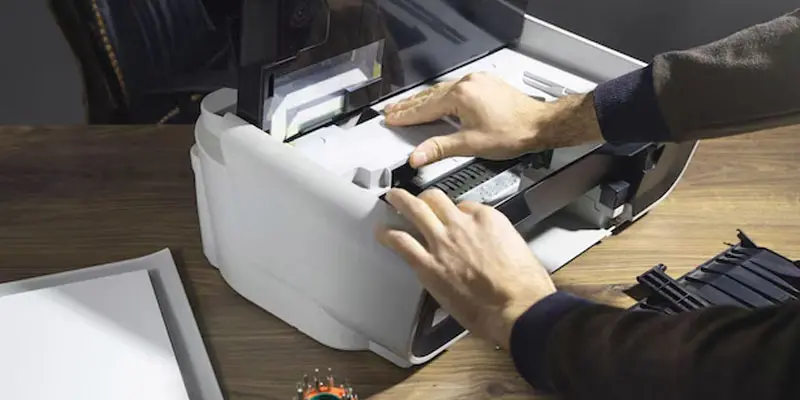
To keep your printer clean, always turn it off and unplug it before starting. Use a clean, dry cloth to gently wipe the printer’s outer surface and remove dust. Open it carefully and clean the inside using a soft, lint-free cloth. For tight spots, use compressed air to blow away hidden dust. Avoid using wet wipes or sprays directly on the printer. A clean printer runs better and gives clear, sharp prints.
Use Quality Toner Cartridges
You should use quality toner cartridges because they help your printer work smoothly and give clear prints. Cheap or fake cartridges can clog the printer and damage important parts. Good-quality toner also keeps your pages looking sharp and professional. It lasts longer and saves you money in the long run. Always choose the toner recommended by your printer’s brand for the best results.
Handle Cartridges Carefully
Handle toner cartridges carefully to avoid damage and mess. Always hold the cartridge from the sides and keep it level. Avoid touching the green roller or drum surface, it’s very sensitive. Store cartridges in a cool, dry place away from sunlight. Shake the cartridge gently before installing to spread the toner evenly. Proper handling keeps your prints clean and your printer in good shape.
Clean the Drum Unit
To clean the drum unit properly, first turn off and unplug your printer. Remove the drum unit carefully and place it on a clean, flat surface. Wipe off any toner or dirt with a lint-free cloth and avoid touching the shiny drum surface. If your printer includes a self-cleaning option, use it for a deeper clean. A clean drum unit helps your printer make sharp and clear prints every time.
Keep the Paper Tray Dust-Free
You should keep the paper tray dust-free to prevent paper jams and poor print quality. Dust and dirt can stick to the paper and get inside the printer. This can cause smudges or uneven printing. Always use clean, dry paper and store it in a cool place. Wipe the paper tray gently with a dry cloth every few days. A clean tray helps your printer work smoothly and print perfectly.
Update Printer Drivers
Updating your printer drivers keeps your printer and computer in sync. It helps fix errors, improves speed, and ensures smooth performance. New updates fix bugs and improve printing speed and quality. Outdated drivers can cause errors or make the printer stop working. You can easily check for updates on the printer brand’s website. Keeping your drivers updated ensures smooth performance and fewer printing problems.
What Common Mistakes Should You Avoid When Using a Laser Printer?
Avoiding common mistakes while using a laser printer helps you keep it in good condition and ensures smooth, high-quality printing every time.
- Using cheap or low-quality toner cartridges.
- Ignoring warning lights or error messages.
- Overloading the paper tray with too many sheets.
- Turning off the printer suddenly while it’s printing.
- Forgetting to clean the printer regularly.
- Not using the printer for a long time can dry out parts.
- Using the wrong type or size of paper.
What Is a Simple Maintenance Schedule for a Laser Printer?
A simple maintenance schedule helps you keep your laser printer in great shape without much effort. Regular care ensures better prints and a longer printer life.
Check your printer daily for dust, paper jams, or warning lights. Wipe the exterior weekly to keep it clean and free from dirt. Once a month, gently clean the inside parts and remove any toner build-up.
Every few months, replace the toner or drum if needed and update your printer drivers. Following this easy schedule keeps your printer running smoothly and saves you from costly repairs.
Conclusion About
A simple maintenance schedule helps you keep your laser printer in great shape without much effort. I personally recommend cleaning it once a week and using only good-quality toner cartridges. It may take just a few minutes, but it saves you money and trouble later. Start your maintenance routine today and enjoy smooth, sharp prints every time.
FAQS
No, laser printers are not hard to maintain. With simple cleaning and regular use, they stay in good shape. Just keep them dust-free and use a good toner. A few minutes of care can make them last for years.
One disadvantage is that laser printers can be more expensive to buy than inkjet printers. They are also a bit heavy and take up more space. But their fast speed and low running cost make up for it.
Yes, laser printers need servicing from time to time. Servicing helps remove dust and toner buildup. It also checks for worn-out parts to keep printing smooth and clear.
Yes, laser printers need toner refills when the cartridge runs out. Unlike ink, toner is a dry powder that lasts longer. Refill or replace it as soon as you see faded prints.
Laser printers are very good for fast and clean printing. They are great for offices or homes that print a lot. The only downside is the higher price, but they save money over time.
Yes, you can turn off your laser printer when it’s not in use. It saves energy and keeps the parts cool. Just make sure it finishes printing before you switch it off.
Laser printers use toner, not liquid ink, so it doesn’t dry up. But if left unused for a long time, toner can settle. Gently shake the cartridge before using it again to fix this.
Yes, toner in laser printers lasts much longer than inkjet ink. You can print thousands of pages with one cartridge. This makes laser printers more cost-effective for regular printing.
When a printer sits unused for too long, the toner can settle, and dust may build up inside. Regular use or light cleaning helps keep it ready for printing anytime. The printer might also show errors when restarted. Try to print at least once a week to keep it active.
To apply toner, remove the old cartridge and shake the new one gently. Insert it carefully into the printer until it clicks into place. Avoid touching the roller and close the printer lid properly. Then, print a test page to check quality.



- Be Respectful
- Stay Relevant
- Stay Positive
- True Feedback
- Encourage Discussion
- Avoid Spamming
- No Fake News
- Don't Copy-Paste
- No Personal Attacks
- Be Respectful
- Stay Relevant
- Stay Positive
- True Feedback
- Encourage Discussion
- Avoid Spamming
- No Fake News
- Don't Copy-Paste
- No Personal Attacks
