Essential Printer Functions That Make Your Work Easier
Published: 4 Mar 2024
Have you ever needed a printed document quickly, but your printer did not work the way you expected? Maybe you wanted to print a school assignment, an office report, or a simple photo. Yet many people only think a printer has one job printing text on paper. In reality, printers can do much more. Understanding the functions of a printer can help you save time, work faster, and get better results from your device.
Many modern printers can print documents, photos, labels, and even scan or copy files. Some printers also allow wireless printing from phones or laptops. This means you can work from almost anywhere without needing cables. But many users do not know how to use these features properly. As a result, they miss out on tools that could make daily tasks easier. Imagine being able to print high-quality images, create copies instantly, or scan documents directly to your computer.
This guide explains the key functions of a printer, how they operate, and how they can make everyday tasks easier. By the end, you will understand how to use your printer more effectively for home, school, or office work.
What are the Key Functions of a Printer and How Do They Work?
Printers are versatile devices that perform a range of tasks to simplify both personal and professional workflows. Here are the key functions of a printer:
- Printing
- Scanning
- Copying
- Faxing
- Wireless Printing
- Dual-Sided Printing
- Borderless Printing
- Print Preview
- Print Management
- Mobile Printing
- Photo printing
- 3D printing
- Cloud printing
- Secure Printing
- Printing from USB Drives
Printing
A printer is a straightforward process for printing documents. One of its primary functions is printing text documents, reports, school assignments, and other written materials. The document you want to print is saved on your computer or mobile device.
Scanning
Scanning documents or photos is a useful feature offered by many printers. Many printers have scanning capabilities, enabling users to digitize documents and images for electronic storage or sharing.

Copying
Many printers offer a suitable feature for copying documents. Could you place the document you want to copy face down on the scanner glass or face up in the automatic document feeder? Printers with copy functions can reproduce documents and images quickly and efficiently without needing a separate copier.
Faxing
Some printers, especially multifunction printers, can fax documents. Some printers have built-in fax machines, allowing users to receive faxes and send them directly from the printer.
Wireless Printing
Wireless printing allows users to print from their computers. Users enjoy the convenience of printing from anywhere within the range of their Wi-Fi network, such as a smartphone, tablet, or other device, without needing physical connections like USB cables.
Dual-Sided Printing
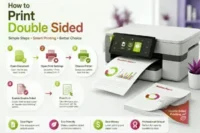
Duplex printing, often double-sided, allows printing on both sides of a paper. With double-sided printing, you can enjoy the convenience of saving paper and creating professional-looking documents. Duplex printers automatically print on both sides of the page, saving time and using less paper.
Borderless Printing
Borderless printing is a feature that allows you to print documents or photos without any white borders around the edges of the paper. Instead, the printed content extends to the edges of the paper, resulting in a seamless and professional-looking printout. Printers with borderless printing capabilities can produce prints without any white borders.
Print Preview
A print is a valuable tool that ensures the accuracy and quality of your printed documents. It allows you to make necessary adjustments before printing, saving time, resources, and frustration. This feature is found in many printing software applications and can significantly improve workflow.
Print Management
Print management is important in optimizing printing resources, controlling costs, enhancing security, and promoting organizational sustainability. By implementing effective print management strategies and tools, organizations can improve efficiency, reduce waste, and achieve greater control over their printing environment.
Mobile Printing
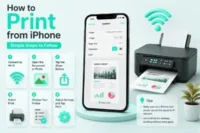
Mobile printing allows users to print easily from their smartphones or tablets, enabling productivity and flexibility in various personal and professional settings. With the increase in mobile devices and wireless technologies, mobile printing continues to evolve and become accessible to users worldwide.
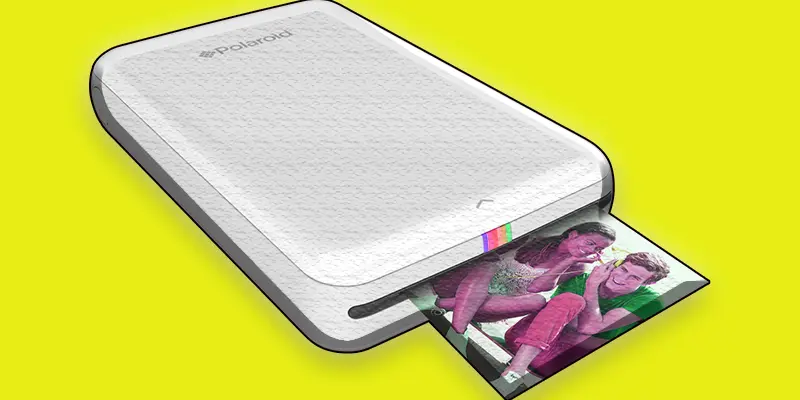
Photo Printing
Photo printing allows you to create high-quality prints of your favorite memories directly from a printer. It’s perfect for personal keepsakes, scrapbooks, or professional photo projects. Many printers now support vibrant, borderless photo printing for stunning results.
Cloud Printing
Cloud printing allows you to print documents and photographs straight from cloud storage services such as Google Drive or Dropbox, without the need for a connected device. It’s a convenient way to print on the go, perfect for both personal and professional use.
3D Printing
3D printing transforms digital designs into physical objects by layering materials like plastic or resin. It’s widely used for prototyping, manufacturing, and creative projects, making innovation accessible to everyone.
Secure Printing
Secure printing ensures that sensitive documents are protected by requiring user authentication before printing. This feature helps prevent unauthorized access and ensures privacy in office environments.
Printing from USB Drives
Printing from USB drives allows you to directly print documents and photos without needing a computer. Simply insert the USB drive into the printer’s port and select the files you want to print. It’s a convenient and quick way to print on the go.
Conclusion
The functions of a printer go far beyond simple document printing. Modern printers can print text and photos, scan files, make copies, and even send documents digitally. These features make printers useful for homes, schools, and offices. When you understand these functions, you can work faster and handle tasks more easily. Whether you need document printing, photo printing, or scanning important files, a printer can support many daily needs. Take a moment to explore the features of your own printer. Learn how each function works and use it to improve your productivity. The more you use these tools, the easier your printing tasks will become.
FAQS
What meaning of printer in a computer?
A printer is a term used in computers to describe a hardware device that prints digital documents, pictures, or photos onto paper. Ink or toner transfers electronic data from a computer or mobile device to paper or other media.
Who is the father of printing?
Johannes Gutenberg is known as the father of printing for inventing the movable type printing press in the 15th century, which made books and documents easier to produce and spread knowledge worldwide.
Who was the first printer in the world?
The first printer in the world was Johannes Gutenberg, who printed the famous Gutenberg Bible around 1455. His innovation allowed the mass production of books, helping people access information faster and more affordably.
Which is the oldest method of printing?
Woodblock printing is the oldest printing method, originating in ancient China. It involved carving text or images on wooden blocks, applying ink, and pressing it onto paper or fabric, making it one of the earliest ways to share information.
What was the first print product?
The first major print product was the Gutenberg Bible, printed around 1455. This beautifully crafted book set the standard for early printed works, showing how printing could preserve knowledge and make reading more accessible for everyone.

- Be Respectful
- Stay Relevant
- Stay Positive
- True Feedback
- Encourage Discussion
- Avoid Spamming
- No Fake News
- Don't Copy-Paste
- No Personal Attacks
- Be Respectful
- Stay Relevant
- Stay Positive
- True Feedback
- Encourage Discussion
- Avoid Spamming
- No Fake News
- Don't Copy-Paste
- No Personal Attacks
