Keyboard Tester | Free Keyboard Key Test Without Downloading Software
Keyboard Tester
Click the button below to instantly test your keyboard and ensure every key is working perfectly.
You have tested 0 key(s):
A Keyboard Tester is a simple online tool that helps you check whether every key on your keyboard is working correctly. If a key is not responding, typing twice, or getting stuck, this tool can quickly identify the problem. Whether you use a laptop, desktop, gaming keyboard, or external keyboard, a fast keyboard test can save time and help you decide whether your keyboard needs cleaning, repair, or replacement.
Our Keyboard Tester is designed to make testing a keyboard easy for everyone. Skip the installation process and account registration. Launch the tool in your browser and begin testing your keyboard with a single key press.
This free online keyboard test works on most modern devices and browsers, making it a convenient solution for students, office workers, gamers, programmers, and anyone who wants to test keyboard performance in just a few seconds.
What is a Keyboard Tester?
A Keyboard Tester is an online utility that checks whether each key on your keyboard is functioning correctly. Instead of guessing which key has stopped working, the tool instantly shows your keystrokes on the screen. It is one of the easiest ways to perform keyboard testing without downloading additional software. When you press a key, the tool detects your input and highlights the corresponding key on a virtual keyboard. This allows you to verify that every letter, number, function key, and special key responds correctly.
Whether you need a quick computer keyboard test before an online exam or want to inspect a gaming keyboard, this tool provides fast and reliable results. Unlike complicated diagnostic software, a browser-based keyboard test web tool works directly in your web browser. Simply visit the page and begin pressing the keys to see instant feedback. Many users also call this tool a keyboard button tester or keyboard key tester because it checks the response of every individual key.
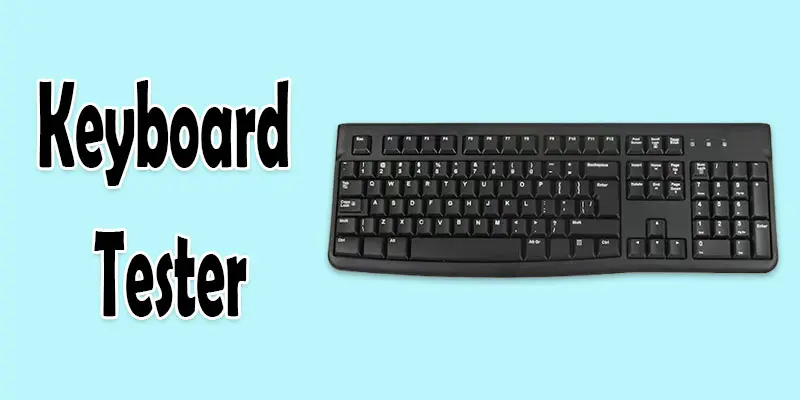
Why Should You Use a Keyboard Tester?
Keyboard problems can appear without warning. Dust, spills, worn-out switches, and driver issues may cause certain keys to stop working or behave unexpectedly. Running a quick keyboard test helps you identify these problems before they become more serious. Here are some common reasons to use our tool:
- Check whether all keys respond correctly.
- Detect stuck or unresponsive keys.
- Verify a newly purchased keyboard.
- Troubleshoot typing problems.
- Test a keyboard before gaming sessions.
- Confirm that every shortcut key works as expected.
Our keyboard tester keys display updates in real time, making it easy to identify faulty buttons. If you’re unsure whether your keyboard hardware is working correctly, a quick keyboard input tester can provide immediate answers. This tool is also useful if you want to perform keyboard keys testing after cleaning your keyboard or replacing individual switches.
How Does a Keyboard Tester Work?
The tool monitors every keystroke you make through your web browser. Each time you press a key, the virtual keyboard highlights the matching button. If a key fails to light up, it may indicate a hardware or software issue. The process is simple:
- Open the Tool: Visit our keyboard tester online page from any modern browser. Since it is a browser-based keyboard tester website, there is no software to install.
- Start Pressing Keys: Press every key one at a time. As you type, the tool records each keystroke and highlights the corresponding button on the virtual keyboard. This real-time keyboard input test makes it easy to confirm whether every key is working correctly.
- Check the Results: If every key lights up, your keyboard is functioning properly. If a key does not respond, the tool helps you quickly identify the issue. Many users choose this keyboard test online solution because it is faster than installing diagnostic software.
- Identify Faulty Keys: The tool can help detect:
- Dead keys
- Sticky keys
- Double typing
- Missing keystrokes
- Delayed input
It also works as a basic keyboard detector test by showing whether your computer recognizes each key press.
Why Choose Our Keyboard Tester?
There are many keyboard testing tools available online, but our tool is designed to be simple, accurate, and user-friendly. With our tool, you can:
- Perform an instant test keyboard keys process without downloading software.
- Use a free online keyboard tester from any device.
- Quickly test my keyboard whenever typing problems occur.
- Verify keyboard performance before work, gaming, or school.
- Test both built-in laptop keyboards and external USB keyboards.
If you want to test my keyboard keys after cleaning your device or check that every key responds properly, our tool gives quick and accurate results within seconds.
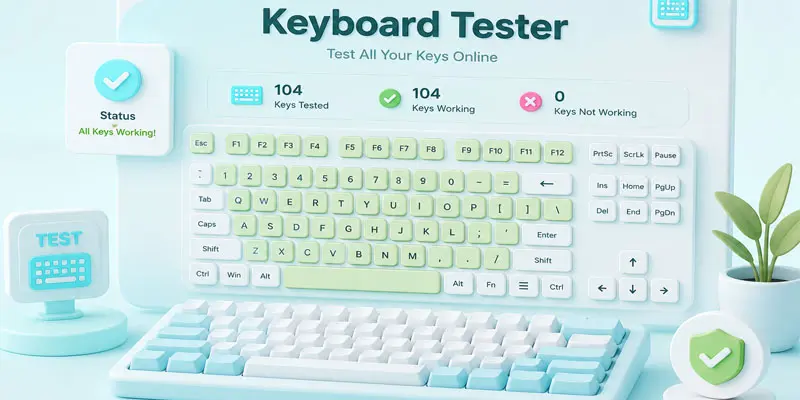
How to Test Your Keyboard Online (Step-by-Step)
Testing your keyboard only takes a few minutes. Our tool is designed to help beginners and professionals check every key without installing software. Follow these simple steps to complete a full keyboard test.
Open Our Keyboard Tester
Open our keyboard testing website in any modern browser, including Google Chrome, Microsoft Edge, Mozilla Firefox, or Safari, and start testing your keyboard instantly. Since it is an online tool, there is no need to download or install anything. Whether you want a quick test for keyboard issues or a complete inspection, simply open the page and get started.
Press Every Key
Start pressing each key one by one. As you type, every working key will light up on the virtual keyboard. This process is useful for testing keyboard keys because it shows exactly which buttons your computer detects. Don’t forget to test:
- Letters (A–Z)
- Numbers (0–9)
- Function keys (F1–F12)
- Arrow keys
- Shift
- Ctrl
- Alt
- Tab
- Enter
- Spacebar
- Backspace
- Caps Lock
- Windows/Command key
If every key responds, your keyboard is working properly.
Test Special Keys
Many users only check letter keys and forget about special buttons. However, these keys are just as important. Use our tool to perform a complete keyboard key test, including:
- Function keys
- Media keys
- Print Screen
- Home
- End
- Insert
- Delete
- Page Up
- Page Down
This helps ensure your entire keyboard works correctly.
Check Multiple Key Presses
Gamers often press several keys at the same time. If your keyboard supports anti-ghosting or N-key rollover, our tool can help verify it. This type of keyboard keystroke test is especially useful for gaming keyboards, where fast and accurate key detection matters.
Look for Missing or Stuck Keys
After pressing every key, check whether any key failed to highlight. Common problems include:
- Dead keys
- Sticky keys
- Keys that type twice
- Delayed input
- Missing keystrokes
Completing this test of keyboard helps you quickly identify hardware problems before they become worse.
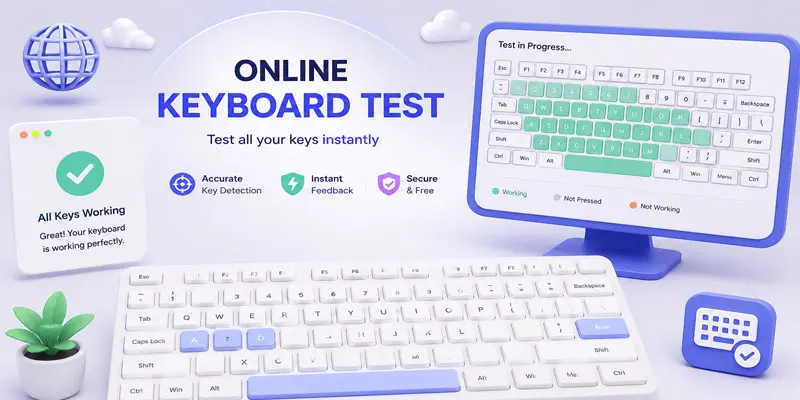
What Features Does Our Keyboard Tester Offer?
Our Keyboard Tester includes everything you need to perform a fast and accurate keyboard check.
| Feature | Benefit |
|---|---|
| Live Key Detection. | Shows every pressed key instantly. |
| Browser-Based Tool. | No installation required. |
| Real-Time Results. | Detects problems immediately. |
| Supports Windows & Mac. | Works across major operating systems. |
| Mobile-Friendly. | Easy to use on different devices. |
| Free Forever. | No hidden charges. |
| Secure Testing. | No personal information collected. |
| Fast Performance. | Instant response while typing. |
Our tool is designed for both casual users and professionals who regularly perform testing keyboards for troubleshooting or maintenance.
What Problems Can a Keyboard Tester Detect?
A keyboard may look fine on the outside while still having hidden issues. Our tool helps you detect these problems before they affect your work or gaming experience.
- Dead Keys
- Stuck Keys
- Double Typing
- Input Delay
- Keyboard Switch Problems
Dead Keys
Dead keys do not respond when pressed. If a key never highlights during testing the keyboard, it may need cleaning, driver updates, or hardware repair.
Stuck Keys
A stuck key stays pressed even after you release it. Dust, food particles, or liquid spills are common causes.
Double Typing
Sometimes a single press registers twice. This issue usually appears because of worn switches or aging keyboards.
Input Delay
If letters appear a few seconds after pressing the key, there may be software or hardware problems. Our tool can help you identify these delays while testing keyboard performance.
Keyboard Switch Problems
Mechanical keyboards contain individual switches beneath each key. A keyboard switch tester helps identify switches that no longer activate correctly. If certain switches fail during the keyboard actuation test, they may need replacement.
Why Our Keyboard Tester Stands Out?
Many websites offer simple keyboard tests, but our tool is designed to provide a smoother experience. With our Keyboard Tester, you can:
- Check every key in real time.
- Test mechanical, membrane, and laptop keyboards.
- Use the tool without registration.
- Enjoy a clean and beginner-friendly interface.
- Access the tool anytime from your browser.
Whether you need a quick keyboards test before an important project or want to test your keyboard keys after a repair, our tool gives fast and accurate results.
What are the Benefits of Using Our Keyboard Tester?
Testing your keyboard regularly can help prevent typing problems and improve productivity. Here are some of the biggest advantages of using our tool.
- Fast and Easy to Use: There is no software to install or account to create. Open the website, press your keys, and view the results instantly.
- Works Directly in Your Browser: Since our tool is web-based, you can use it from almost any modern browser without downloading additional programs.
- Free for Everyone: Our Keyboard Tester is completely free to use. You can test your keyboard as many times as you like without paying any fees.
- Detects Problems Early: Small keyboard issues often become bigger problems over time.
- Regular testing helps you identify:
- Dead keys
- Sticky keys
- Double typing
- Missing keystrokes
- Slow response
- Compatible with Multiple Operating Systems: Our tool works on:
- Windows
- macOS
- Linux
- ChromeOS
Are there Any Limitations of an Online Keyboard Tester?
Although an online Keyboard Tester is very useful, it also has a few limitations.
- It Cannot Repair Your Keyboard: The tool can identify problems, but it cannot fix damaged hardware.
- It Cannot Detect Internal Hardware Damage: If your keyboard has a damaged cable, broken circuit, or faulty controller, you may need professional repair.
- Browser Access Is Required: Since this is an online tool, you need a supported web browser to use it.
- Some Multimedia Keys May Behave Differently: Certain keyboards include custom shortcut keys that work only with manufacturer software.
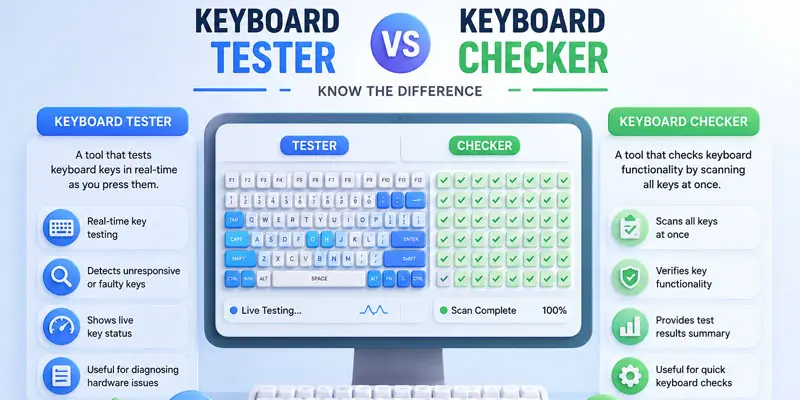
What is the Difference Between a Keyboard Tester and a Keyboard Checker?
Many people think a Keyboard Tester and a Keyboard Checker are the same. While both help evaluate your keyboard, there are some important differences.
| Feature | Tester | Checker |
|---|---|---|
| Detects every key | Yes | Basic support |
| Real-time key highlighting | Yes | Sometimes |
| Detects stuck keys | Yes | Limited |
| Checks gaming keyboards | Yes | Not always |
| Browser-based | Yes | Depends on the tool |
| Easy for beginners | Yes | Yes |
How Can You Keep Your Keyboard Working Properly?
A keyboard can last for years if you take proper care of it. These simple tips can help improve its lifespan.
- Clean Your Keyboard Regularly: Dust, crumbs, and dirt often collect beneath the keys. Clean away dust and dirt by using a can of compressed air or a gentle cleaning brush.
- Keep Liquids Away: Water, coffee, and other drinks are among the most common causes of keyboard failure. Always keep liquids away from your workspace.
- Handle Your Keyboard Gently: Avoid pressing keys with excessive force, especially on laptop keyboards. Gentle typing helps reduce wear on the switches.
- Update Keyboard Drivers: Outdated drivers may cause typing issues or delayed input. Keep your operating system and drivers up to date.
- Test Your Keyboard Regularly: Running a quick keyboard test every few weeks helps you detect problems before they interrupt your work or gaming sessions.
Start Testing Your Keyboard Today
Don’t let a faulty key slow you down. Open our free Keyboard Tester and check every key in just a few clicks. Whether you’re working, studying, gaming, or programming, our tool gives you fast, accurate, and reliable results anytime you need them.
👉 Start your keyboard test now and make sure every key works perfectly!
Final Thoughts
A Keyboard Tester is a fast and reliable way to make sure every key on your keyboard works properly. It quickly detects common issues like unresponsive, stuck, or double-typing keys, helping you troubleshoot problems before they get worse. Whether you use a laptop, desktop, or gaming keyboard, our free online Keyboard Tester lets you check your keyboard anytime quickly, accurately, and without any downloads.
FAQs
You can test keyboard keys online using a free keyboard tester tool. Simply open the tool in your browser and press each key to see if it’s working. The real-time key press checker will highlight working keys instantly.
Yes, you can test your laptop keyboard without software by using a browser-based tool. Just visit a test page, and it will let you test all keys instantly—no downloads needed.
Absolutely. Many tools are optimized for mechanical keyboards. A mechanical keyboard key press tester can check actuation, responsiveness, and multiple key presses simultaneously.
Use a real-time keyboard tester and press each key one by one. If a key doesn’t show up on the screen, it is likely a dead key and may need repair or replacement.
Yes, online keyboard testers support ghosting tests. Just press multiple keys at once. If all are detected correctly, your keyboard supports full key rollover—great for gaming.
