How to Check for Malware on the Mac | Easy Tips
Published: 15 Jun 2026
Have you noticed your Mac running slower than usual? Are strange pop-ups appearing on your screen, or is your browser opening pages you never asked for? Many people believe Macs are completely safe from cyber threats. The truth is that malware can still affect a Mac and cause problems.
It may reduce your device speed, monitor what you do online, or even expose your personal information to danger. The good news is that you do not need to be a tech expert to find and remove these threats. Knowing how to detect malware on a Mac lets you notice early warning signs and helps you maintain your device’s performance and safety.
A quick security check can save you time, protect important files, and improve your Mac’s performance. In this guide, you’ll discover easy ways to spot unusual behavior, use Mac security features, and check your system for any harmful programs. By the end, you will know exactly what to look for and how to keep your Mac safe from malware.
What is Malware on a Mac?
Malware on a Mac is harmful software designed to damage your device, steal information, or perform unwanted actions without your permission. The word “malware” stands for malicious software and includes threats such as viruses, spyware, adware, ransomware, and Trojan horses. Although Macs have strong built-in security features, they are not completely immune to cyber threats.
Malware can enter your system through fake downloads, unsafe websites, email attachments, or suspicious links. For example, you might install a free app that secretly displays unwanted ads or tracks your online activity. Some Mac malware can slow down your computer, change browser settings, or collect personal data. Understanding these threats is the first step toward better Mac security and safer browsing habits.
How to Check for Malware on Mac? (Step-by-Step Guide)
Checking your Mac for malware helps you find hidden threats early, protect your personal data, and keep your device running smoothly.
- Check Activity Monitor
- Review Installed Applications
- Inspect Login Items
- Check Browser Extensions
- Review Security & Privacy Settings
- Look for Unusual System Behavior
- Check Storage for Unknown Files
- Use XProtect
- Verify Gatekeeper Settings
- Run Apple’s Malware Removal Tool (MRT)
- Scan with Trusted Antivirus Software
- Check Network Activity
- Review Browser Homepage and Search Settings
- Update macOS and Security Definitions
- Perform a Full System Malware Scan
- Remove Suspicious Apps and Files
- Restart and Re-scan Your Mac
- Monitor for Recurring Malware Symptoms
- Check for Unauthorized User Accounts
- Review System Permissions and Access Rights
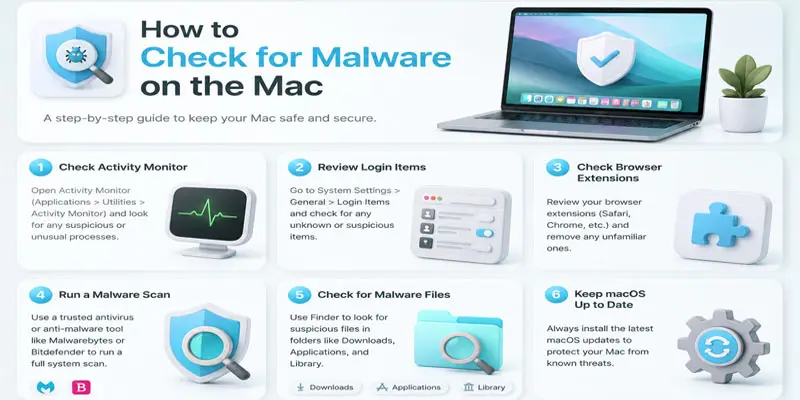
Check Activity Monitor
Activity Monitor helps you see what programs are running on your Mac. Open it and look for apps using a lot of CPU or memory. If you notice an unknown or suspicious process, it could be a sign of malware. Research unfamiliar apps before taking action or removing them.
Review Installed Applications
Open the Applications folder and look through the apps installed on your Mac. Check for programs you do not remember downloading or using. Suspicious or unwanted apps may be a sign of malware. Remove any application that looks unfamiliar or unnecessary.
Inspect Login Items
Login Items are programs that open on their own when you start up your Mac. Check this list for programs you do not recognize or use. Unknown startup apps can sometimes be linked to malware. Remove any suspicious items to improve security and performance.
Check Browser Extensions
Open your browser settings and review all installed extensions. Look for add-ons that you do not remember installing. Some harmful extensions can change browser settings or show unwanted ads. Remove any extension that seems suspicious or unnecessary.
Review Security & Privacy Settings
Open Security & Privacy settings on your Mac and check which apps have access to your data. Look at permissions for the camera, microphone, and files. If an unknown app has access, remove its permission. This helps keep your personal information safe from potential malware.
Look for Unusual System Behavior
Pay attention to how your Mac is working. If it suddenly becomes slow, freezes often, or shows many pop-up ads, malware could be the cause. Strange browser redirects or apps opening by themselves are also warning signs. These issues should be checked as soon as possible.
Check Storage for Unknown Files
Review your Mac’s storage and look for files you do not recognize. Malware can sometimes create hidden or unusual files on your system. If you find suspicious files that you did not download, investigate them carefully. Removing unwanted files can help keep your Mac clean and secure.
Use XProtect
XProtect is Apple’s built-in security tool that helps detect known malware on your Mac. It runs quietly in the background and doesn’t need any setup or manual installation. Make sure your macOS is up to date so XProtect can receive the latest security updates. This helps protect your Mac from common threats.
Verify Gatekeeper Settings
Gatekeeper helps protect your Mac by blocking unsafe or untrusted apps. Open your security settings and make sure Gatekeeper is enabled. It allows apps only from trusted developers and verified sources. This helps lower the chance of malware getting installed on your Mac.
Run Apple’s Malware Removal Tool (MRT)
Apple’s Malware Removal Tool (MRT) helps remove known malware from your Mac. It works automatically in the background as part of macOS. Keep your Mac updated to ensure MRT has the latest threat information. This provides an additional level of safety against malicious software.
Scan with Trusted Antivirus Software
Use a trusted antivirus program to scan your Mac for malware. A full system scan can find harmful files that may be hidden. Follow the software’s instructions to remove any detected threats. Regular scans help keep your Mac safe and secure.
Check Network Activity
Check your Mac’s network activity to see which apps are using the internet. If an unknown program is sending or receiving a lot of data, it may be suspicious. Unusual network usage can be a sign of malware running in the background. Investigate any app that looks unfamiliar.
Review Browser Homepage and Search Settings
Check your browser settings to make sure your homepage and search engine are correct. Malware can change them without your permission. If you see a different website or search tool, reset it to your preferred settings. This helps stop unwanted redirects and keeps your browsing safe.
Update macOS and Security Definitions
Keep your macOS updated to get the latest security fixes from Apple. Updates also improve built-in protection against malware. Make sure automatic updates are turned on for safety. Regular updates help close security gaps and keep your Mac protected.
Perform a Full System Malware Scan
Perform a complete system scan with reliable antivirus software on your Mac to detect threats. This scan checks all files, apps, and system areas for hidden malware. It may take some time, but it gives a complete security check. Remove any threats found to keep your Mac safe.
Remove Suspicious Apps and Files
Delete any apps or files that look unknown or suspicious on your Mac. Move unnecessary apps to the Trash, then clear it to remove them completely. Be careful and check before deleting anything important. Removing harmful items helps stop malware and improves your Mac’s performance.
Restart and Re-scan Your Mac
Restart your Mac after removing suspicious files or apps. This helps clear temporary changes made by malware. After rebooting, run another scan using trusted security software. It ensures your Mac is fully clean and safe from hidden threats.
Monitor for Recurring Malware Symptoms
Keep an eye on your Mac after cleaning it. Watch for slow performance, pop-ups, or unknown apps returning. These signs may mean malware is still present. Regular checks help you catch problems early and keep your Mac safe.
Check for Unauthorized User Accounts
Open your Mac’s user settings and look at all user accounts. Make sure every account belongs to you or someone you trust. Unknown accounts can be a sign of malware or unauthorized access. Remove any suspicious user accounts to keep your Mac secure.
Review System Permissions and Access Rights
Review the apps that are allowed to use your Mac’s features and system access. Look at access for the camera, microphone, files, and location. If any unknown app has access, remove its permission right away. This helps protect your privacy and reduce malware risks.
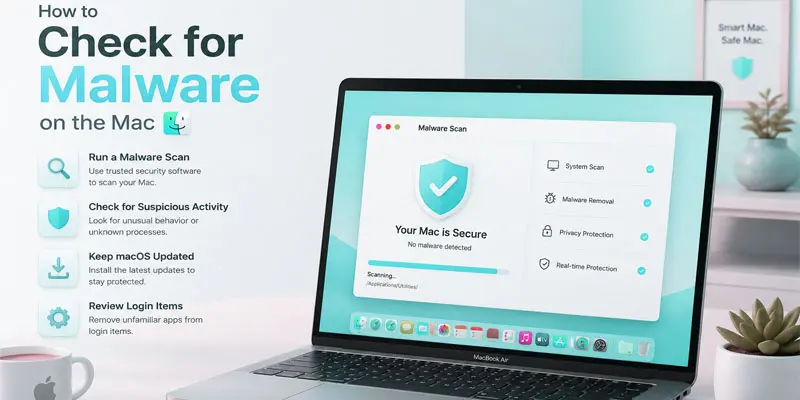
What are the Signs Your Mac May Have Malware?
If your Mac starts acting strangely, it may be a sign of malware. Many users ignore small changes, but early detection is very important for Mac security. Malware can slow down your system, steal data, or show unwanted ads. Here are common malware symptoms on Mac you should watch for:
- Your Mac becomes slow, even when you are not running heavy apps.
- You see too many pop-up ads while browsing or using apps.
- Unknown apps appear in your Applications folder.
- Your browser homepage or search engine changes without permission.
- Web pages keep redirecting to strange or unsafe sites.
- Your Mac fan runs loudly even during light use.
- You notice high CPU or memory usage in Activity Monitor.
- Files or settings change without your action.
Can Macs Get Malware?
Yes, Macs can get malware, even though they are known for strong security. Many people think Mac computers are fully safe, but this is not true. Cyber threats like adware, spyware, and Trojan horses can still enter macOS through unsafe downloads, fake apps, or phishing emails. For example, downloading a free cracked software file from an unknown website can install hidden malware on your Mac.
Once inside, it may slow your system, show pop-up ads, or track your activity. Apple provides built-in protection like Gatekeeper and XProtect, but no system is 100% safe. That is why learning Mac security tips and safe browsing habits is very important for every user.
How Do You Use Built-In Mac Security Features?
Your Mac already comes with built-in security tools that help protect you from malware. You do not need to install anything extra to use them. These features work in the background to keep your system safe. Here is how you can use them:
- Keep macOS updated to get the latest security patches and protection tools.
- Enable Gatekeeper to block apps from unknown or untrusted developers.
- Use XProtect, which automatically scans and removes known malware.
- Turn on the Firewall to block unwanted network connections.
- Allow only trusted apps from the App Store or verified developers.
How Do You Scan Your Mac With Antivirus Software?
Scanning your Mac with antivirus software is a simple way to find and remove hidden malware. First, install a trusted antivirus tool from a safe source. Open the app and select the “Full Scan” option. The software will check your files, apps, and system for threats.
For example, if your Mac is showing pop-up ads or running slowly, a scan can help find the problem. After the scan, follow the instructions to remove any detected malware. Regular scanning improves Mac security and supports better malware protection on macOS. It also helps keep your system clean, fast, and safe from future attacks.
How Can You Protect Your Mac From Future Malware?
Protecting your Mac from future malware is easy if you follow simple daily habits. These steps help improve Mac security and reduce the risk of threats like adware, spyware, and phishing attacks. Here are simple ways to stay safe:
- Keep your macOS updated to get the latest security fixes and malware protection.
- Get your apps only from the App Store or other safe and trusted websites.
- Stay away from suspicious links in emails, messages, and pop-up ads.
- Use a strong password and turn on two-factor authentication.
- Enable the Mac firewall to block unwanted network access.
- Remove unused browser extensions to avoid hidden tracking tools.
- Run regular malware scans using trusted antivirus software.
- Back up your important files using Time Machine or cloud storage.
What are the Common Mistakes Mac Users Should Avoid?
Many Mac users make small mistakes that increase the risk of malware and slow performance. Avoiding these mistakes can improve Mac security and protect your personal data from threats like adware, spyware, and phishing attacks. Here are common mistakes you should avoid:
- Ignoring macOS updates and security patches.
- Downloading apps from unknown or unsafe websites.
- Opening unsafe links in emails or pop-up ads can put your device at risk.
- Keeping too many unused browser extensions installed.
- Using simple or weak passwords makes it easier for others to guess your accounts.
- Skipping regular malware scans on Mac.
- Giving unknown apps full access to system settings.
- Not checking login items for hidden startup programs.
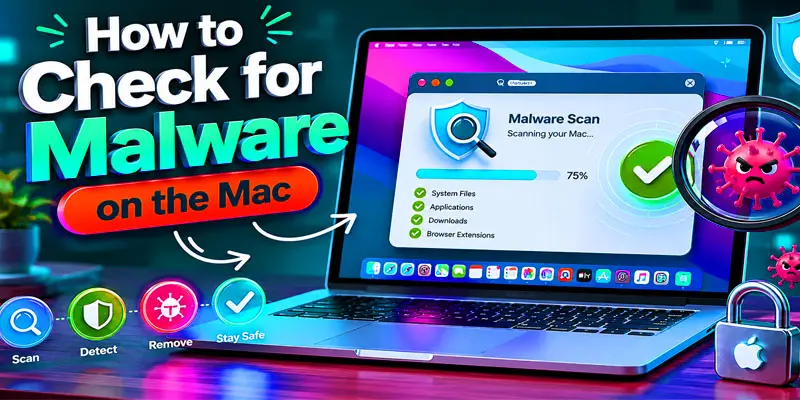
Final Thoughts
Checking your Mac for malware is a simple way to protect your data and improve performance. Watch for malware symptoms, review installed apps, and use trusted security tools when needed. Regular mac malware removal checks and smart mac security habits can reduce risks. Follow these macOS security tips, stay alert, and take action today to keep your Mac safe and running at its best.
FAQs
How do I scan my Mac for malware?
You can scan your Mac for malware by using trusted antivirus software. Run a full system scan to check files, apps, and system areas. This helps detect hidden threats early and improves overall Mac security and performance.
How do I clean my Mac from malware?
You clean your Mac from malware by deleting suspicious apps, removing browser extensions, and running a trusted antivirus scan. Restart your Mac afterward. This process helps remove hidden threats and restores smooth, safe system performance.
Does Mac have built-in malware scan?
Yes, Mac has a built-in malware scan called XProtect and MRT. These tools run automatically in the background to block known threats. Keeping macOS updated ensures better protection and stronger macOS security without extra effort.
What are signs my Mac has been hacked?
Signs your Mac has been hacked include slow performance, pop-up ads, unknown apps, and browser changes. You may also see unusual activity in Activity Monitor. These warning signs need quick action to protect your data and privacy.
Do MacBooks get hacked easily?
MacBooks are not easily hacked, but they are not 100% safe. Malware and phishing attacks can still affect them. Safe browsing, regular updates, and Mac security tips help reduce risks and keep your device protected.





- Be Respectful
- Stay Relevant
- Stay Positive
- True Feedback
- Encourage Discussion
- Avoid Spamming
- No Fake News
- Don't Copy-Paste
- No Personal Attacks
- Be Respectful
- Stay Relevant
- Stay Positive
- True Feedback
- Encourage Discussion
- Avoid Spamming
- No Fake News
- Don't Copy-Paste
- No Personal Attacks
